

Appearance
Date range filter
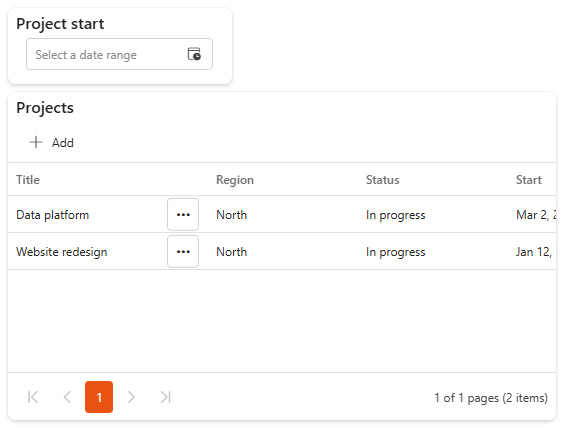
A Date Range Filter lets viewers filter the dashboard by a period. Viewers pick a start and an end date in a calendar, or a ready-made period such as Last 7 days or This month, and the widgets it applies to show only the items in that period.
For example, a Date range filter on the Close date column of a sales list shows the sales closed this quarter.
Filtering by one day?
For a single date, such as today, use the Date filter.
The widgets need date data
A Date range filter only affects widgets that use the same data source as the filter, and that data source must have a date column. Items with no date are never shown while the filter has a value.
Add a date range filter
- Make sure the data source exists and is already used by a widget on the dashboard.
- Open the dashboard in edit mode.
- In the Widgets pane, open the Filters tab and drag Date Range Filter onto the dashboard. Resize it.
- Select the filter and set its properties, see Settings.
- Open the Assign Data tab and click Choose data source.
- Under Fields, choose the Column: a date field, for example Close date.
- Under Applies to, choose the widgets the filter affects. Only widgets on the same data source are listed.
- Optionally, set a Default value, see below.
- Click Save & Exit.
Pick a period on the dashboard
Viewers click the filter to open the calendar. They can:
- click a start date and an end date,
- or pick a ready-made period from the list next to the calendar: Today, Last 7 days, Last 10 days, Last 14 days, Last 30 days, and Last, This or Next week, month, quarter or year.
The X in the filter clears it, so the widgets show all the items again.
Set a default value
The default value is the period the filter shows when the dashboard opens.
| Setting | What it does |
|---|---|
| Use preset | On: the default period is relative to the day the dashboard is opened. Choose the Preset, see below. |
| Range | With Use preset off: a fixed start and end date that stay the same whenever the dashboard is opened. |
The presets are grouped in the Preset drop-down:
| Group | Presets |
|---|---|
| Days | Today, Last 7 days, Last 10 days, Last 14 days, Last 30 days |
| Weeks | Last week, This week, Next week |
| Months | Last month, This month, Next month |
| Quarters | Last quarter, This quarter, Next quarter |
| Years | Last year, This year, Next year |
| Relative to today | Before today, After today, Today and before, Today and after |
Open-ended defaults
The presets under Relative to today have only one end, so they are handy for overdue or upcoming items:
| Preset | Shows items dated | On the dashboard, for example |
|---|---|---|
| Before today | before today | Before Oct 28, 2026 |
| After today | after today | After Oct 28, 2026 |
| Today and before | today or earlier | On or before Oct 28, 2026 |
| Today and after | today or later | On or after Oct 28, 2026 |
For example, a Date range filter on Due date with Before today opens the dashboard on the overdue tasks.
These presets are only available as a default value: viewers don't see them in the list next to the calendar. When a viewer picks a period, it replaces the default, and the X clears it.
Advanced data filtering
Advanced
Most dashboards don't need these settings. They're for large data sources that are filtered before loading, set up by whoever manages the data source or the SQL database.
Show the advanced settings
For SharePoint and MS SQL data sources, the filter can pass the selected period to the data source, so the data is filtered before it is loaded:
| Setting | What it does |
|---|---|
| Backend filtering | Passes the selected period to the data source filter named in Parameter name. That filter must allow a dashboard override. See Backend filtering, step by step. |
| Parameter name | The parameter name of that data source filter. |
| Stored procedure parameter | MS SQL only, under SQL settings: passes the start and end date to the stored procedure as @Name_start and @Name_end, see MS SQL. |
With an open-ended default, a stored procedure still gets both parameters: the open end is sent as 1900-01-01 or 2079-06-06, so procedures that use BETWEEN @Name_start AND @Name_end work without changes. Items dated after 2079-06-06 are not returned by the procedure.
Settings
The Properties tab has the common Title, Subtitle, Description (shown as a tooltip), Icon and Title Alignment settings, Security Settings, and Look & Feel (Elevated Border, Background Color, Hide on Mobile). See the Common settings.
Basic Settings
| Setting | What it does |
|---|---|
| Label | Text shown above the date range picker. |
| Read Only | Viewers see the period but can't change it, so they only see data for the default value. |
| Hidden | Hides the filter on the dashboard. Its default value still filters the widgets. |
Related
- Filtering guide: which filter to use when.
- Date filter: filter by one date.
- Data source filter: filter by date before the data is loaded.