

Appearance
Import / export an app
A Sintel BI app is a package of dashboards, their data sources and, if you want, lists, groups and settings. Export it from one site and import it into another, so you can build an app on a test site and put it live on a production site when it's ready. This is how you deploy an app, move it from test to production, or migrate it to another site.
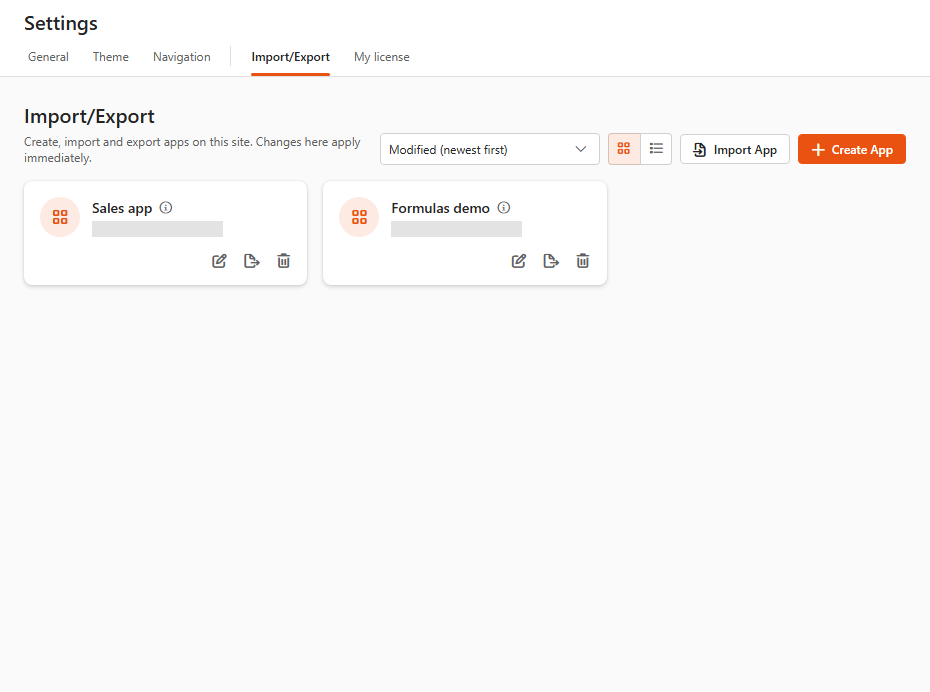
What an app can contain
- Dashboards. All the data sources they use are included automatically.
- Custom dashboards, with their same-site script and CSS files.
- Additional lists: lists that aren't used as a data source or lookup list but that the app needs.
- List data: the items of selected lists.
- Additional groups: extra SharePoint groups from the site. The site's default Owners, Members and Visitors groups can't be exported.
- Settings: General, Theme, Navigation, SharePoint site look and Permissions.
A branding template
To give all your apps the same look, create an app that contains only settings (Theme, Navigation, General). Import it into every new app site to start from a common theme and navigation.
Why use app templates
- Test before going live. Change the app on a test site, export it and import it into production, overwriting the old version.
- Build for others. Partners can design and test apps in their own tenant and send the finished app to the customer to import.
- Get help. If an app has a problem, export it and send it to your partner or Sintel so they can reproduce it.
Create and export an app
- Open Settings at the bottom of the left navigation and select the Import/Export tab.
- Click Create App. The Sintel App dialog opens.
- Enter a Title and, optionally, a Description.
- Under Content to export, pick the Dashboards to include. All the data sources they use are added for you.
- Optionally pick Custom Dashboards, Additional Lists, List data to export and Additional Groups.
- Under Settings to include, tick the settings the app should carry (see the table below).
- Check the summary at the bottom (This app will export ... items, with Show details), then click Save.
- On the app's tile, click Export. Sintel BI checks the app and downloads it as a file.
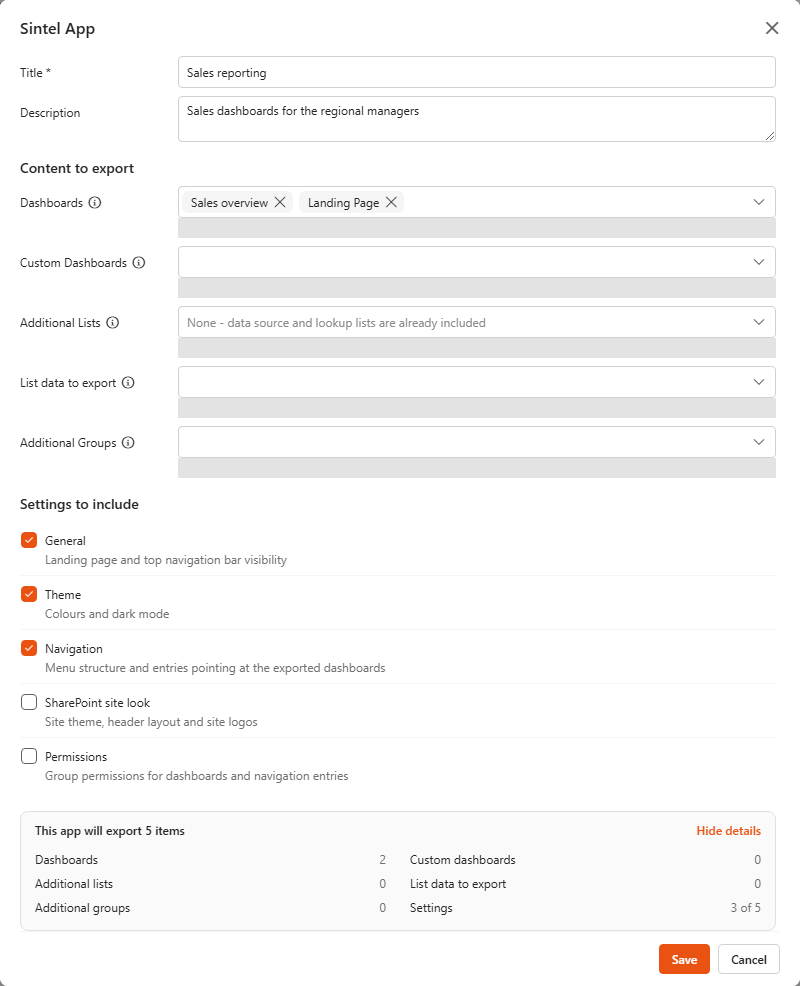
| Setting to include | What it carries |
|---|---|
| General | Landing page and top navigation bar visibility. |
| Theme | Colours. |
| Navigation | The menu structure, and the entries pointing at the exported dashboards. |
| SharePoint site look | The site's theme, header layout and logos. |
| Permissions | Group permissions on dashboards and navigation entries, see App template permissions. |
You can edit or remove an app at any time with the icons on its tile. Remove only deletes the app definition. Remove app with dashboards also deletes the dashboards in it.
What can be exported
Only dashboards that use local data (This Site), MS SQL and Excel data sources can be exported. Lists and list data are exported through Sintel Apps, so they need Sintel Apps on the site.
If the export finds a problem, an Export validation error dialog lists it. See Export: outdated data sources and Export: error.
Import an app
- Open Settings > Import/Export.
- Click Import App and pick the app file (
.sintelappor.sintelappzip). - The Import summary opens. It lists the dashboards, data sources, lists, files and settings the import will create or change. Each item is marked New or Will be modified; lists that already exist are marked as existing, with their data kept.
- Choose the options for files and data, if the app contains them:
- Overwrite existing files: replaces files that already exist on the site with the versions in the app.
- Import list data: imports the items of the lists in the app.
- Click Import.
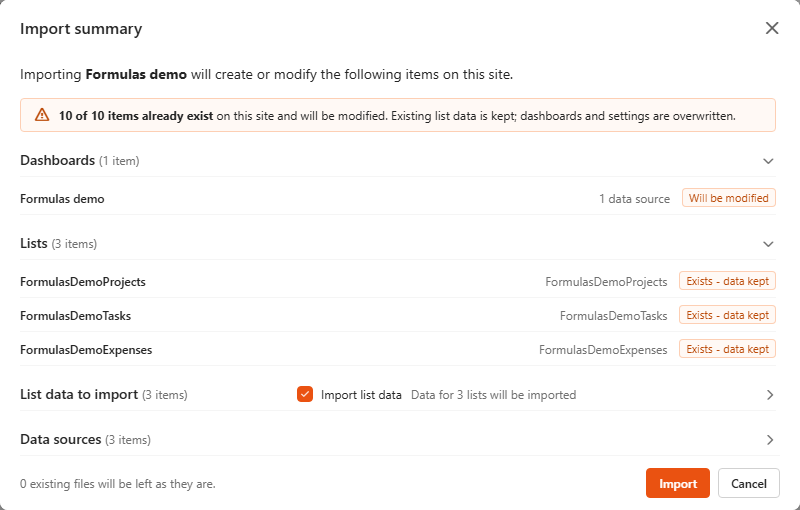
When items already exist on the site, a banner says how many will be modified. Existing list data is kept; dashboards and settings are overwritten.
If the app includes additional groups, the import re-creates them on the destination site. A group that already exists with the same name is reused. Group members aren't part of the app, so add them on the destination site.
MS SQL and Excel data sources
Connection details aren't part of the app file. The first time you import an app to a site:
- MS SQL data sources are created without a connection string or query.
- Excel data sources are created without a file.
Their columns and settings are imported, but they show no data until you reconnect them. When you import the same app to the same site again, Sintel BI recognises the data sources from the previous import and keeps their existing connections.
After the first import
- Open each MS SQL data source and enter the connection string for this environment, then pick the table or re-enter the query. See MS SQL.
- Open each Excel data source and pick the file. See Excel.
- Add members to the groups the import created.
- Open the dashboards and check they show data and that the right people can see them.
Try it
The demo app is a ready-made app you can download and import to see the whole process.