

Appearance
Pivot grid
A Pivot Grid summarises data in a cross-tab: one or more fields down the side (Rows), one or more across the top (Columns), and totals, counts or averages in the cells (Values).
Pivot grids are useful with large amounts of data. You can arrange the grid so that the information is shown in a simple, meaningful layout, for example calories per food, broken down by food group.

You need at least one value. Rows and columns are optional, but a pivot grid usually has at least one of each. Before you add one, create the data source it will summarise.
Add a pivot grid
- Open the dashboard in edit mode.
- In the Widgets pane, open the General tab and drag Pivot Grid onto the dashboard. Resize it.
- Select the pivot grid. On the Properties tab, give it a Title and, if you like, a Subtitle, Description and Icon (see the Common settings).
- Choose where the Grand Totals go, see Settings.
- Open the Assign Data tab, click Choose data source and pick the data source.
- Add the fields to Values, Rows and Columns, see below.
- Click Save & Exit.
Assign the fields
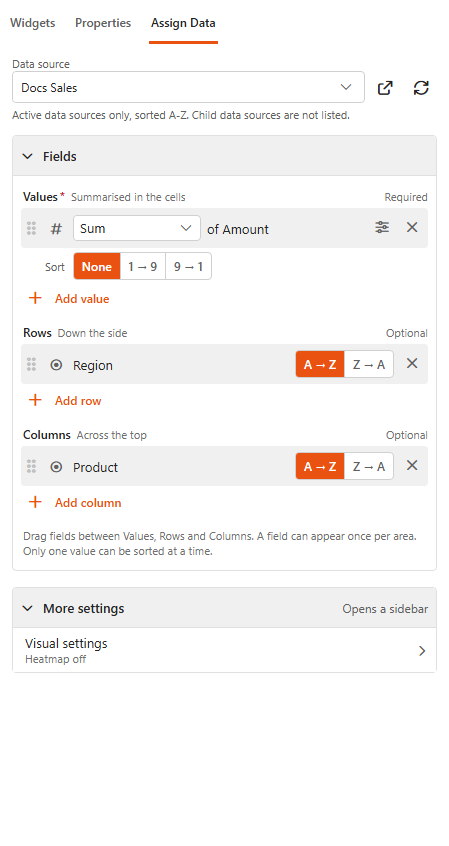
The Fields section on the Assign Data tab has three areas:
| Area | What it holds |
|---|---|
| Values (required) | The figures summarised in the cells. Pick how each is calculated: Sum, Count, Average, Unique Count, Max or Min (text fields: Count or Unique Count). |
| Rows | Fields shown down the side. |
| Columns | Fields shown across the top. |
- Click Add value, Add row or Add column and pick a field.
- Drag fields between the three areas, or up and down to change their order. A field can appear once per area.
- Use the sort toggle on a field to sort its rows or columns. Only one value can be sorted at a time.
- Click the settings icon on a value to open its Field Settings: Header Text, Min Decimal Places / Max Decimal Places for numbers, and Color Mappings that colour the cells by value range.
Add a filter for large pivot grids
When a pivot grid holds a lot of data, add a Dropdown filter next to it, for example on Food group, so viewers can narrow it down.
Settings
Basic Settings
| Setting | What it does |
|---|---|
| Grand Totals | Where totals are shown: Columns and Rows, Columns, Rows or None. Choose None when totals make no sense, for example for a grid of calories per food. |
| Wrap Text | Long text wraps onto several lines. |
| First Column Width | Width of the first (row header) column in pixels. Default 200. |
| Enable excel export | Lets viewers export the pivot grid to Excel. |
Visual settings
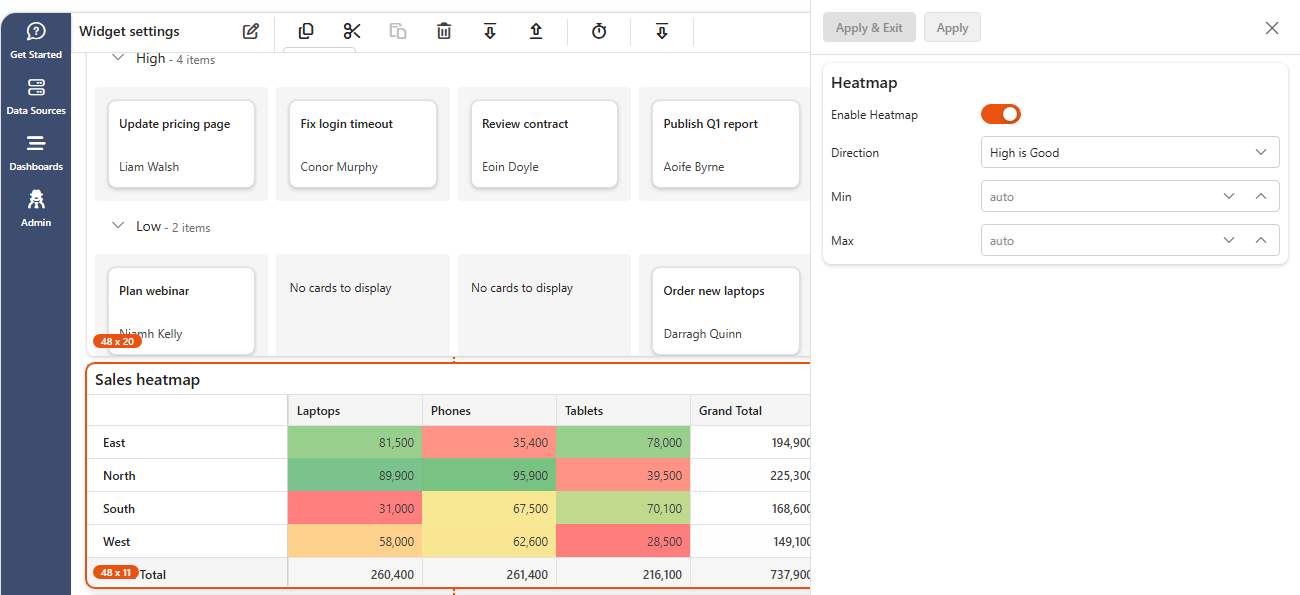
On the Assign Data tab, open More settings > Visual settings to colour the cells as a heatmap.
| Setting | What it does |
|---|---|
| Enable Heatmap | Colours each cell by its value. |
| Direction | High is Good or Low is Good: which end of the scale is shown as good. |
| Min / Max | The values at the ends of the colour scale. Empty (auto) uses the lowest and highest value in the grid. |
Related
- Grid: show the rows themselves.
- Aggregated fields: calculate one value over all rows in the data source.