

Appearance
Summary card
A Summary Card is the KPI card of Sintel BI: it shows one key figure in large type, such as the number of open tickets or the total of this year's sales. You can compare it with a target and make the card a link to more detail.
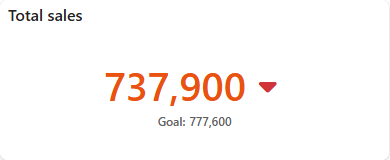
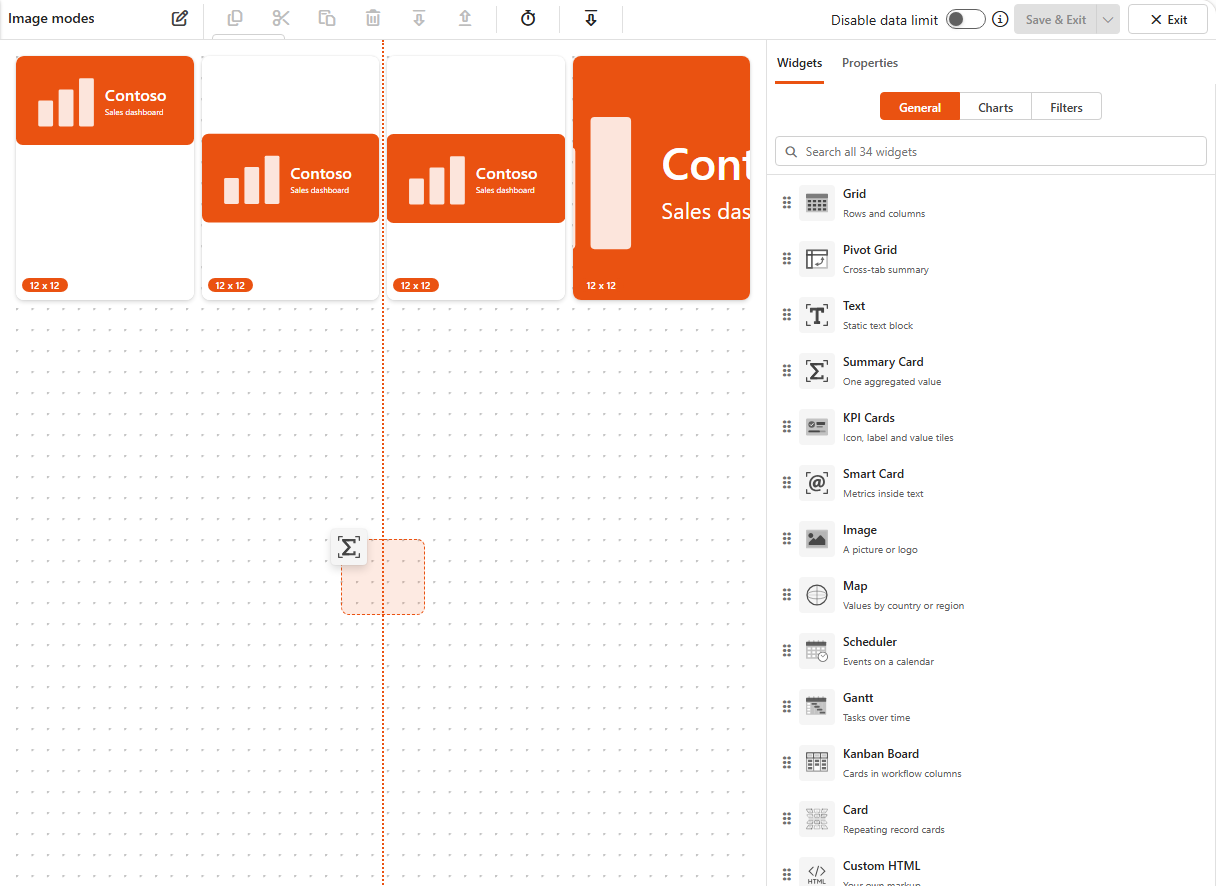
Add a summary card
- Make sure the data source exists.
- Open the dashboard in edit mode.
- In the Widgets pane, open the General tab and drag Summary Card onto the dashboard. Resize it.
- Select the card. On the Properties tab, give it a Title and, if you like, a Subtitle, Description and Icon (see the Common settings). Choose the Title Alignment (left, centre or right).
- Under Look & Feel, give it an Elevated Border or change the Background Color.
- Open the Assign Data tab, click Choose data source and pick the data source.
- Choose the Value, and optionally a Target and Text, see below.
- Click Save & Exit.
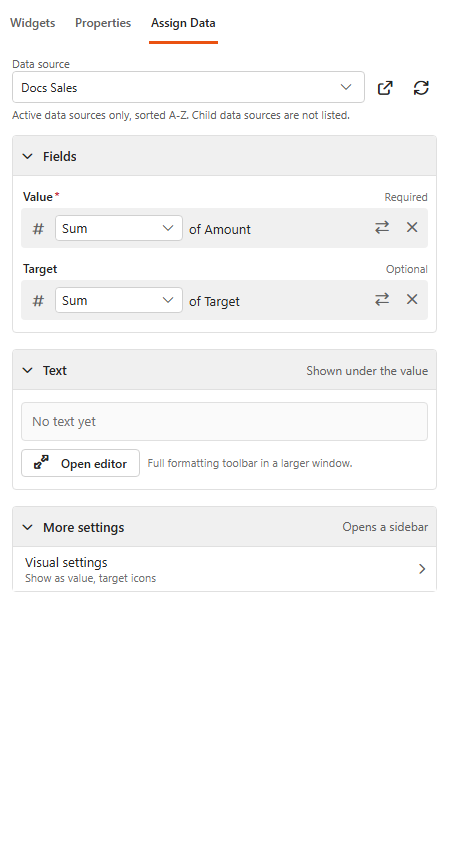
Assign the data
| Field | What it does |
|---|---|
| Value (required) | The figure to show. Choose how it is calculated: Sum, Count, Average, Unique Count, Max or Min (text fields: Count or Unique Count). |
| Target | A second figure to compare the value with, for example a budget or a goal. |
| Text | Text shown under the value. Click Open editor for the full formatting toolbar. |
Value settings
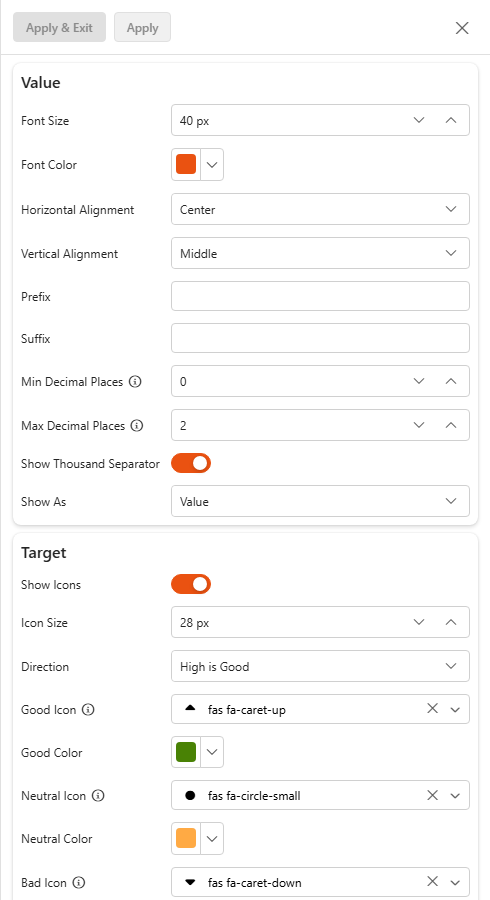
Under More settings > Visual settings on the Assign Data tab:
Value
| Setting | What it does |
|---|---|
| Font Size | Size of the value. Default 40 px. |
| Font Color | Colour of the value. |
| Horizontal Alignment | Left, Center (default) or Right. |
| Vertical Alignment | Top, Middle (default) or Bottom. |
| Prefix / Suffix | Text before or after the value, for example € or tickets. |
| Min Decimal Places / Max Decimal Places | How many decimals are shown. |
| Show Thousand Separator | Shows a separator between thousands. |
| Show As | Value, Percentage (of the target), Value (Percentage) or Percentage (Value). |
Target
| Setting | What it does |
|---|---|
| Show Icons | Shows an icon that tells whether the value is good, neutral or bad compared with the target. Set the Icon Size. |
| Direction | High is Good or Low is Good. |
| Good Icon / Good Color, Neutral Icon / Neutral Color, Bad Icon / Bad Color | The icon and colour for each outcome. |
| Unify Text Color | Shows the value in the same colour as the icon. |
| Min Decimal Places, Max Decimal Places, Show Thousand Separator | Number format of the target. |
Target Label
| Setting | What it does |
|---|---|
| Show Label | Shows the target under the value. |
| Label | Text in front of the target, for example Target:. |
| Label Font Size / Label Font Color | How the label looks. |
Settings
Basic Settings
| Setting | What it does |
|---|---|
| Calculate Nulls | Includes empty values in the calculation, for example in an average. |
Link
A summary card that links to more detail is very useful. If you have several dashboards or reports, show one figure on a summary card and let viewers click it to open the dashboard with the full picture. You could also open a form, or any other page.
| Setting | What it does |
|---|---|
| Enable Link | Makes the whole card clickable. |
| URL | The page the card opens. |
| Open in a New Tab | Opens the link in a new tab instead of the current one. |
Related
- Smart card: figures inside a sentence.
- Aggregated fields: calculate a figure in the data source.