

Appearance
Date filter
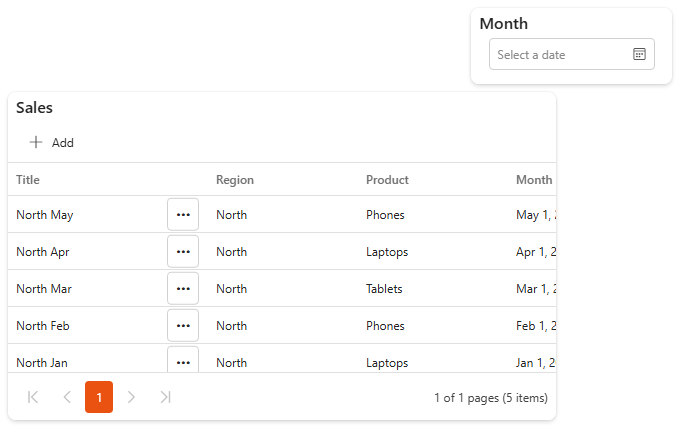
A Date Filter lets viewers filter the dashboard by one date. Viewers pick the date in a calendar, and the components it applies to show only the items on that date.
For example, a Date filter on the Month column of a sales list shows the sales recorded on a given day.
Filtering by a period?
For a range such as Last 7 days, This week, This month or This quarter, use the Date Range filter. It is in the same Filters tab of the Widgets pane.
The components need date data
A Date filter only affects components that use the same data source as the filter, and that data source must have a date column. For example, a feedback grid needs a date column for the filter to work.
Add a date filter
- Make sure the data source exists and is already used by a component on the dashboard.
- Open the dashboard in edit mode.
- In the Widgets pane, open the Filters tab and drag Date Filter onto the dashboard. Resize it.
- Select the filter and set its properties, see Settings.
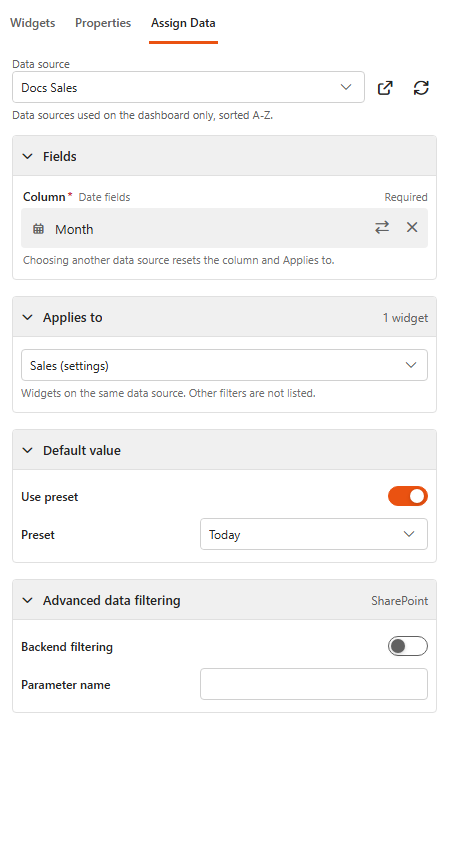
- Open the Assign Data tab and click Choose data source.
- Under Fields, choose the Column: a date field, for example Date.
- Under Applies to, choose the components the filter affects. Only components on the same data source are listed.
- Optionally, set a Default value, see below.
- Click Save & Exit.
Set a default value
| Setting | What it does |
|---|---|
| Use preset | On: the default date is relative to the day the dashboard is opened. Choose the Preset: Today, Tomorrow or Yesterday. |
| Date | With Use preset off: a fixed date that stays the same whenever the dashboard is opened. |
Advanced data filtering
Advanced
Most dashboards don't need these settings. They're for large data sources that are filtered before loading, set up by whoever manages the data source or the SQL database.
Show the advanced settings
For SharePoint and MS SQL data sources, the filter can pass the selected date to the data source, so the data is filtered before it is loaded:
| Setting | What it does |
|---|---|
| Backend filtering | Passes the selected date to the data source filter named in Parameter name. That filter must allow a dashboard override. |
| Parameter name | The parameter name of that data source filter. |
| Stored procedure parameter | MS SQL only: passes the date to the stored procedure parameter named in Parameter name. |
Settings
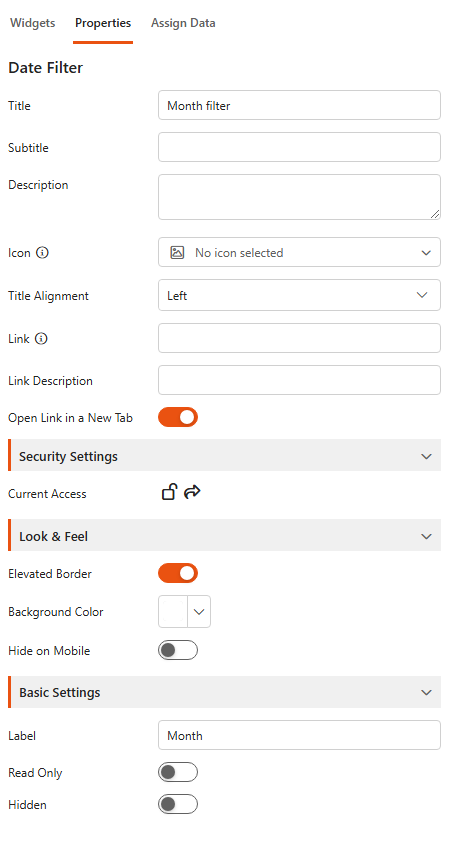
The Properties tab has the common Title, Subtitle, Description (shown as a tooltip), Icon and Title Alignment settings, Security Settings, and Look & Feel (Elevated Border, Background Color, Hide on Mobile). See the Common settings.
Basic Settings
| Setting | What it does |
|---|---|
| Label | Text shown above the date picker. |
| Read Only | Viewers see the date but can't change it, so they only see data for the default date. |
| Hidden | Hides the filter on the dashboard. Its default value still filters the components. |
Related
- Filtering guide: which filter to use when.
- Data source filter: filter by date before the data is loaded.