

Appearance
Stacked column chart
A stacked column chart shows part-to-whole comparisons over time or across categories. The series are stacked on top of each other in each column, so the height of the column is the total and each segment is one part of it.
Because the totals are easy to compare, stacked column charts show change over time well. Comparing the size of the segments inside each column is harder, and the chart quickly gets busy as you add series or categories. It works best with a small number of series and categories.
For example, a chart of the wildlife population in an area by month, with one segment for each of three animals, shows both how the total changes through the year and which animal makes up most of it.
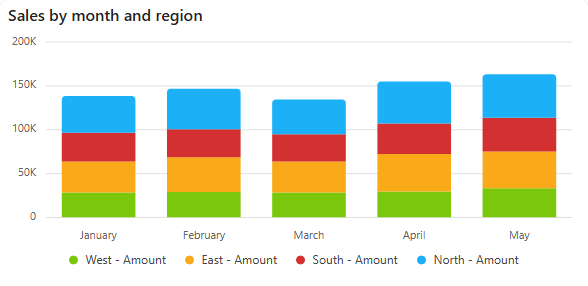
Add a stacked column chart
- In the designer, open the Charts tab of the Widgets pane and drag Stacked Column Chart onto the dashboard. Resize it as required.
- On the Assign Data tab, pick the Data source.
- Add the number to plot to Values and the field for the columns to Category (for example Month).
- Add the field that makes up the segments to Series (for example Animal). Alternatively, add several values to Values: each value becomes one segment.
- Name the chart and adjust its look on the Properties tab, then save the dashboard.
Every setting is described in Common chart settings.
Settings worth knowing
| Setting | What it does |
|---|---|
| Show Stack labels value (Properties > Basic Settings) | Shows the total at the top of each column. |
| Type (Assign Data > More settings > Series settings) | Stacking Column stacks the actual values. 100% Stacking Column makes every column the same height and shows each segment as a share of 100%. Stacking Bar and 100% Stacking Bar do the same with horizontal bars. |
| Row Color Mapping (Series settings) | Gives each segment a fixed colour, for example the same colour for each animal on every dashboard. |