Appearance
Gauge
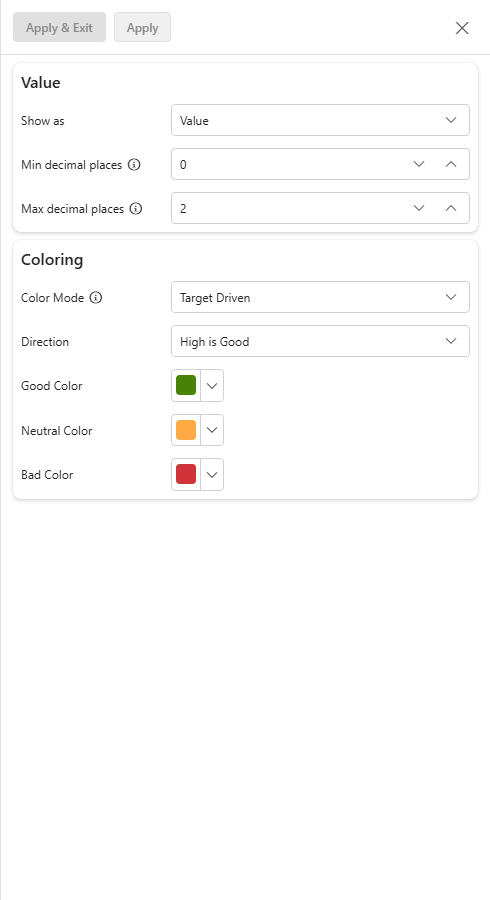
A gauge shows a single number on a dial, with optional minimum, maximum and target. It is a quick way to show progress towards a goal.
Typical uses:
- Performance metrics: sales targets, production output or customer satisfaction scores.
- Progress tracking: progress towards goals or milestones, shown clearly to stakeholders.
- Resource utilisation: server capacity or inventory levels.
- Quality control: defect rates or adherence to quality standards.
- Financial indicators: budget adherence or revenue forecasts.
Add a gauge
- Open the dashboard and click Edit, or create a new dashboard.
- In the Widgets pane, open the Charts tab. Gauge is at the end of the list. Drag it onto the dashboard and resize it as required.
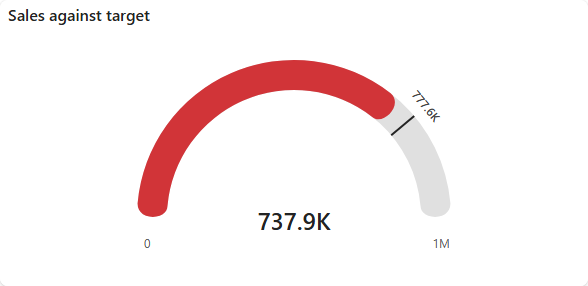
- On the Assign Data tab, pick the Data source that holds the number you want to show.
- Set the Value field and its aggregation. This is the main number on the gauge.
- Optionally set Min, Max and Target (see below).
- Open More settings > Visual settings to choose how the value and colours are shown.
- Name the gauge on the Properties tab, then save the dashboard.
The title, link, security and Look & Feel settings on the Properties tab are the same as for charts, see Common settings. The gauge's own Basic Settings section has one setting, Calculate Nulls, which includes empty values in the calculations.
Value, Min, Max and Target
| Slot | What it does |
|---|---|
| Value (required) | The number the gauge shows. |
| Min | Where the scale starts. By default the scale starts at 0. |
| Max | Where the scale ends. If you set only the Value, the scale runs from 0 to twice the value, so the gauge is about half full. |
| Target | A goal shown as a marker on the scale. It also drives the Target Driven colours. |
For every slot you choose an aggregation: Sum, Count, Average, Unique Count, Max or Min for number fields, Count or Unique Count for other fields.
Min, Max and Target can each come from a Field of the data source or be a fixed Number. Switch between the two with the chip at the start of the slot. If you switch to Number, the field is kept in case you switch back. You can set one, two or all three.
When to set Min, Max and Target
- Min: start the scale at a specific point instead of 0. For example, if the lowest possible temperature is -10°C, set Min to -10.
- Max: cap the top of the scale. For example, if the highest possible test score is 100, set Max to 100.
- Target: show a goal. For example, set it to this month's sales target.
You might set Min and Max to define a fixed range and also set a Target to highlight the goal within it.
Field or Number?
- Field (dynamic): use a field when the value changes with your data, for example sales targets that differ each month or quarter. The gauge always reflects the current target.
- Number (static): use a fixed number for targets or thresholds that rarely change, for example a yearly sales target set by the company.
Aggregation
| Aggregation | What it does |
|---|---|
| Sum | The total of all values in the field, for example total sales. |
| Count | The number of non-empty values, for example the number of orders. |
| Average | The mean of all values, for example the average sale per day. |
| Unique Count | The number of distinct values in the field. |
| Max | The highest value, for example the highest quality score achieved. |
| Min | The lowest value, for example the lowest defect rate recorded. |
Visual settings
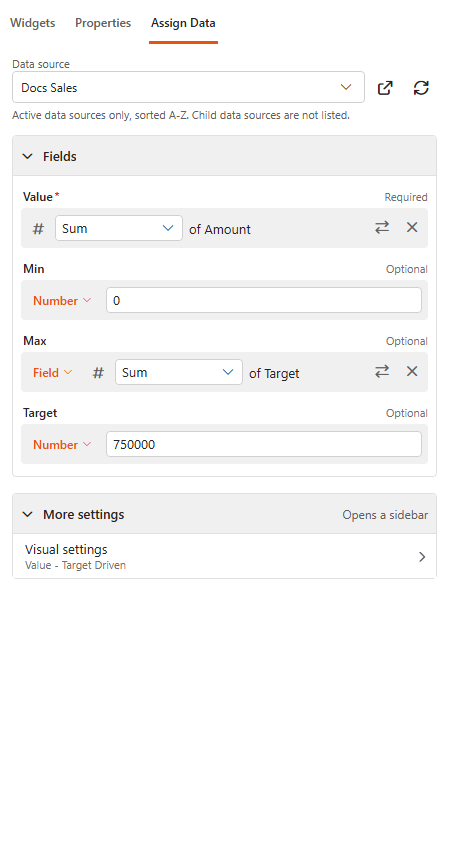
More settings > Visual settings opens a sidebar with two groups.
Value
| Setting | What it does |
|---|---|
| Show as | Value shows the number. Percentage shows it as a percentage of Max, and the scale runs from 0% to 100%. |
| Min decimal places / Max decimal places | When showing the value: at least and at most this many decimal places. |
Coloring
| Setting | What it does |
|---|---|
| Color Mode | How the gauge colour is chosen: Fixed Color, Target Driven or Custom Ranges. |
| Direction | Target Driven: High is Good or Low is Good. |
| Good Color / Neutral Color / Bad Color | Target Driven: the colour when the value is better than, equal to or worse than the target. Without a target, the gauge uses the Color picked for Fixed Color, or the app's main colour. |
| Color | Fixed Color: the one colour used. |
| Default Color and ranges | Custom Ranges: click Add to define a Min, Max and Color for each range. A value outside every range uses the default colour. |