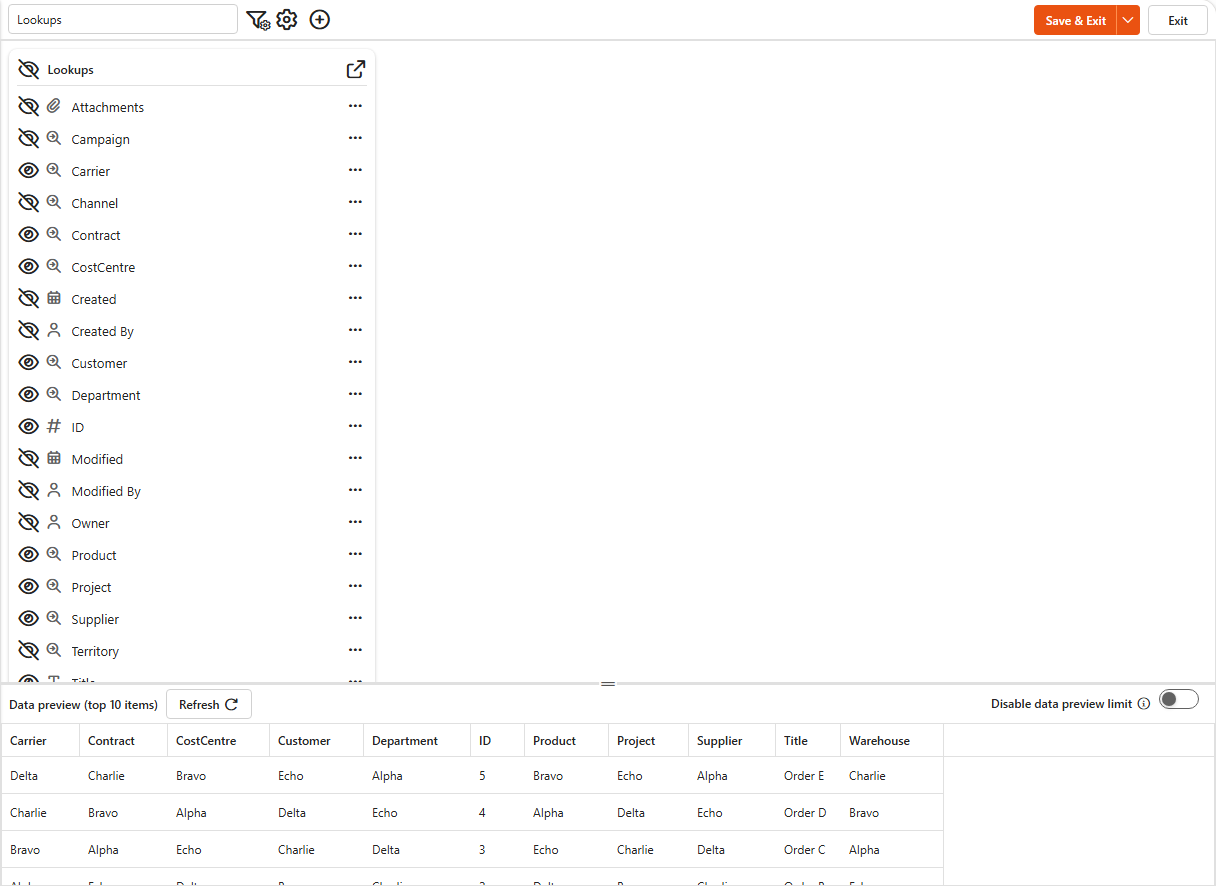
Appearance
Error viewing data in a data source
Symptom
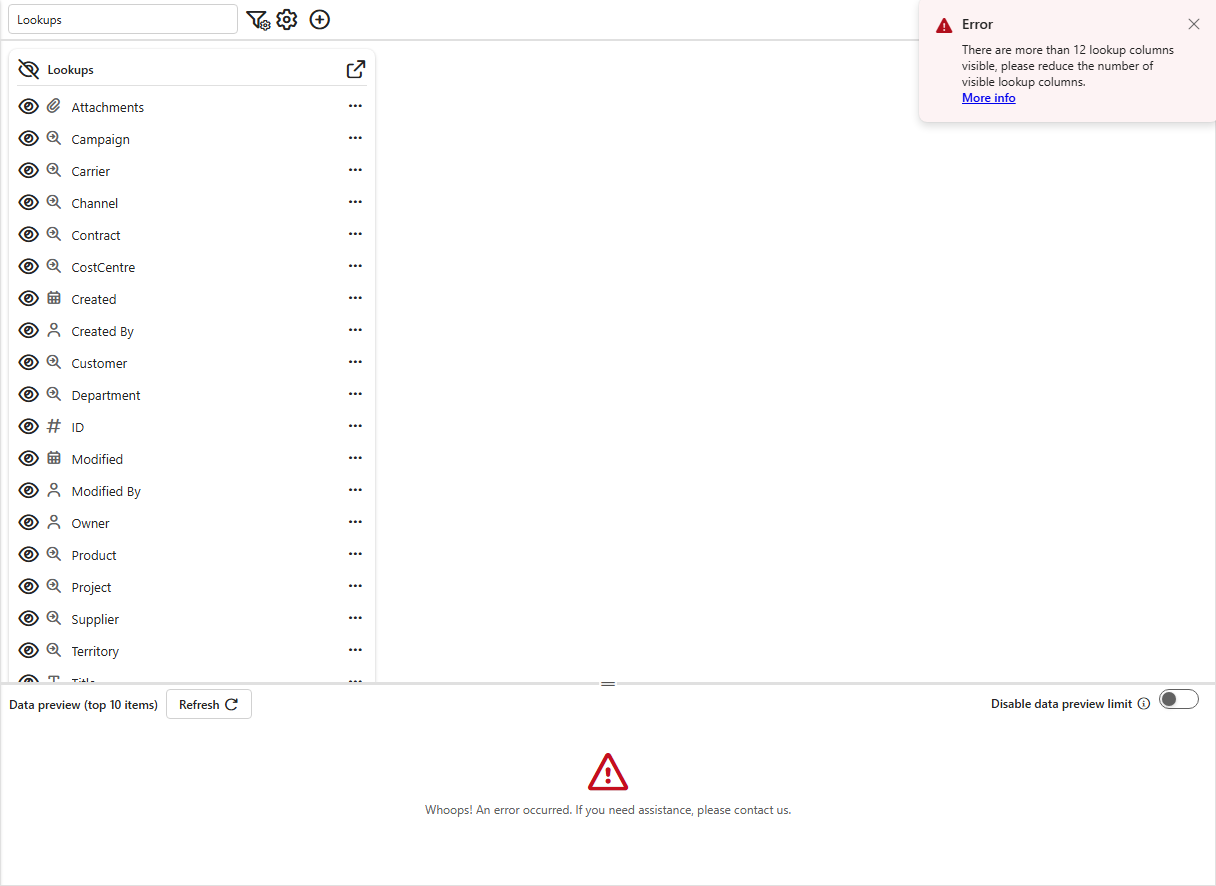
When you open a data source in the data source designer, the data preview shows "Whoops! An error occurred" and Sintel BI shows:
There are more than 12 lookup columns visible, please reduce the number of visible lookup columns.
Widgets that use the data source may show "There is an issue with 1 or more data sources, contact your admin".
Cause
The list behind the data source has many lookup-type columns. SharePoint doesn't allow more than 12 lookup columns in one list view (the list view lookup threshold), and the same limit applies to a Sintel BI data source.
In SharePoint, all of these column types count as lookups:
- Lookup columns
- Managed metadata (single and multi-value)
- Person or Group (single and multi-value)
- Workflow status columns
- Created By (a Person or Group column)
- Modified By (a Person or Group column)
Fix
Who can fix this
Anyone who can edit the data source.
Hide lookup-type columns you don't need, until 12 or fewer are visible:
- Open the data source in the data source designer.
- Find the lookup-type columns. Hover over a column's type icon to see its type, for example Lookup - Single line of text, User or MultiUser.
- Click the eye icon next to the columns you don't need to hide them.
- Click Refresh in the data preview to check that data is returned, then save the data source.