

Appearance
How to use Sintel BI
Sintel BI makes it easy to build dashboards with components such as grids, charts, images, text and summary cards. This page is a quick tour.
Building an app with Sintel BI takes three steps:
Then configure the app's settings: its landing page, theme and navigation.
1. Create a data source
A data source provides the data to the components on a dashboard. Connect a data source to a component and you can show its data in many ways, for example as a grid or a chart. If you have an orders list in SharePoint, create a data source from the list and connect it to components on a dashboard.
Creating a data source takes three choices: the source, the columns you want, and any filters.
Open Data Sources from the left navigation.
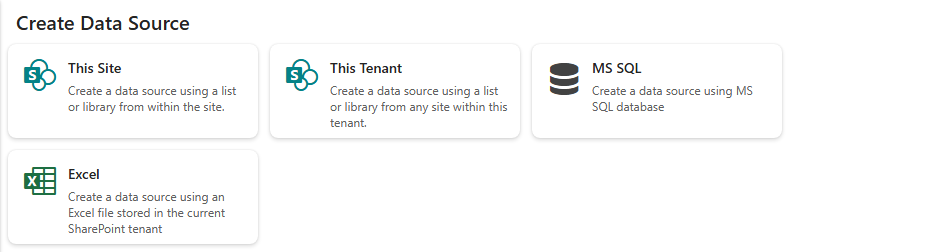
At the top of the page, under Create Data Source, click the tile for where your data comes from:
Source Use it for This Site A list or library on the current site This Tenant A list or library on any site in your tenant MS SQL A table, view or query from an MS SQL database Excel An Excel file stored in your SharePoint tenant The sources offered depend on your licence. Using an Excel file? See Excel for the step-by-step.
Pick the data and give the data source a name. For This Site, choose the SharePoint List, enter a Data Source Name, and optionally pick a view under Limit Columns by View. Click Save.
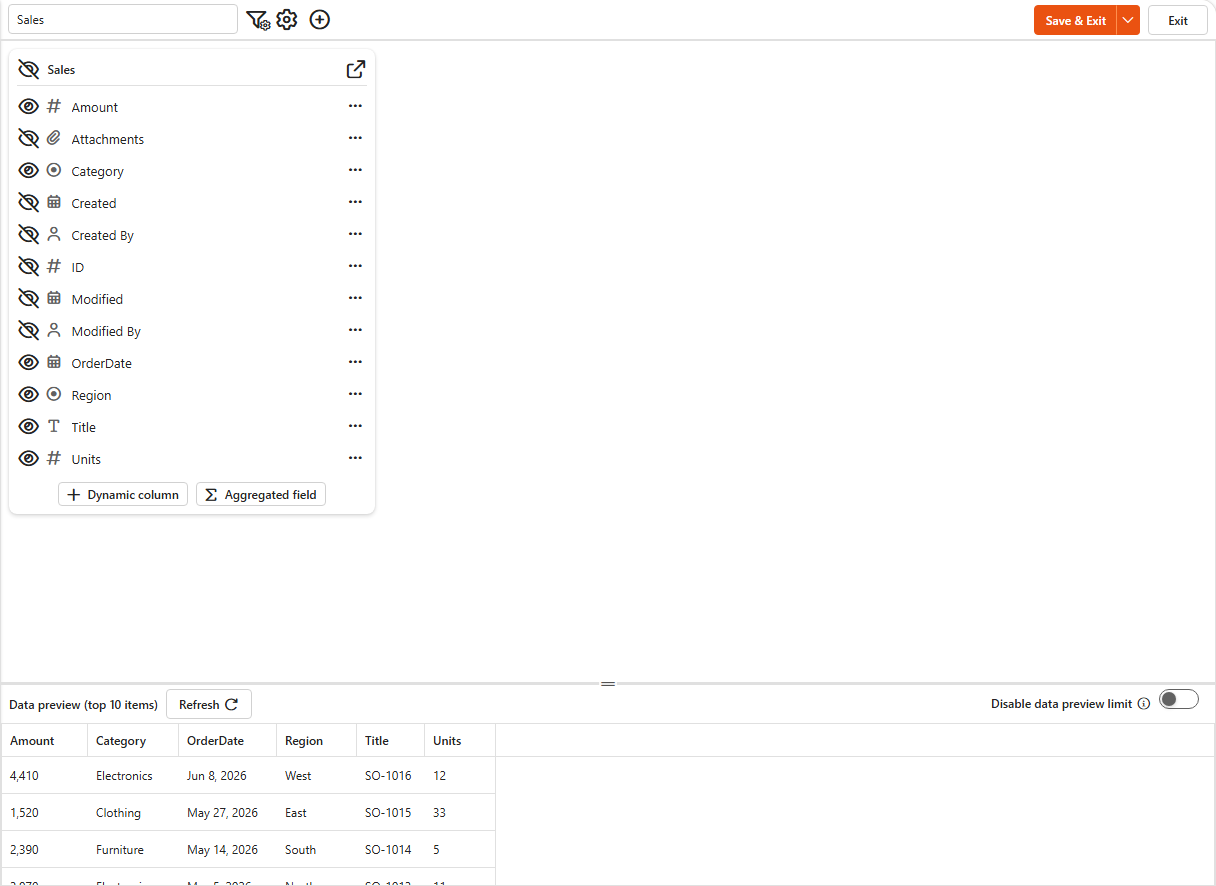
The new data source appears in the list. Click it to open it in the designer, where you can:
- show or hide fields with the eye icon,
- change the order of fields by dragging them,
- add filters to leave out data (the filter button in the top bar),
- select Refresh to preview the data.
When you're done, select Save, or Save & Exit to go back to the Data Sources page.
On the Data Sources page, open a data source's menu to Edit, Clone or Delete it.
Read more in Data sources.
2. Create a dashboard
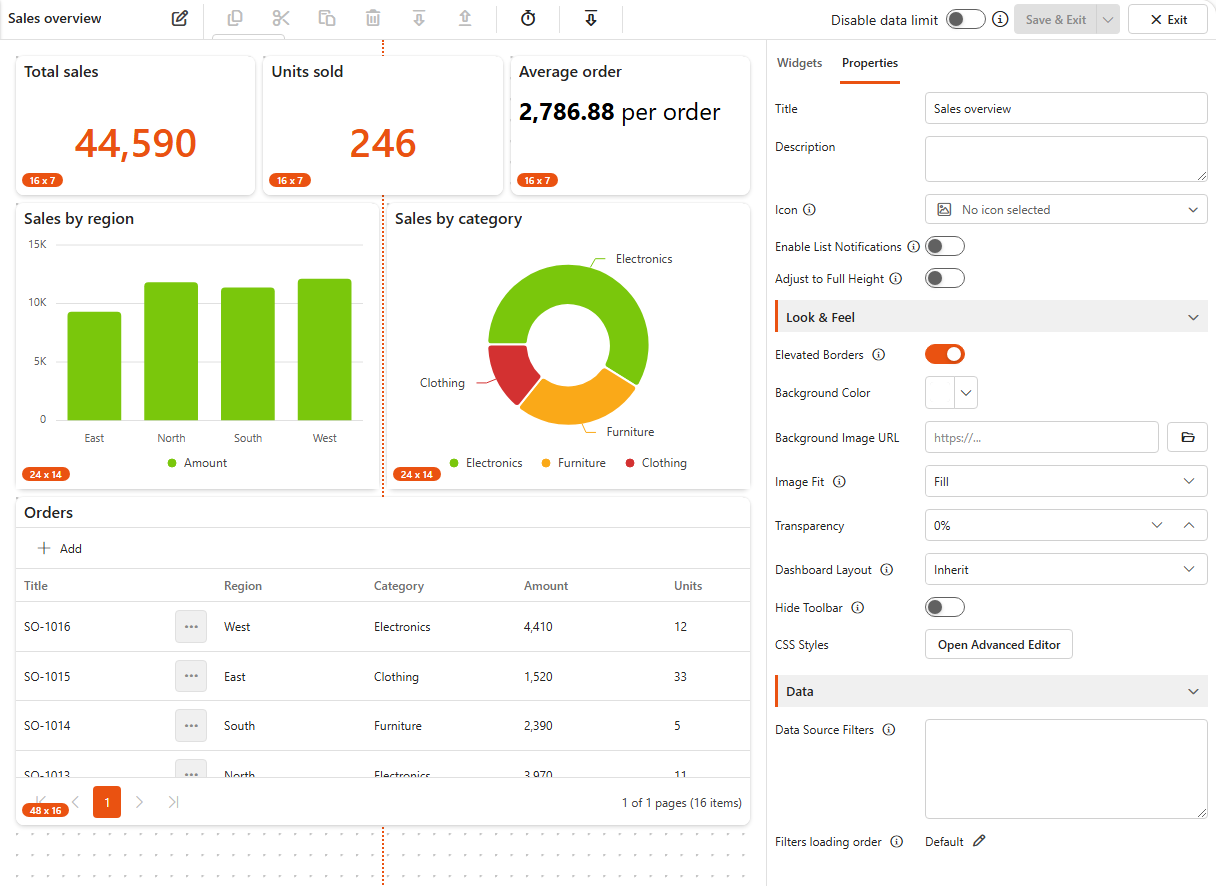
Creating a dashboard means adding components, connecting them to data sources and customising how the data is shown. Drag components onto the dashboard and resize them to build any layout you need.
Create the dashboard and set its properties
- Open Dashboards from the left navigation and select Create Dashboard.
- With no widget selected, open the Properties tab of the right pane to set the dashboard's Title, Description and Icon, and its Look & Feel.
Add components
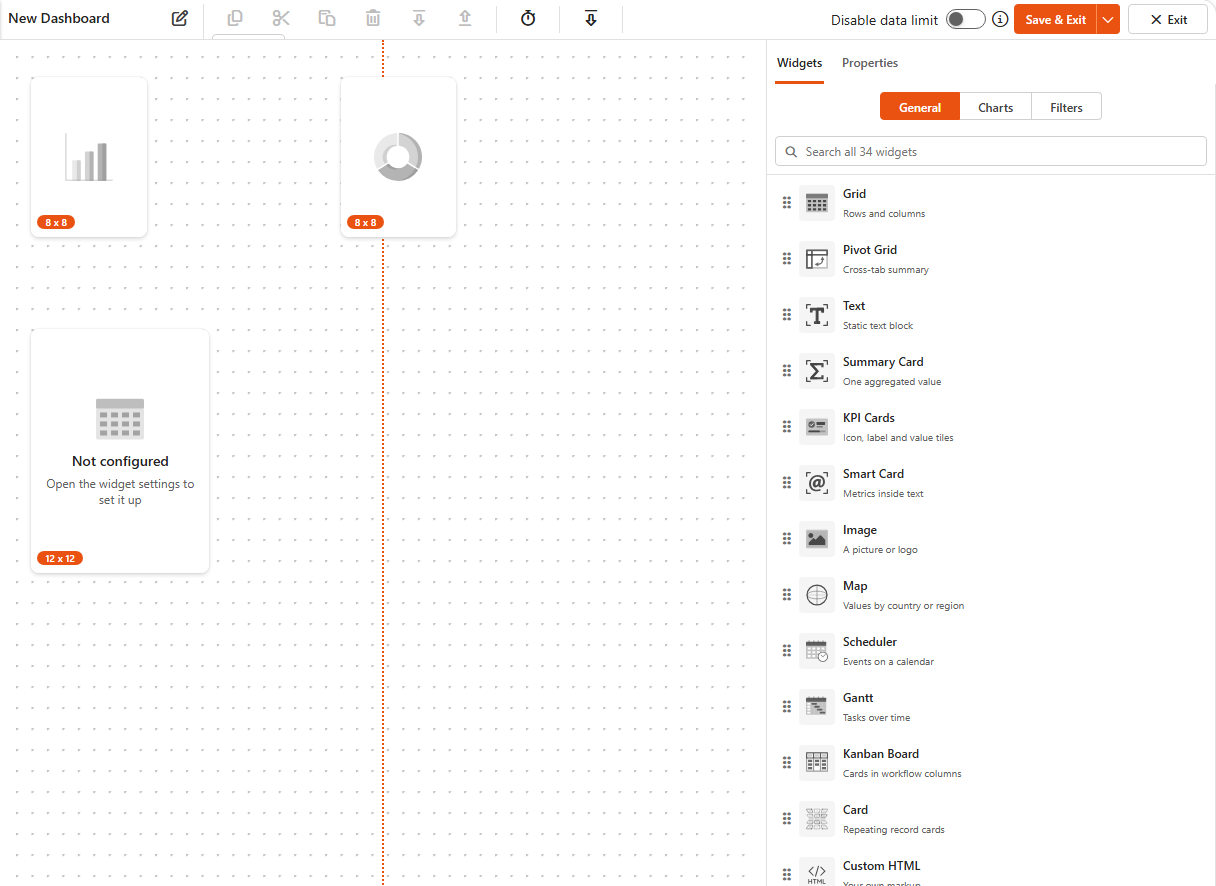
- Open the Widgets tab. Components are grouped into General, Charts and Filters. Drag the ones you need onto the dashboard.
- Each component has its own settings, but in general you connect it to a data source and then customise how it shows that data.
Use the buttons in the top bar to copy, cut and paste components and save design time.
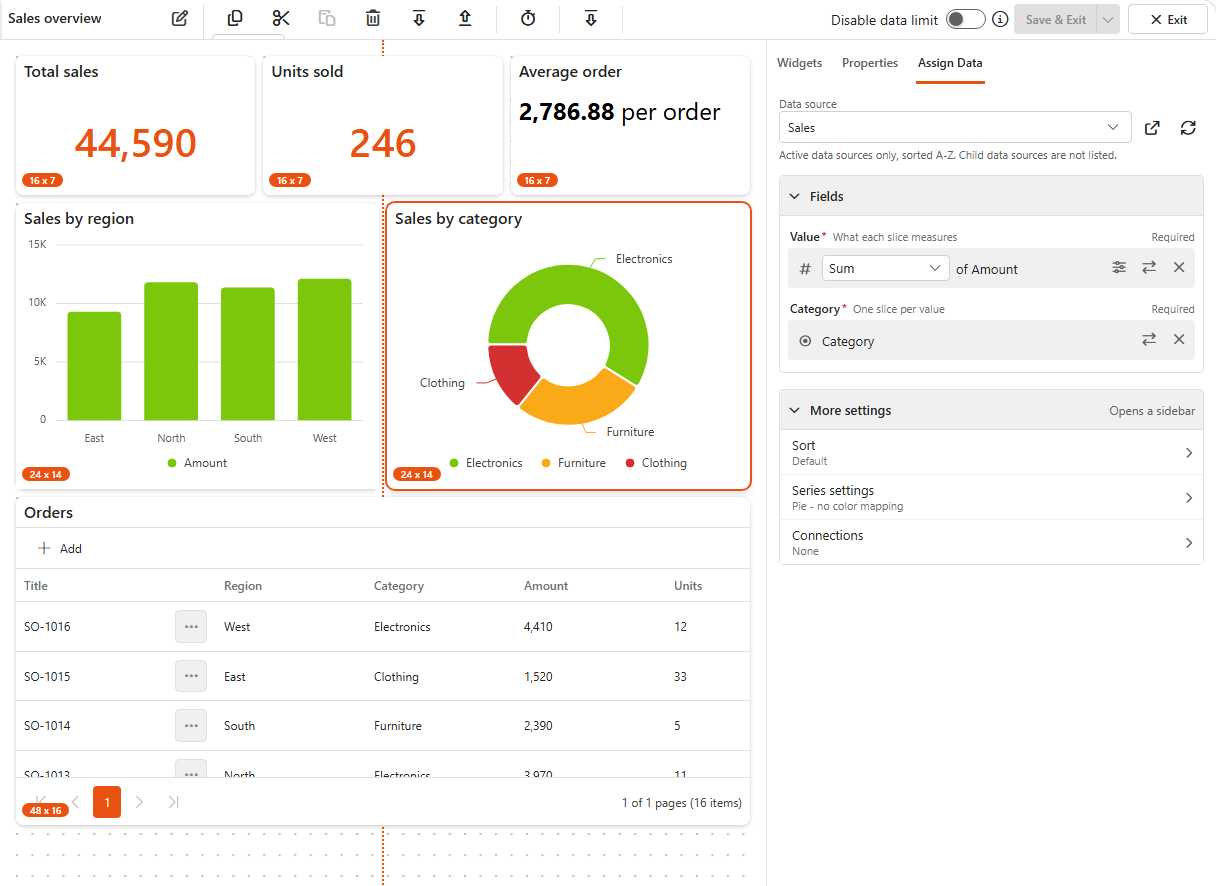
A Donut chart is a popular example. It shows proportions in a way that's easy to understand, and you can adjust its inner and outer radius and where the legend and labels appear. There are many more settings, so the customisation options are extensive. See Components for every component.
Connect the components to data
- Select a component and open the Assign Data tab.
- Choose the data source, then pick the fields for the component's slots.
For example, to show total expenses by status on a Donut chart, choose the expense claims data source, add Total Expenses to Value and Form Status to Category.
- When you're done, save the dashboard.
3. Share it with users
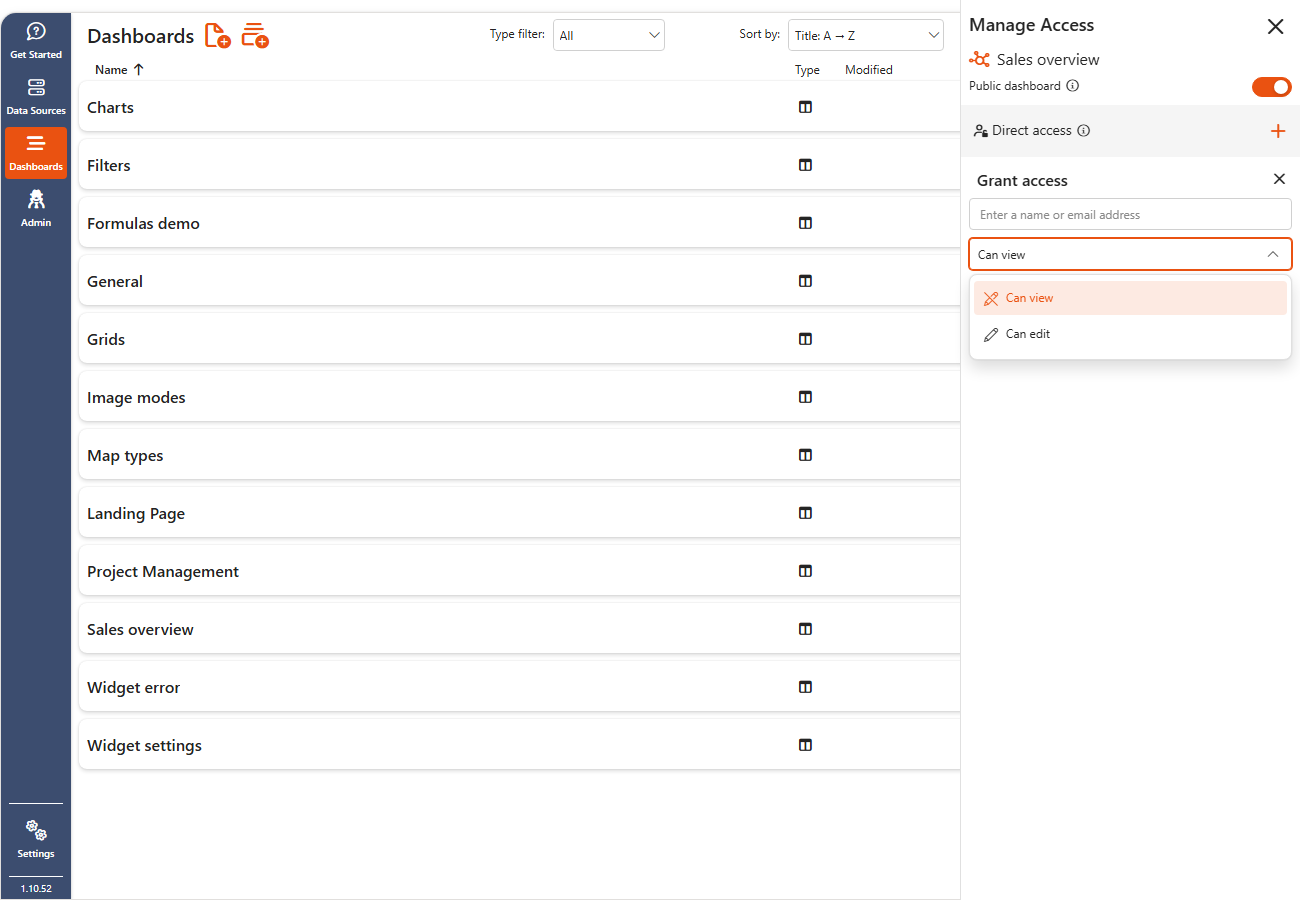
Sharing a dashboard is simple. On the Dashboards page, open a dashboard's menu and select Share. You can:
- make the dashboard public, so everyone with access to the site can see it,
- or grant specific users or groups access to view or edit it.
Putting it on a SharePoint page?
The Sintel BI web part shows a dashboard on a modern SharePoint page, but only a public dashboard. Sharing it with specific people or groups isn't enough for the web part.
Viewers need access to the data
SharePoint lists and Excel files are read with each viewer's own permissions. Everyone who opens the dashboard needs at least read access to the source list or Excel file, otherwise the components that use it can't load their data. MS SQL data sources connect with their own connection string, so viewers don't need database access.
As with data sources, a dashboard's menu also lets you Edit, Clone or Delete it. To change a dashboard later, see Change an existing dashboard.
4. Configure the settings
Sintel BI has its own navigation and hides the SharePoint elements users don't need. You can build apps on SharePoint that show users only the links and screens they need.
Open Settings at the bottom of the left navigation. The main tabs are General, Theme and Navigation.
General
| Setting | What it does |
|---|---|
| Landing page | The dashboard shown when Sintel BI opens. Make sure everyone who uses the app can see it (for example, a public dashboard). Leave it empty to open the Dashboards page. |
| Use App Hub as landing page | Opens the App Hub instead of a dashboard. |
| Hide SharePoint's app bar | Hides the SharePoint app bar on the left of the page for everyone using Sintel BI. |
| Dashboard viewer mode | How dashboards are displayed to viewers. |
Theme
- Pick a theme preset, or set your own application and navigation colours to match your brand.
- Set the chart colour palette used by chart series.
- We also recommend using the standard SharePoint settings to brand the site: Settings > Change the look, choose a theme, set the header layout to Minimal or Compact, and set the Site logo thumbnail and Site logo.
Navigation
- Add the dashboards and links that users should see in the left menu.
- Change the icons and order of the items, and who can see each one, so users only see what they should.
See Navigation for details.