

Appearance
Configure Sintel BI on a site
For site owners
This page is for site owners. You don't need it to build dashboards. Who does what?
Once Sintel BI is installed in your tenant, the next step is to set it up on a site. This creates the Sintel BI app page and the lists Sintel BI needs.
Before you start
- Modern SharePoint sites only. Sintel BI can't be set up on classic team sites. Convert a classic site to modern first.
- Site owner. You must be an owner of the site to complete these steps.
Step 1: add the app to the site (optional)
You only need this step if Enable this app and add it to all sites wasn't chosen when Sintel BI was deployed to the tenant app catalog.
- Open your SharePoint site.
- Select Settings (the gear icon) > Add an app, or go to Site contents > New > App.
- Find Sintel BI in the list. Use the search box if needed.
- Select Add.
Step 2: create the Sintel BI app page
Next, create a page for Sintel BI.
- Go to the site's home page. This matters: the Apps tab may not be offered from other pages.
- Select Settings (the gear icon) in the top right, then Add a page.
- In the Page templates panel, switch to the Apps tab.
- Select Sintel BI, then Create page.
- Enter a title for the page, for example SintelBI, and select Save.
Older SharePoint page experience
On sites that still show the older page experience, you can also select New > Page on the home page, open the Apps tab, choose Sintel BI and select Create page.
Step 3: run the setup
When the new page opens, Sintel BI shows the Sintel BI needs to be set up screen.
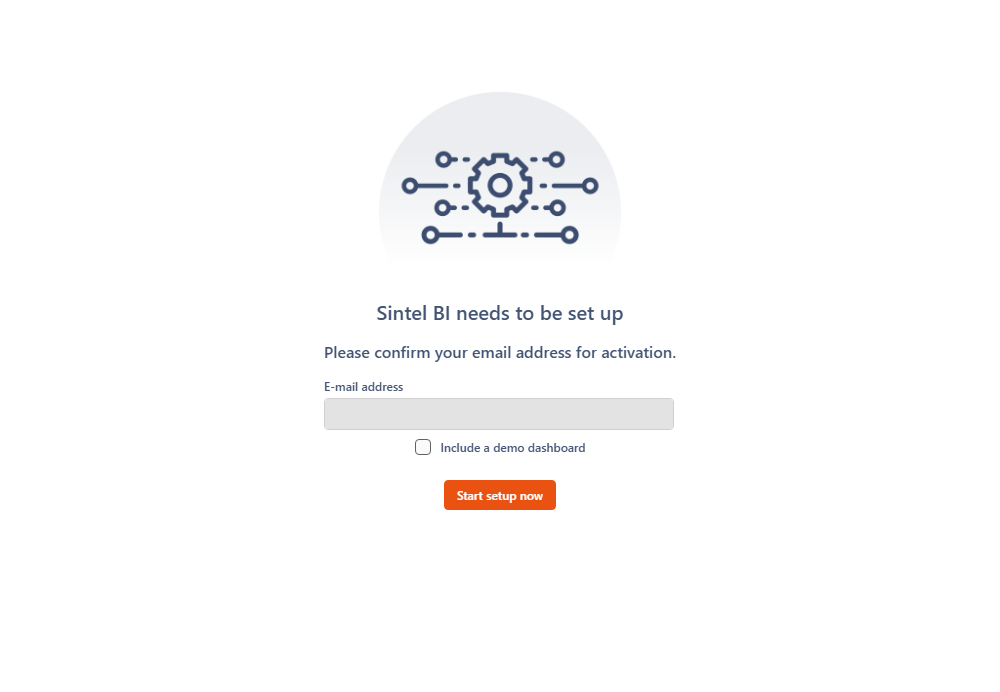
- Confirm your email address. It's used to activate your licence.
- Tick Include a demo dashboard if you'd like example dashboards to explore. It's off by default.
- Select Start setup now.
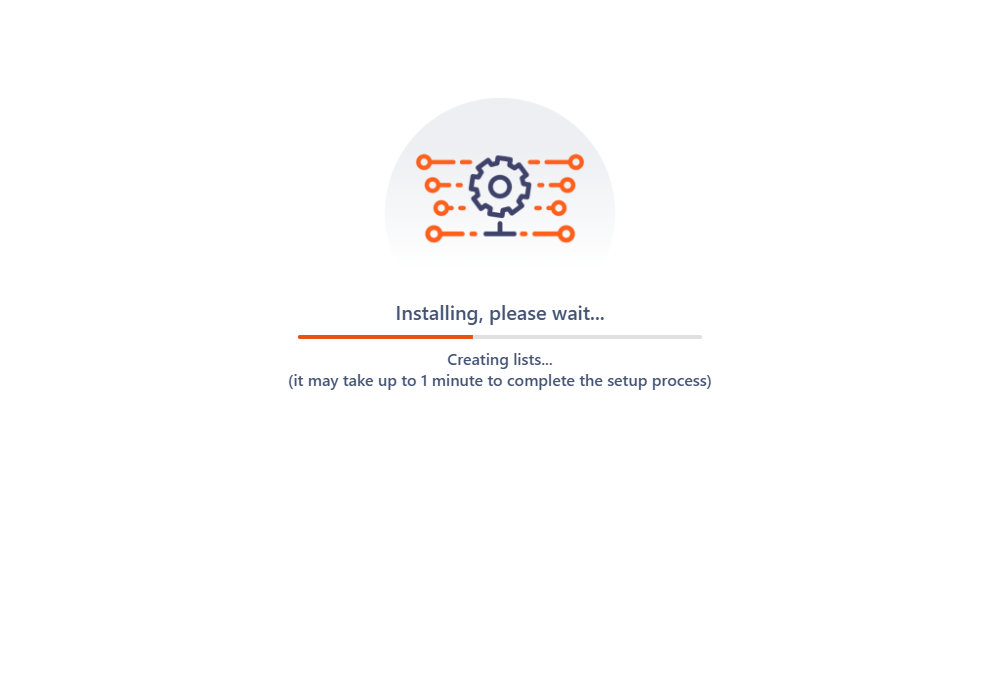
Setup creates the lists Sintel BI needs and can take up to 30 seconds. When it's done, you see Sintel BI is now ready to use and you're taken to your new Sintel BI page.
Still editing the page?
If the page is still in edit mode, the setup screen asks you to name the page in the App page details pane on the right and select Save first. Users who aren't site owners see Please contact site's owner instead.
If setup fails, the screen shows Whoops, that's not good!. Contact us at info@sintelapps.com and we'll help.
Step 4: make it the site home page (optional)
We recommend setting the Sintel BI page as the site's home page, so users go straight to it when they open the site.
- Go to Settings > Site contents.
- Open the Site Pages library.
- Hover over your new Sintel BI page.
- Select the ellipsis (...) > Make homepage.
Next steps
You can now create data sources and dashboards and configure the app's settings before sharing it with your users. Start with How to use Sintel BI.