

Appearance
Custom HTML
The Custom HTML component shows your own HTML and CSS on a dashboard. Use it for a styled announcement, a timeline, an embedded video or an external widget: anything the other components don't do.
Add a Custom HTML component
- Open the dashboard in edit mode.
- In the Widgets pane, open the General tab and drag Custom HTML onto the dashboard.
- Resize it by dragging its edges.
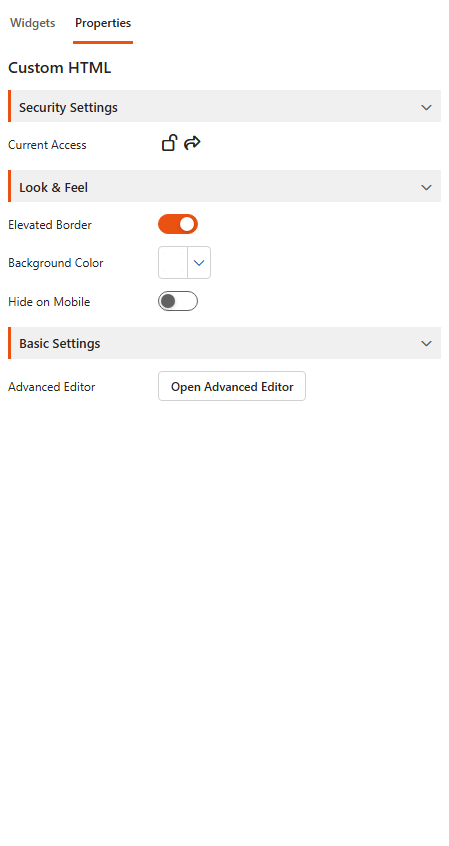
- Select the component. On the Properties tab, under Basic Settings, click Open Advanced Editor.
- Enter your HTML and CSS, check the preview, and click Save & Close.
- Click Save & Exit.
A Custom HTML component has no data source, so it has no Assign Data tab.
Want data in your HTML?
Use one of these instead, they fill in field values for you:
- a Card with Tile Custom HTML: one HTML tile per row, with
{[FieldName]}tokens, - a Grid column shown as Custom HTML: your HTML in each cell, with
{value},{[FieldName]}and{encode(...)}.
To show a calculated value, add a dynamic column to the data source first, then use it as a token. All tokens are listed in Templating tokens.
Settings
Security Settings
Current Access shows who can see the component:
- a lock icon: private, visible only to administrators,
- an open lock icon: public, visible to everyone,
- a people icon: shared with specific users or groups.
Click Manage access to make the component public or private, or to give specific users or groups direct access.
Look & Feel
| Setting | What it does |
|---|---|
| Elevated Border | A raised border around the component. In many cases Custom HTML looks better with it off. |
| Background Color | The component's background colour. |
| Hide on Mobile | Hides the component on phones, for a cleaner mobile layout. |
Basic Settings
| Setting | What it does |
|---|---|
| Advanced Editor | Opens the editor for the component's HTML and CSS. |
The Advanced Editor
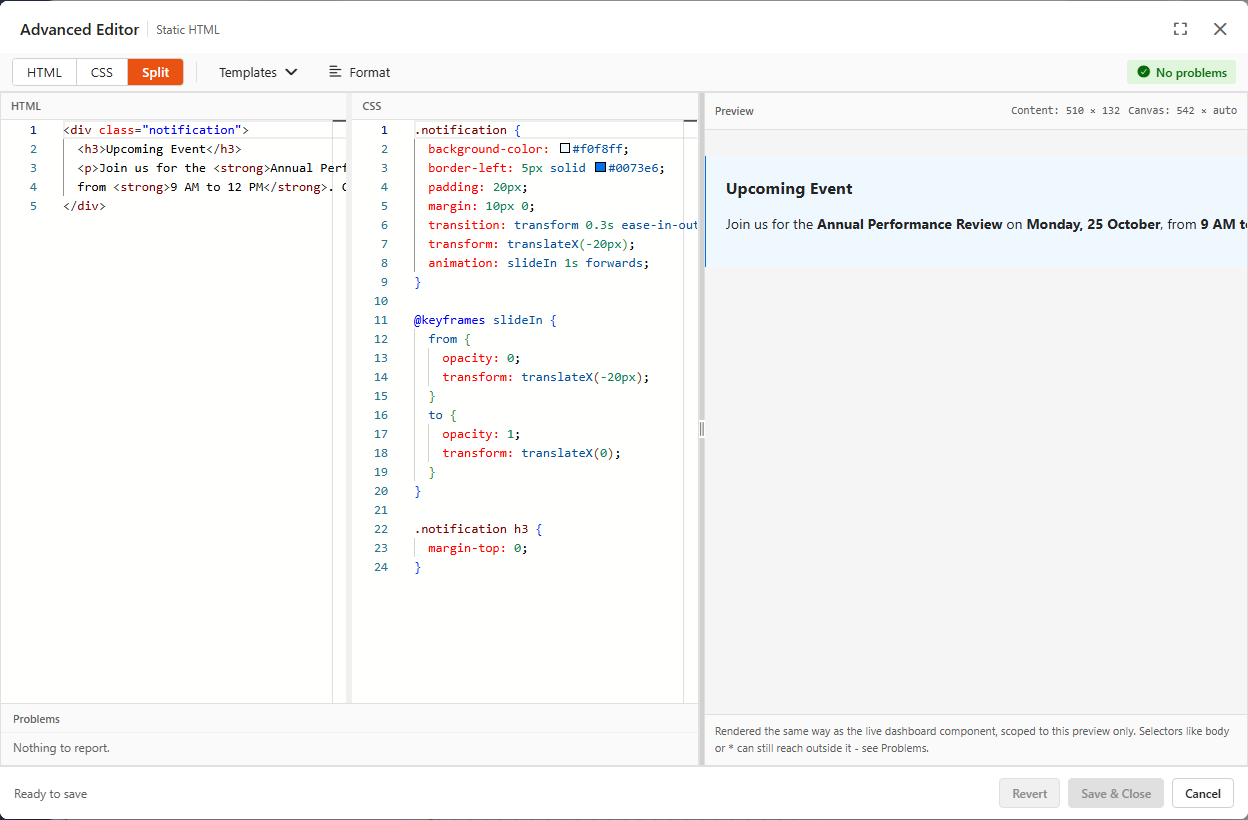
The Advanced Editor is used by the Custom HTML component and by other places that accept HTML, such as grid columns shown as Custom HTML and card tiles.
- HTML, CSS and Split tabs: edit the HTML, the CSS, or both side by side.
- PREVIEW: shows the result, rendered the same way as on the dashboard.
- Templates: starting points such as Ticket card, KPI tile, Status pill and Blank card.
- Format: tidies up the indentation of your code.
- PROBLEMS: lists errors and warnings in your code, for example CSS selectors like
bodyor*that reach outside the component. - Revert undoes your changes, Save & Close keeps them, Cancel closes without saving.
Put your CSS in the CSS tab. It applies to this component only, so it won't change the rest of the page.
WARNING
Scripts in the HTML don't run. Use HTML and CSS only.
Examples
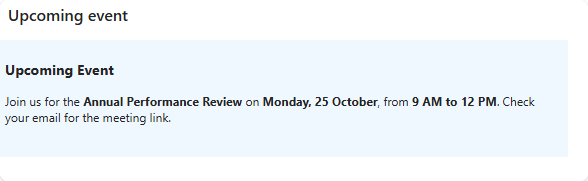
Notification card with animation
A notification card that slides in, to draw attention to an important update without being intrusive.
HTML:
html
<div class="notification">
  <h3>Upcoming Event</h3>
  <p>Join us for the <strong>Annual Performance Review</strong> on <strong>Monday, 25 October</strong>,
  from <strong>9 AM to 12 PM</strong>. Check your email for the meeting link.</p>
</div>
CSS:
css
.notification {
  background-color: #f0f8ff;
  border-left: 5px solid #0073e6;
  padding: 20px;
  margin: 10px 0;
  transition: transform 0.3s ease-in-out;
  transform: translateX(-20px);
  animation: slideIn 1s forwards;
}

@keyframes slideIn {
  from {
    opacity: 0;
    transform: translateX(-20px);
  }
  to {
    opacity: 1;
    transform: translateX(0);
  }
}

.notification h3 {
  margin-top: 0;
}
Embedded YouTube video with a styled frame
A video inside a frame with a border and a shadow, for training videos or product demonstrations. Replace VIDEO_ID with the ID of your video.
HTML:
html
<div class="video-frame">
  <iframe src="https://www.youtube.com/embed/VIDEO_ID" frameborder="0" allowfullscreen></iframe>
</div>
CSS:
css
.video-frame {
  border: 5px solid #ff6347;
  border-radius: 10px;
  overflow: hidden;
  box-shadow: 0 4px 10px rgba(0, 0, 0, 0.1);
  width: 100%;
  max-width: 640px;
  margin: 0 auto;
}

.video-frame iframe {
  display: block;
  width: 100%;
  height: 360px;
}
Weather widget
A live weather forecast, useful on dashboards for logistics, travel or event planning.
HTML:
html
<div class="weather-widget">
  <h3>Weather Forecast</h3>
  <iframe src="https://www.meteoblue.com/en/weather/widget/three?geoloc=fixed&day=0&tempunit=CELSIUS&windunit=METER_PER_SECOND&layout=image"
          frameborder="0" scrolling="NO" width="260" height="180" allowtransparency="true"></iframe>
  <p>Stay updated with the latest weather conditions.</p>
</div>
CSS:
css
.weather-widget {
  width: 100%;
  max-width: 300px;
  margin: 20px auto;
  text-align: center;
  background: #f0f8ff;
  padding: 20px;
  border-radius: 10px;
  box-shadow: 0 4px 10px rgba(0, 0, 0, 0.1);
}

.weather-widget h3 {
  margin: 0;
  color: #0073e6;
}
Timeline
The history of your company, the stages of a product or key milestones, as a vertical timeline.
HTML:
html
<ul class="timeline">
  <li class="timeline-item"><p>2022: Company founded</p></li>
  <li class="timeline-item"><p>2023: First product launch</p></li>
  <li class="timeline-item"><p>2024: Global expansion</p></li>
  <li class="timeline-item"><p>2025: Award for best innovation</p></li>
</ul>
CSS:
css
.timeline {
  position: relative;
  margin: 20px 0;
  padding: 10px 0;
  list-style-type: none;
}

.timeline::before {
  content: '';
  position: absolute;
  left: 50%;
  width: 2px;
  height: 100%;
  background-color: #0073e6;
  transform: translateX(-50%);
}

.timeline-item {
  position: relative;
  width: 50%;
  padding: 10px 20px;
  box-sizing: border-box;
}

.timeline-item:nth-child(odd) {
  left: 0;
  text-align: right;
}

.timeline-item:nth-child(even) {
  left: 50%;
}

.timeline-item p {
  margin: 0;
  background-color: #f0f8ff;
  padding: 10px;
  border-radius: 10px;
  box-shadow: 0 4px 10px rgba(0, 0, 0, 0.1);
}