

Appearance
Column chart
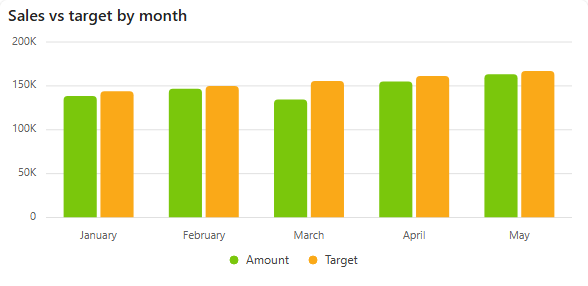
A column chart shows a number for each value of a category as a vertical bar. The categories run along one axis and the values along the other. Each category gets one bar, and the height of the bar is its value. All bars start from the same baseline, so they are easy to compare.
Column charts and stacked column charts both use rectangular bars whose length is proportional to the value. In a column chart, the bars for different series stand side by side; in a stacked column chart they are stacked on top of each other.
Add a column chart
- In the designer, open the Charts tab of the Widgets pane and drag Column Chart onto the dashboard. Resize it as required.
- On the Assign Data tab, pick the Data source.
- Add the number to plot to Values (for example Sum of Amount) and the field to compare by to Category (for example Month). Add a field to Series to split each column, for example by Region.
- Name the chart and adjust its look on the Properties tab, then save the dashboard.
Every setting is described in Common chart settings.
Example: count of items per month
To show how many absences were logged each month, add ID to Values with Count (Count of ID), and the Absence date field to Category grouped by Month and Year. Month would put January of every year in the same column. See Count items per month.
Settings worth knowing
| Setting | What it does |
|---|---|
| Invert Axes (Properties > Basic Settings) | Turns the columns into horizontal bars. |
| Value Axis Min / Value Axis Max (Properties > Axes) | Limits the value range shown. For example, a minimum of 12 shows only the part of each column above 12 sales. |
| Type (Assign Data > More settings > Series settings) | Changes a value to another series type, for example a Line, to show a target line over the columns. |