

Appearance
Sintel BI web part
The Sintel BI Dashboard web part shows one Sintel BI dashboard on any modern SharePoint page. Use it to put key figures next to the news, documents and lists your team already uses, without sending people to the Sintel BI page.
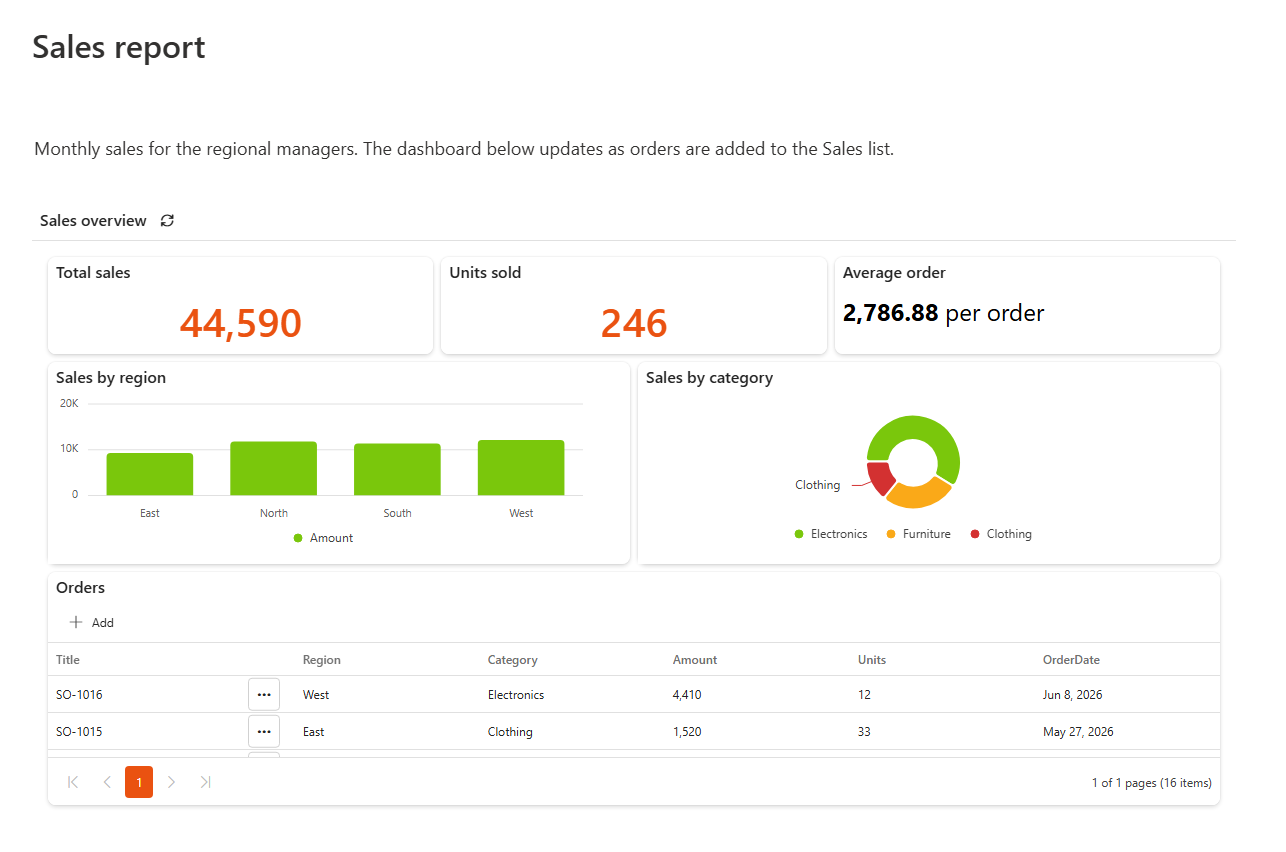
You can add several web parts to one page, each showing a different dashboard.
Before you start
- Sintel BI must be installed on your tenant and configured on the site. See How to install and Configure on a site.
- The dashboard must already exist in Sintel BI on the same site as the page. The web part lists only the dashboards of the site it's added to, so to show a dashboard on another site's page, Sintel BI must be configured on that site and the dashboard built there.
- The dashboard must be public. The web part only lists public dashboards. See Make a dashboard public.
- Viewers need at least read access to the SharePoint lists and Excel files the dashboard uses, because Sintel BI reads them with each viewer's own permissions. MS SQL data sources don't need this.
Add the web part to a page
- Open the SharePoint page and click Edit.
- Click the + icon where you want the web part, and search for Sintel BI.
- Select Sintel BI Dashboard. The web part asks you to select a dashboard.
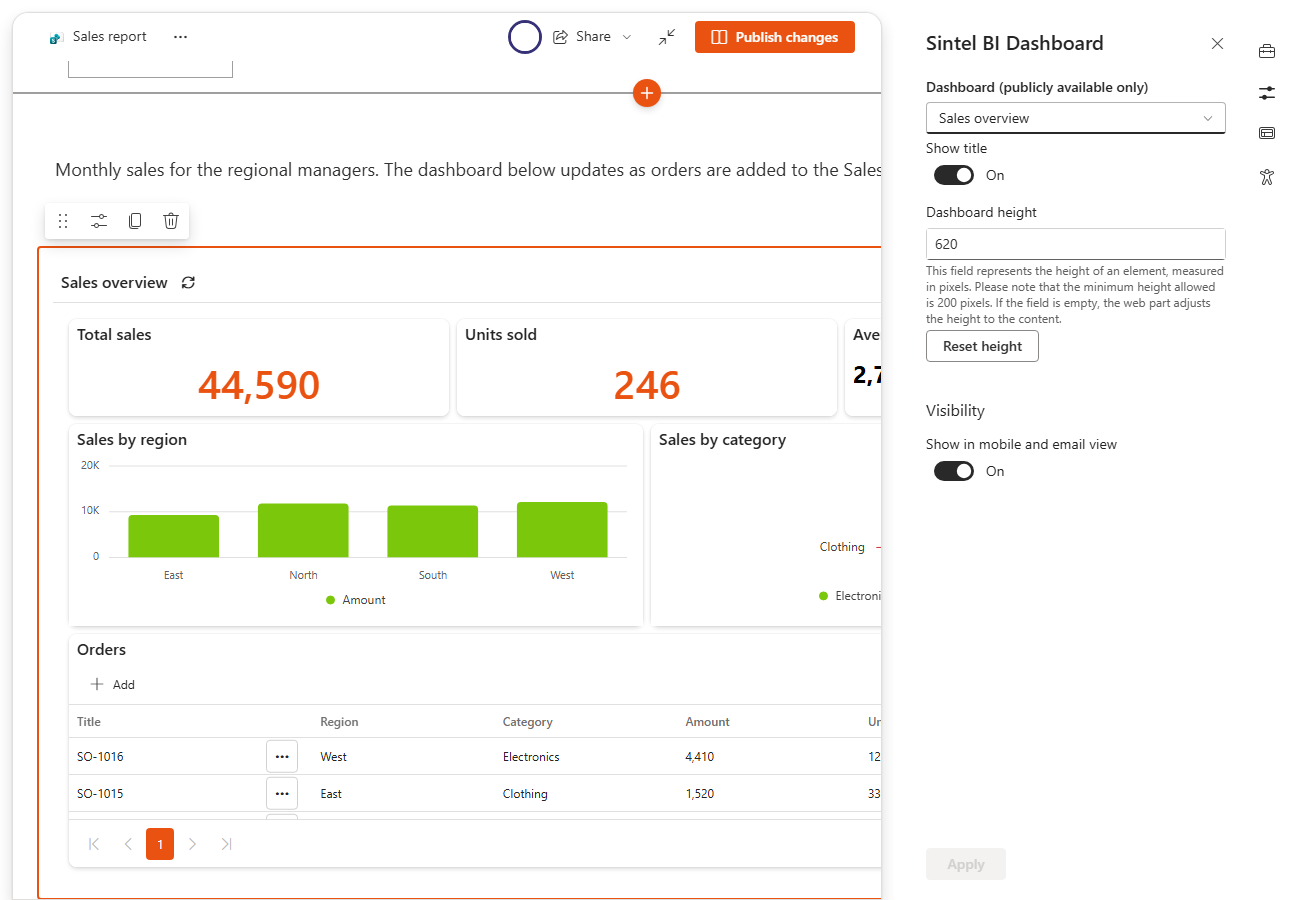
- Click the pencil icon (Edit web part) on the left of the web part. The property pane opens on the right.
- Pick the dashboard in Dashboard (publicly available only).
- Optionally change Show title and Dashboard height (see the settings below).
- Republish the page.
Settings
| Setting | What it does |
|---|---|
| Dashboard (publicly available only) | The dashboard to show. Only public dashboards are listed. |
| Show title | Shows the dashboard's title bar (title and Refresh button) above the dashboard. |
| Dashboard height | The web part's height in pixels, at least 200. It is filled in for you when you pick a dashboard, based on the dashboard's layout. Leave it empty and the web part grows to fit the dashboard's content. |
| Reset height | Recalculates Dashboard height from the dashboard's layout, for example after you've changed the dashboard. |
Full width
The web part supports full-width sections, so a wide dashboard can use the whole width of the page.
Make a dashboard public
- In Sintel BI, open Dashboards.
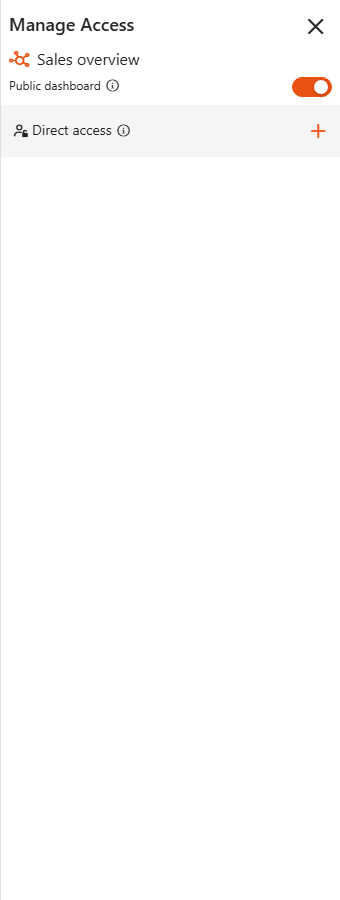
- Open the menu on the dashboard's tile and click Share. The Manage Access panel opens.
- Switch on Public dashboard.
You can also share a dashboard from Settings > Navigation, with the share icon on its row. See Navigation.
Messages in the web part
| Message | What to do |
|---|---|
| The Sintel BI app has not been configured on this site. | Configure Sintel BI on the site first, see Configure on a site. |
| A Sintel BI Dashboard has not been detected on this site. | Create a dashboard on the Sintel BI page, and make it public. |
| Please select a Sintel BI Dashboard to display. | Edit the web part and pick a dashboard. |
| The selected Sintel BI Dashboard does not exist. | The dashboard was deleted. Pick another one. |