

Appearance
Walkthrough: project costs
This builds the demo's Project costs data source from scratch. Follow it on your own lists, or import the demo and compare. Allow about 20 minutes.
The goal: one row per project, showing its labour cost, expenses, total spend, budget used and a status, plus portfolio totals for KPI cards.
Step 1: the child data sources
Create two This Site data sources: Tasks on FormulasDemoTasks and Expenses on FormulasDemoExpenses.
Name them short
The name becomes the prefix in every formula: {[Tasks_Hours]}. Tasks reads much better than FormulasDemoTasks.
In Tasks, add:
| Field | Kind | Type | Formula |
|---|---|---|---|
| Cost | dynamic column (+ Dynamic column) | Number | {[Hours]} * {[Rate]} |
| Total hours | aggregated field (Σ Aggregated field) | Number | Sum({[Hours]}) |
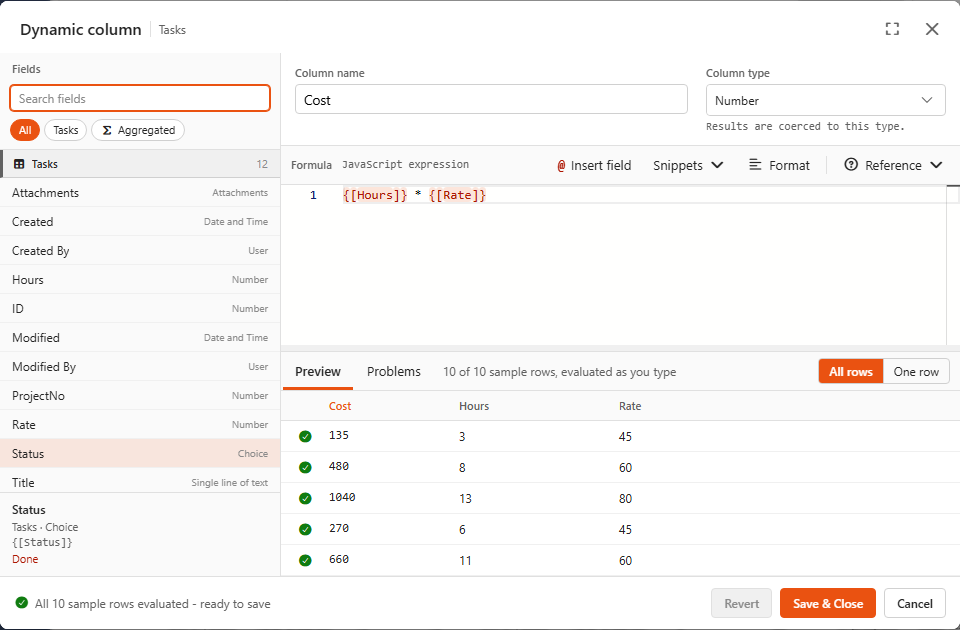
Save & Exit.
Step 2: the parent and the Reference only connections
- Create a This Site data source Project costs on
FormulasDemoProjects. - Click Connect data source (the circled
+in the designer's top bar, not the + Dynamic column button under the fields), pick Tasks, click Connect. - In the Tasks card header, open the merge settings and pick Reference only. Save.
- Repeat for Expenses.
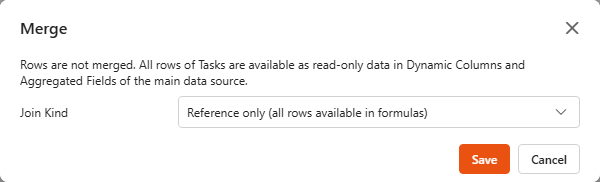
Step 3: per-project totals from the children
Add these dynamic columns to Project costs (all type Number):
| Column | Formula | Project 1 |
|---|---|---|
| Project hours | Rows.sum(Rows.filter({[Tasks_MergedData_]}, 'ProjectNo', {[ProjectNo]}), 'Hours') | 26 |
| Labour cost | SumIf({[Tasks_<Cost>]}, {[Tasks_ProjectNo]}, {[ProjectNo]}) | 1580 |
| Expenses | Rows.sum(Rows.filter({[Expenses_MergedData_]}, 'ProjectNo', {[ProjectNo]}), 'Amount') | 8400 |
| Unapproved expenses | Rows.sum(Rows.filter(Rows.filter({[Expenses_MergedData_]}, 'ProjectNo', {[ProjectNo]}), 'Approved', false), 'Amount') | 2400 |
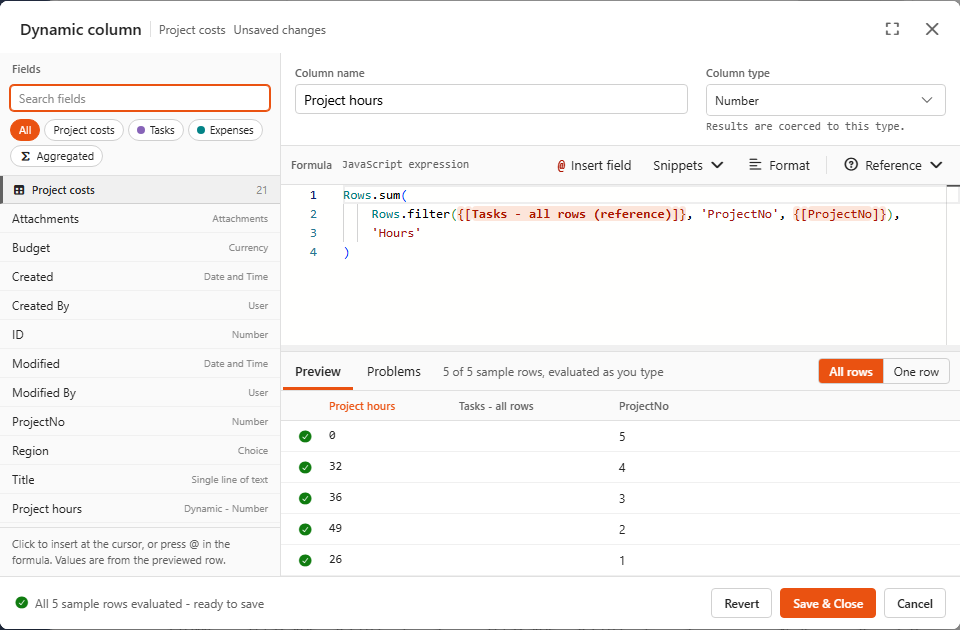
Labour cost deliberately uses SumIf to show the spreadsheet-style alternative. With Rows it would be Rows.sum(Rows.filter({[Tasks_MergedData_]}, 'ProjectNo', {[ProjectNo]}), '<Cost>').
Step 4: derived columns
| Column | Type | Formula | Project 1 |
|---|---|---|---|
| Total spent | Number | {[Labour cost]} + {[Expenses]} | 9980 |
| Last invoice | Date and Time | Max(Rows.filter({[Expenses_MergedData_]}, 'ProjectNo', {[ProjectNo]}).map((e) => e.InvoiceDate)) | 2026-09-10 |
| Budget used % | Number | Math.round({[Total spent]} / {[Budget]} * 10000) / 100 | 20.79 |
| Budget status | Single Line of Text | {[Budget used %]} > 100 ? 'Over budget' : {[Budget used %]} > 80 ? 'At risk' : 'On track' | On track |
| Project label | Single Line of Text | `${{[ProjectNo]}} - ${{[Title]}}` | 1 - Harbour Bridge Refit |
| Share of all task hours % | Number | Math.round({[Project hours]} / {[Tasks_<Total hours>]} * 1000) / 10 | 17.8 |
The last one uses the child's aggregated field Total hours (146).
Step 5: portfolio totals (aggregated fields)
Click Σ under Project costs:
| Field | Type | Formula | Value |
|---|---|---|---|
| Portfolio budget | Number | Sum({[Budget]}) | 92500 |
| Portfolio spent | Number | Sum({[Total spent]}) | 35275 |
| All expenses | Number | Sum({[Expenses_Amount]}) | 26500 |
| Pending approval | Number | SumIf({[Expenses_Amount]}, {[Expenses_Approved]}, false) | 6850 |
| Hardware spend | Number | SumIf({[Expenses_Amount]}, {[Expenses_Category]}, 'Hardware') | 16800 |
| Open task hours | Number | SumIf({[Tasks_Hours]}, {[Tasks_Status]}, (status) => status !== 'Done') | 85 |
| Projects over budget | Number | CountIf({[Budget status]}, 'Over budget') | 1 |
| Latest invoice | Date and Time | Max({[Expenses_InvoiceDate]}) | 2026-10-12 |
Step 6: compare each row with the total
One more dynamic column, which becomes a late column automatically:
| Column | Type | Formula | Project 1 |
|---|---|---|---|
| Share of portfolio spend % | Number | Math.round({[Total spent]} / {[Portfolio spent]} * 10000) / 100 | 28.29 |
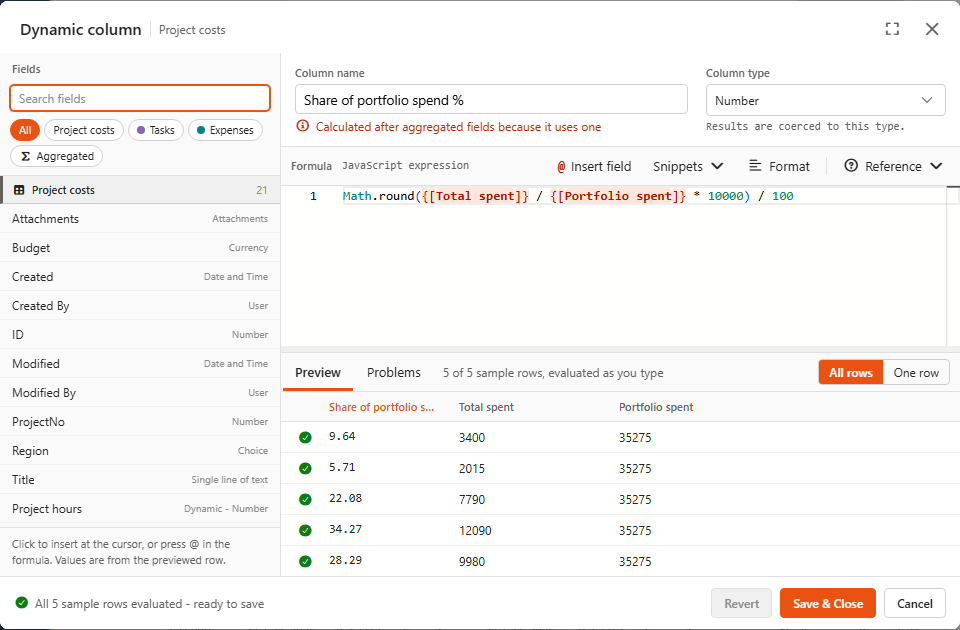
Save & Exit. Your designer should now look like this:
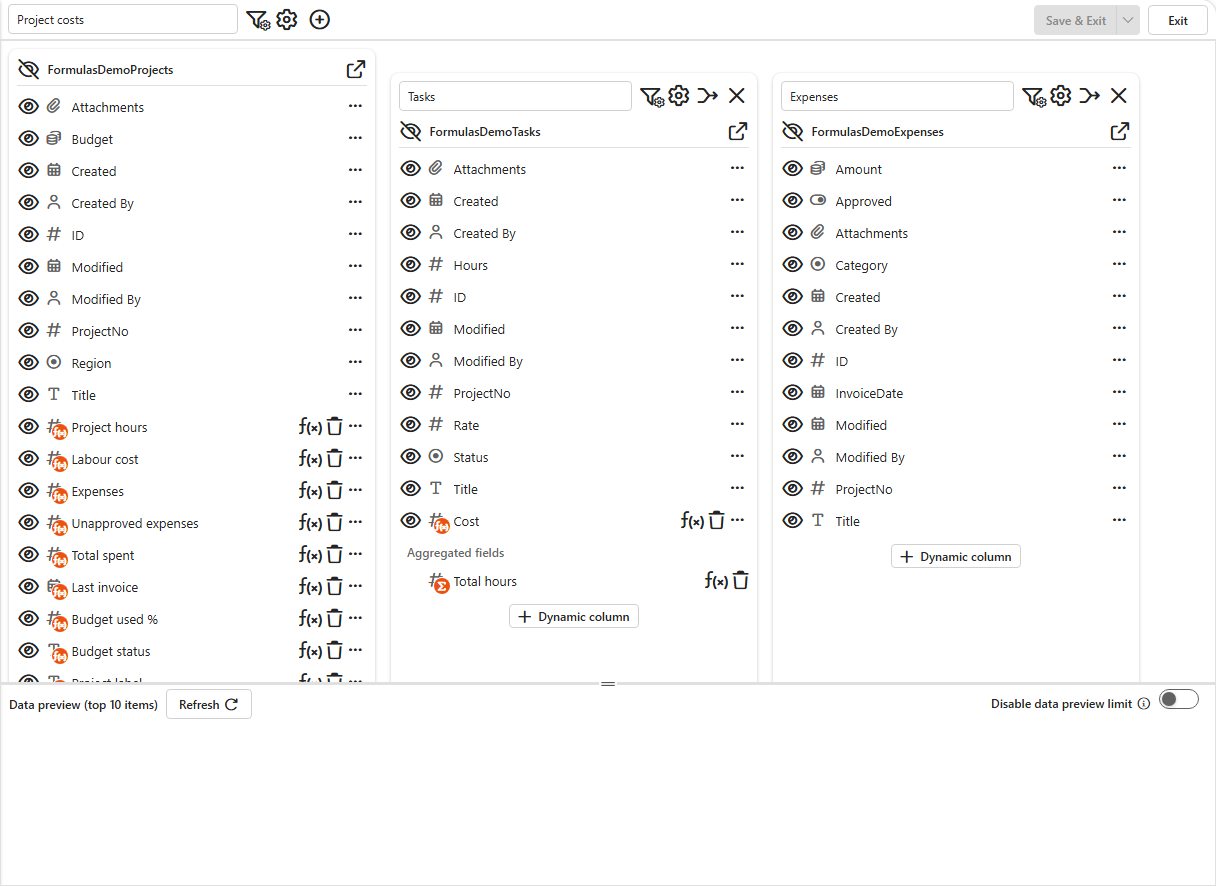
Step 7: the dashboard
- Create a dashboard, drop a Grid, choose Project costs and add Project label, Budget, Project hours, Labour cost, Expenses, Total spent, Budget used %, Budget status, Last invoice, Share of portfolio spend %.
- Drop a Summary Card, choose Project costs, set Value to Portfolio spent and Target to Portfolio budget (both under Aggregated fields).
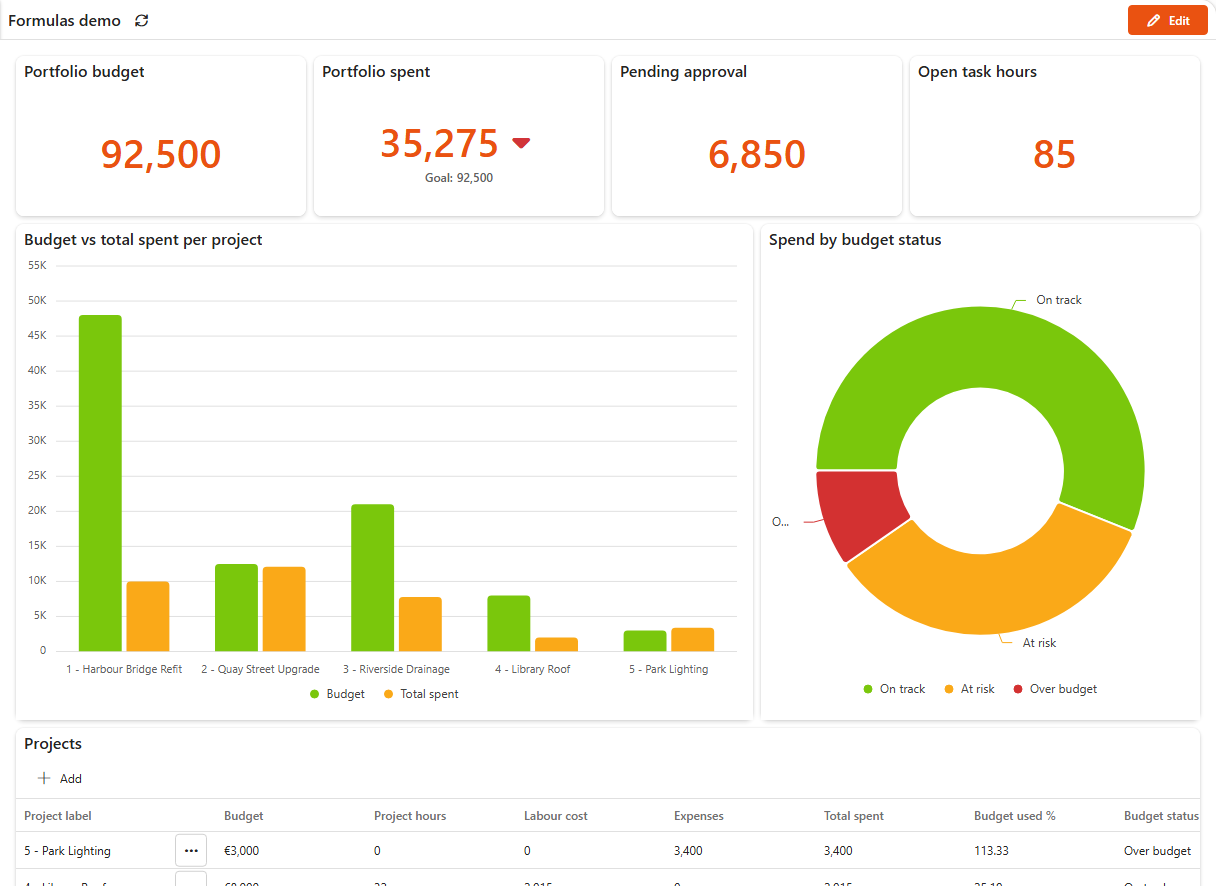
Compare your numbers with the expected values.