

Appearance
RAG line chart
A RAG chart shows how well something is doing with traffic-light colours: red for problems, amber for "at risk", green for "going well". A RAG line chart colours a line by the band its values fall into. Sintel BI also has a RAG area chart, which fills the area under the line in the same colours.
The RAG system is common in projects, for budget, quality, resources, performance and timelines. A RAG chart tells senior management at a glance how things are going and whether help or intervention is needed.
What each colour means
Agree on the RAG definitions first; they decide where you put the thresholds.
- Red: significant issues. One area such as budget, scope or time has gone beyond the tolerance agreed at the start. The matter needs to be escalated to senior management straight away.
- Amber: a problem is affecting performance, or the project is at risk. The project team and project manager can usually deal with it, although it can be worth making senior management aware.
- Green: everything is working as expected and performance is as planned. No action is needed.
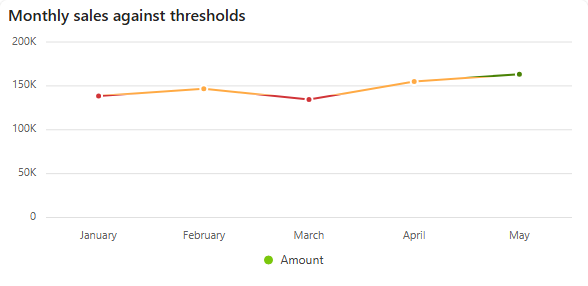
Add a RAG line chart
- In the designer, open the Charts tab of the Widgets pane and drag RAG Line Chart onto the dashboard. Resize it as required.
- On the Assign Data tab, pick the Data source, add the number to track to Values and the time field to Category.
- On the Properties tab, scroll to RAG Settings and enter the thresholds (see below).
- Name the chart and adjust its look, then save the dashboard.
The other settings are described in Common chart settings.
RAG Settings
The RAG Settings section is at the bottom of the Properties tab. It appears whenever the chart has a RAG Line or RAG Area series.
| Setting | What it does |
|---|---|
| Amber Threshold | Where amber starts. Values up to this number are red. |
| Green Threshold | Where green starts. Values between the two thresholds are amber, values above this number are green. |
| Amber Threshold Field / Green Threshold Field | Take the threshold from an aggregated field of the data source instead of a fixed number, for example a target stored in a list. Shown only when the data source has aggregated fields. Leave them on Static value to use the numbers above. |
| Invert RAG | For measures where lower is better. Low values become green and high values red, and Green Threshold is renamed Red Threshold. |
The line is coloured only when both thresholds are set.
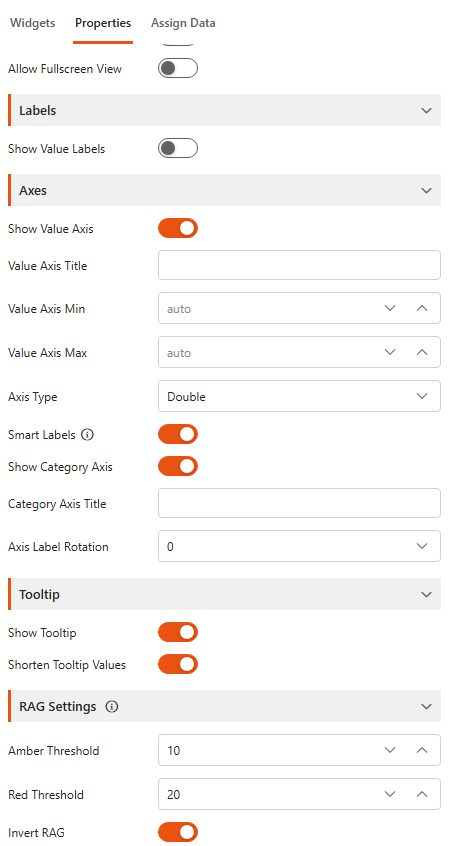
Example: abandoned calls
A helpdesk tracks abandoned calls per week, where fewer is better:
- Values: Sum of Abandoned calls. Category: Week.
- Turn on Invert RAG.
- Set Amber Threshold to 10 and Red Threshold to 20.
Weeks with up to 10 abandoned calls are green, 10 to 20 amber, and more than 20 red.
RAG series have no colour settings in Series settings: their colours always come from the thresholds.