

Appearance
How to update Sintel BI
For administrators
This page is for Microsoft 365 or SharePoint administrators. You don't need it to build dashboards. Who does what?
When a new version of Sintel BI is released, updating is simple. Sintel releases two types of update: over-the-air updates and package updates.
Over-the-air vs package updates
| Update | What you need to do |
|---|---|
| Over-the-air | Nothing. These are applied automatically, and the version number at the bottom left of every dashboard changes by itself. They're downloaded from cdn.sintelapps.com, so it must be reachable from users' browsers, see Hosts to allow. |
| Package | Upgrade the app in your app catalog. We publish a new package to Microsoft AppSource, and once Microsoft has reviewed and published it you can upgrade with the steps below. Package updates and their version numbers are listed in the release history. |
Different version numbers
The version shown at the bottom left of a dashboard can be newer than the one shown in your app catalog or on AppSource. That happens when you've received over-the-air updates since you installed or last upgraded the package. It's normal, and it means you're on the latest version. After you upgrade to a new package, the version in AppSource, in your app catalog and on your dashboards will match again.
Package update
This process only works if Sintel BI was installed from AppSource. In that case the app is listed in the app catalog as WA200003873. If you have a different version, we suggest removing it and installing the latest version from AppSource (see Remove or reinstall).
Step 1: upgrade the app catalog
These steps should be done by your tenant admin, or someone with permission to update apps.
Open your tenant app catalog site:
https://YourTenantName-admin.sharepoint.com/_layouts/15/tenantAppCatalog.aspxIf the modern experience opens, switch to the classic experience.
Select Sintel BI.

In the ribbon, choose Files > Upgrade Store App.
You're taken to a screen that shows Downloading from: https://addinsinstallation.store.office.com/...
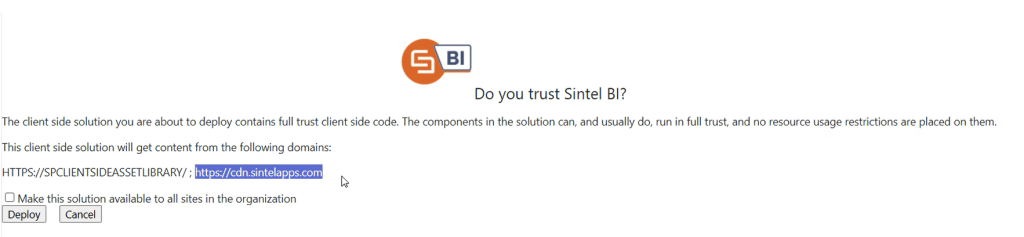
Once the file has downloaded, you're asked to trust Sintel BI. You also have the option to make the solution available to all sites in the organisation. Select Deploy.
Be patient
After you select Deploy, nothing may appear to happen for up to 60 seconds.
TIP
If you choose Make this solution available to all sites in the organization, setting up Sintel BI on a site needs one step less: you no longer have to add the app to a site before creating the Sintel BI page.
When the update has finished, you're taken back to the app catalog. The App version shown should match the latest version listed on AppSource.
Step 2: upgrade the sites that use Sintel BI
After the app catalog is upgraded, sites that use Sintel BI may show an upgrade message when they're refreshed. Upgrade one site, then use it to update all the others.
You may not get an upgrade prompt if the update was minor and needed no changes to the Sintel BI lists on your sites. In that case, just check that the version number at the bottom left of the screen is correct.
Update a single site
Open any site where Sintel BI is set up. When the Sintel BI page loads, you may see An upgrade is available for Sintel BI. Select Upgrade now! to update the app on that site.
The upgrade takes about 5-10 seconds. When it's done, you see Sintel BI is now ready to use and you're taken back to the Sintel BI landing page.
The version you're using is shown at the bottom left of the navigation.
Update all other sites
Now use the upgraded site to update every other site that uses Sintel BI:
- Open Settings at the bottom of the Sintel BI navigation and go to the My license tab.
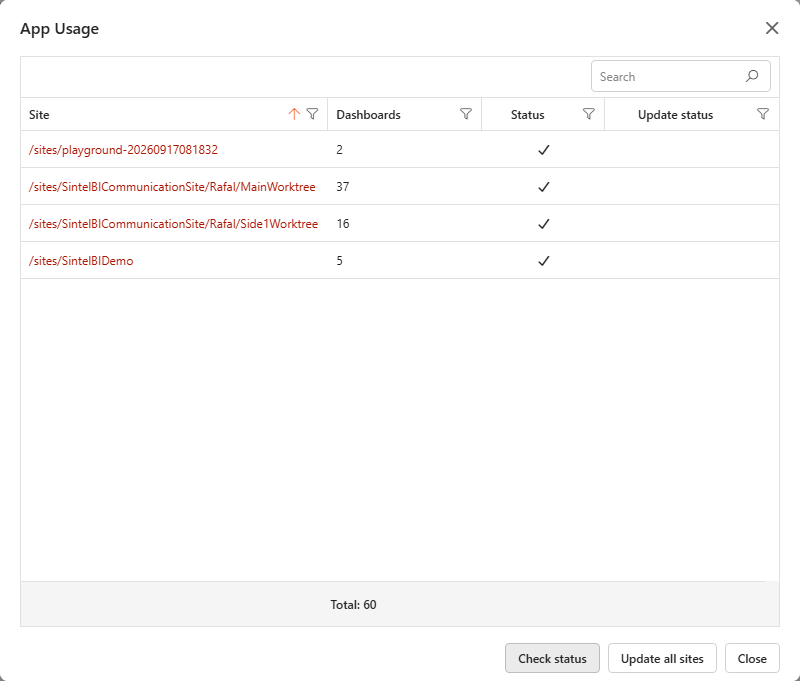
- Select Show usage. The App Usage dialog opens.
- Select Check status. This checks the update status of every site.
- When it has finished, select Update all sites.
Site access
You need access (Full Control) to every site you want to update. Sites you can't access are skipped, and they can't be used until someone with Full Control upgrades them to the version in your tenant.