

Appearance
Merge data sources
Merging combines two data sources into one, so a single dashboard component can show data from both. For example, you can add customer details to a list of orders.
When to merge
Merging is useful when you want to:
- combine related information from different sources, such as orders and customer details,
- add extra details to a data set from another source,
- build one dashboard on top of several data sets.
Be careful when:
- the two data sources don't share a clear matching column,
- one of them has missing or inconsistent values,
- rows could appear more than once or disappear, depending on the join kind. Picking the right join kind makes sure the result is what you expect.
Merge two data sources
Step 1: Connect a second data source
- Open an existing data source in the designer (the first, or parent, data source).
- Click the + icon (Connect data source) in the top bar.
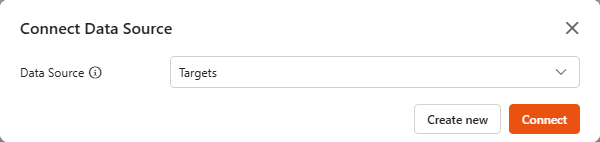
- Pick a data source in the Connect Data Source dialog and click Connect. Or click Create new to create the second data source on the spot from a SharePoint list or library (this site or another site in the tenant), MS SQL or Excel.
Only second-generation data sources can be connected; older ones don't appear in the list.
Step 2: Open the merge settings
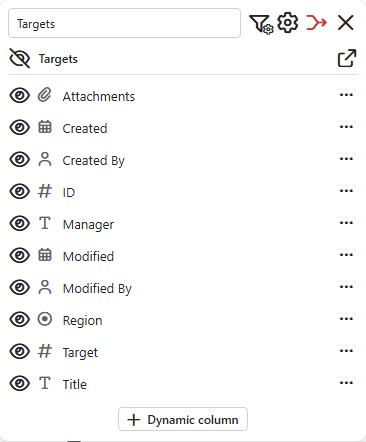
The connected data source appears as a second tile. Its Merge data source icon flashes until the merge is set up. Click it to open the Merge dialog.
Step 3: Choose the join kind and matching columns
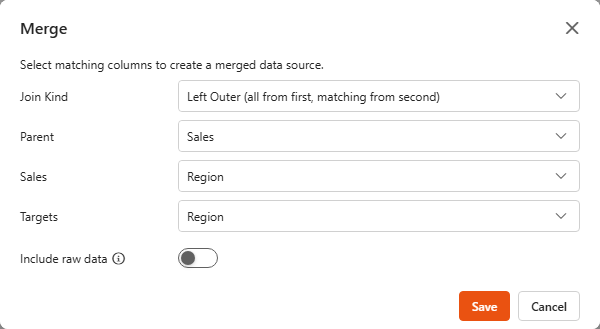
- Pick a Join Kind, see below.
- Check the Parent: the data source to match against. It matters when more than one data source is connected.
- Pick the matching column of each data source. The two columns must hold the same kind of values, in the same format.
- Click Save.
Step 4: Save and check the result
Save the data source and click Refresh in the Data preview to check the merged data.
Choose a join kind
| Join kind | Result |
|---|---|
| Left Outer (all from first, matching from second) | Every row of the first data source. Columns from the second one are filled where a match exists, and empty where it doesn't. |
| Inner (matching from both) | Only rows that have a match in both data sources. |
| Reference only (all rows available in formulas) | The first data source's rows, unchanged. All rows of the second one are available in dynamic columns and aggregated fields. See Reference only vs. a regular join. |
Left Outer
- Keeps all rows of the first data source.
- Adds data from the second one only where there's a match.
- If there's no match, the second data source's columns are empty for that row.
Use it when you want to keep everything from your main data set, for example a full list of products, customers or locations, and add details where they're available.
Inner
- Keeps only rows with a match in both data sources.
- A row of the first data source without a match is left out.
Use it when you only want fully matching data, for example customers who have both placed an order and signed up for marketing emails.
Example 1: Left Outer, superheroes and their sidekicks
You have two data sources:
- Superheroes: all superheroes.
- Sidekicks: the superheroes that have an official sidekick.
Merged with Left Outer, every superhero is kept, and the sidekick is added where there is one:
| Superhero | Sidekick |
|---|---|
| Batman | Robin |
| Superman | |
| Spider-Man | |
| Iron Man | |
| Shrek | Donkey |
| Wonder Woman |
Superheroes without a sidekick stay in the list with an empty Sidekick. Useful if you want to see which heroes work alone and might need a sidekick soon.
Example 2: Inner, only heroes with a sidekick
Merged with Inner, only the superheroes with a sidekick remain:
| Superhero | Sidekick |
|---|---|
| Batman | Robin |
| Shrek | Donkey |
Useful when you only care about the dynamic duos (and the swamp-defending ones).
Reference only
Use Reference only when one row of the first data source has many matching rows in the second (a project with many tasks). A regular join would repeat the project row once per task. With Reference only, the rows stay as they are and you use the second data source in formulas instead. See Reference only vs. a regular join.
Include raw data
Include raw data (Left Outer and Inner) adds the matching rows of the second data source to each row of the first one. Only switch it on if you plan to write advanced dynamic columns that use them.
Columns with the same name
If both data sources have a column with the same name, for example Date in Orders (the order date) and Date in Payments (the payment date), both appear as Date after the merge and you can't tell them apart.
Rename them in the data source designer:
- Click … next to the column.
- Choose Rename.
- Add a prefix that shows where it comes from, such as Orders_Date and Payments_Date.
Best practices
- Check your matching columns. They need the same format (text vs. numbers).
- Rename columns with the same name before merging, so the result stays clear.
- Use Left Outer when keeping every row matters, Inner for clean, focused reports, and Reference only for one-to-many data.