

Appearance
Smart card
The Smart Card shows text with live figures from your data inside it, such as "The total sales for this quarter have reached €1.2M." Use it to highlight key figures with the context that explains them.
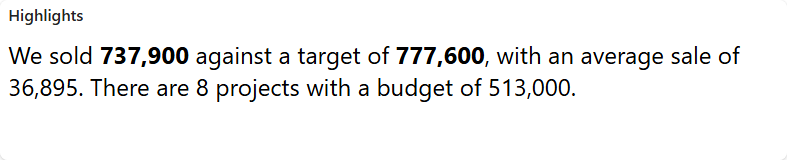
A Smart card can use values from several data sources in one text.
Add a smart card
- Make sure the data sources with your figures exist.
- Open the dashboard in edit mode.
- In the Widgets pane, open the General tab and drag Smart Card onto the dashboard. Resize it.
- Select the card and set its properties, see Settings.
- Open the Assign Data tab. Under Data sources, select the data sources the figures come from.
- Under Text, click Open editor and write the text, see below.
- Click Save & Exit.
Write the text
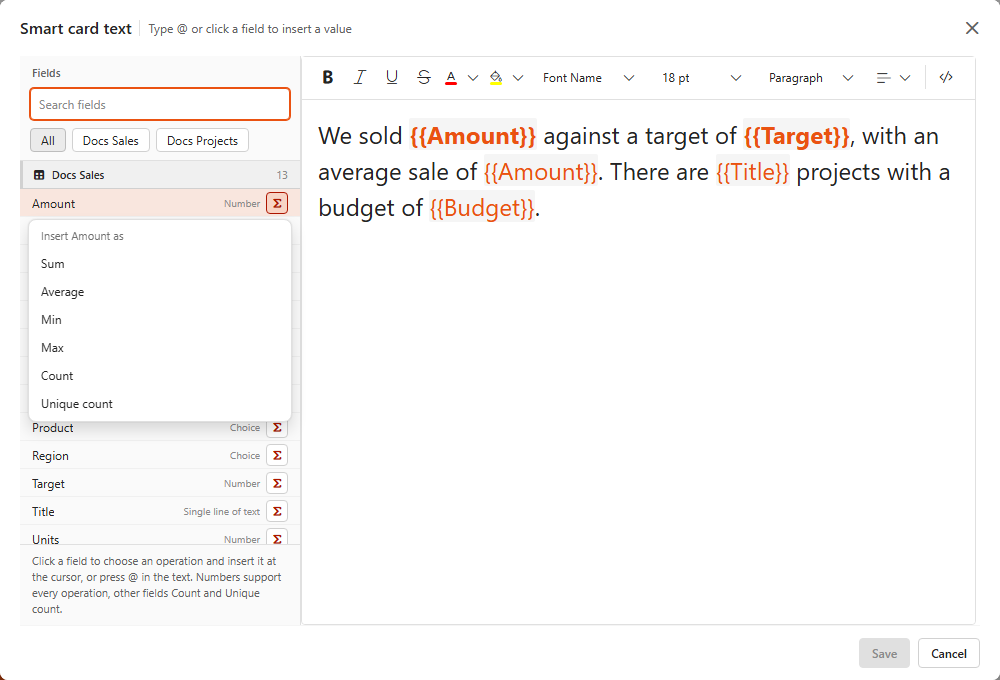
The editor has the full formatting toolbar and a Fields list.
- Type your text.
- Where a figure should go, type
@or click a field in the Fields list. - Choose the operation: Sum, Average, Min, Max, Count or Unique count. Numbers support every operation, other fields Count and Unique count.
- The figure is inserted at the cursor, for example Sum of Sales. On the dashboard it is replaced with the calculated value.
When you use several data sources, the chips above the field list filter the fields by data source. Removing a data source removes its fields from the text.
The Text preview on the Assign Data tab shows the text with its figures highlighted.
Format the figures
Under More settings > Visual settings, set how each figure is shown:
| Setting | What it does |
|---|---|
| Min Decimal Places | At least this many decimals are shown. |
| Max Decimal Places | At most this many decimals are shown. |
| Show Thousand Separator | Shows a separator between thousands, for example 12,500. |
Settings
Text settings
| Setting | What it does |
|---|---|
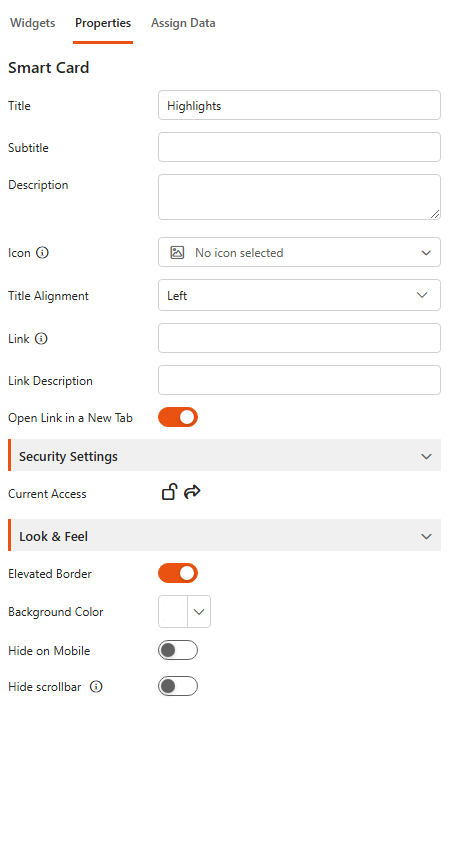
| Title | A title that sums up the card, for example Total Revenue. |
| Subtitle | Optional extra context, for example Q1 2024. |
| Description | Longer text shown as a tooltip, for example Total revenue generated in Q1. |
| Icon | An icon for the figure, for example a money symbol for financial figures. |
| Title Alignment | Left, centre or right. |
Link settings
| Setting | What it does |
|---|---|
| Link | Makes the card clickable. A small link icon appears next to the title. |
| Link Description | Describes the link for viewers. |
| Open Link in a New Tab | Opens the link in a new tab instead of the current one. |
Security Settings
Current Access shows whether the card is public (everyone can see it), private (administrators only), or shared with specific users and groups. Click Manage access to change it.
Look & Feel
| Setting | What it does |
|---|---|
| Elevated Border | A raised border that makes the card stand out. |
| Background Color | The card's background colour. |
| Hide on Mobile | Hides the card on phones. |
| Hide scrollbar | Hides the vertical scrollbar, even when the text is longer than the card. |
Examples
Sales performance overview
Key sales figures for a period, perfect for executive dashboards.
- Title: Total Sales
- Subtitle: Q3 2024
- Icon: chart-line-up
- Text: The total sales for this quarter have reached [Sum of Sales].
Square brackets stand for a field inserted with @.
Visitor insights
Monthly website traffic, for marketing teams that track campaigns and engagement.
- Title: Visitors
- Subtitle: October 2024
- Icon: globe
- Text: We had a total of [Sum of Visitors] website visits this month.
- Link: the detailed analytics report.
Financial performance indicator
Key financial figures such as profit or revenue.
- Title: Total Revenue
- Subtitle: Year-To-Date
- Icon: money-bill
- Text: The revenue so far is [Sum of Revenue].
Project progress report
The progress of a key project.
- Title: Project ABC Progress
- Subtitle: October 2024
- Icon: calendar
- Text: The project is currently [Average of Completion]% complete.
Related
- Summary card: one large figure, optionally against a target.
- Aggregated fields: calculate a figure in the data source and reuse it on several cards.