

Appearance
Navigation
The left navigation menu takes people to your dashboards, to other pages and sites, and to Sintel BI's own pages. You decide what's in it, in which order, how it looks and who sees each item.
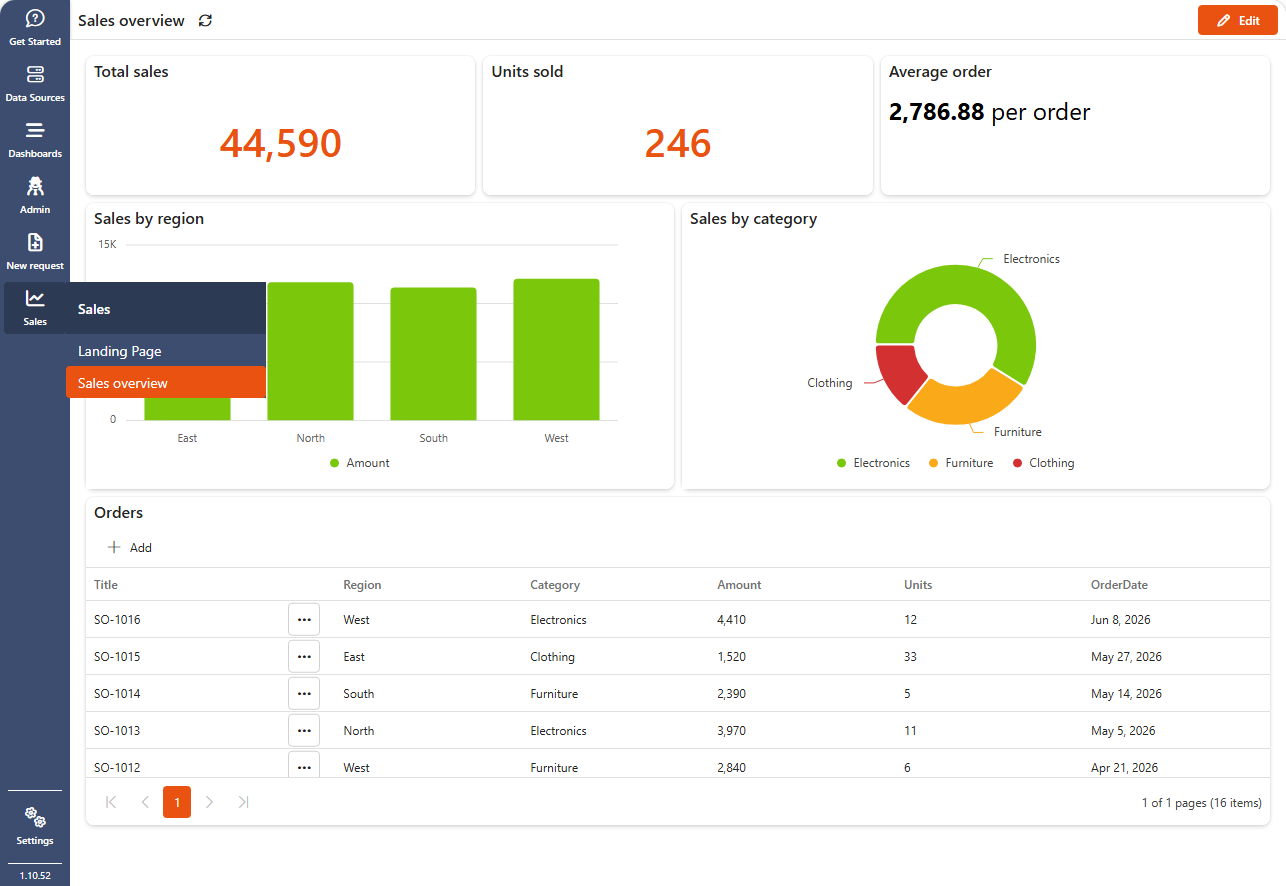
Open the navigation settings
- Open Settings at the bottom of the left navigation.
- Select the Navigation tab.
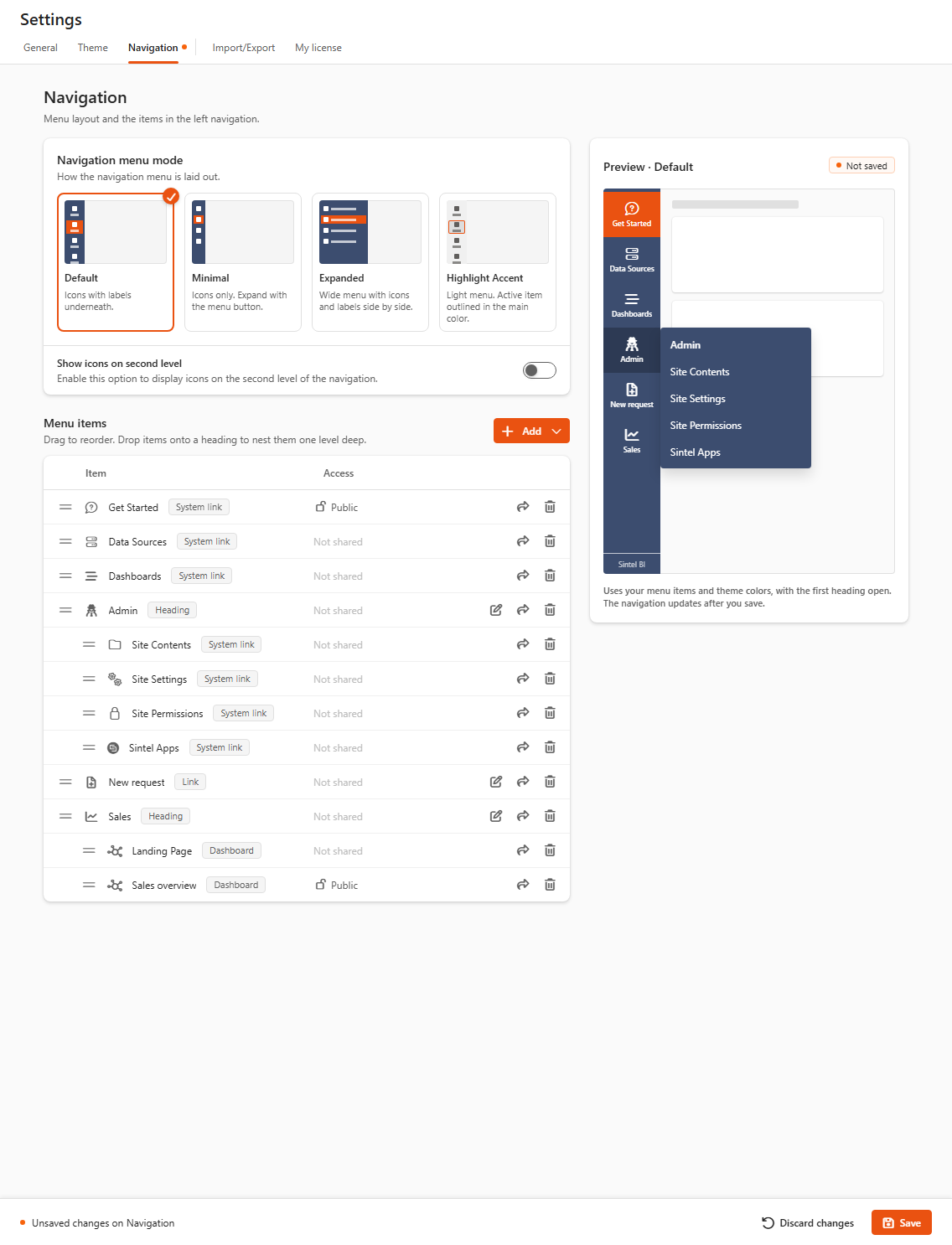
The page has three parts: the menu mode and options, the list of Menu items, and a live Preview of the menu. Changes aren't applied until you click Save in the bar at the bottom of the page. The preview shows Not saved until then.
What you can add
Click Add above the menu items and choose what to add.
| Item | What it does |
|---|---|
| Dashboard | Opens a dashboard on this site. Pick it in Add dashboard link. |
| Link | Opens any address: another page, a site, a list form or a document. |
| Heading | Groups other items under one entry, see Group items under a heading. |
| System Link | Opens one of Sintel BI's or SharePoint's own pages: Get Started, Data Sources, Dashboards, Site Contents, Site Settings, Site Permissions, App Hub and, when Sintel Apps is installed, Sintel Apps. |
Drag items by their handle to change the order. Use the bin icon to remove an item, and the edit icon to change a link or heading.
Link settings
| Setting | What it does |
|---|---|
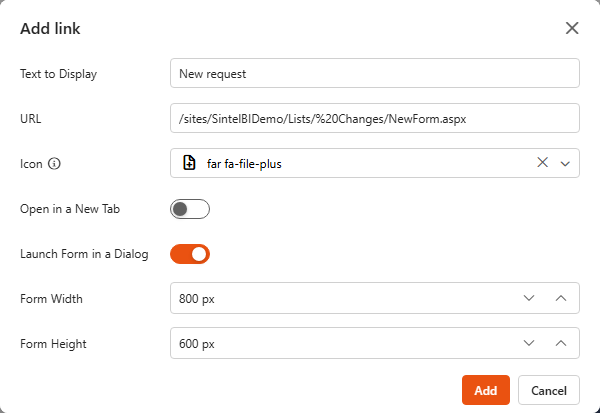
| Text to Display | The name shown in the menu. |
| URL | The address to open. |
| Icon | The icon shown in the menu. |
| Open in a New Tab | Opens the address in a new browser tab. |
| Launch Form in a Dialog | Only for links to a SharePoint list form (NewForm, EditForm, DispForm). Opens the form in a dialog on top of Sintel BI instead of leaving the page. Not available while Open in a New Tab is on. |
| Form Width / Form Height | The size of that dialog, in pixels. |
Group items under a heading
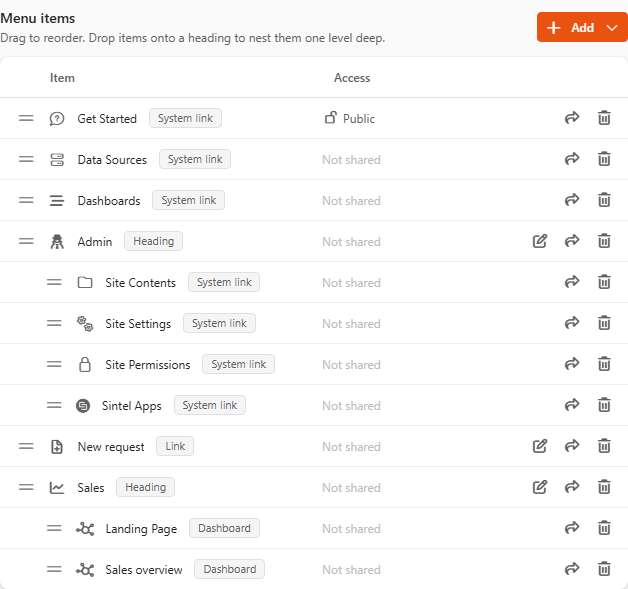
If your menu has many items, group them under headings. A heading shows its items as a second level when you hover over it.
- Click Add > Heading, enter a Title, pick an Icon and click Add.
- Drag the dashboards and links you want onto the heading.
Items can be nested one level deep: you can't put a heading inside another heading.
Switch on Show icons on second level to show the items' icons in the second level too.
Choose the menu mode
Pick the layout under Navigation menu mode. The preview updates as you choose.
| Mode | What it looks like |
|---|---|
| Default | Icons with labels underneath. |
| Minimal | Icons only. The name appears when you hover over an icon, and the menu button expands the menu. |
| Expanded | A wide menu with icons and labels side by side. |
| Highlight Accent | A light menu, with the active item outlined in the main colour. |
The menu's colours come from Settings > Theme.
Who can see an item
The Access column shows who can see each item:
- Inherited: the item is under a heading and uses the heading's permissions. A warning icon means the dashboard has different permissions from the heading, so some people may see a link to a dashboard they can't open.
- Public: everyone with access to the site can see it.
- Otherwise, the people and SharePoint groups it's shared with.
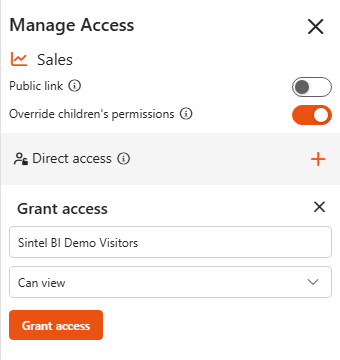
To change it, click the share icon on the item's row. The Manage Access panel opens:
| Setting | What it does |
|---|---|
| Public dashboard / Public link | Everyone can see the item. |
| Override children's permissions | Headings only. Every item under the heading inherits the heading's permissions. |
| Direct access | People and groups given access to this item. Click + to grant access: dashboards can be shared with Can view or Can edit, other items with Can view. |
Use SharePoint groups
Sharing with SharePoint groups rather than individual people makes permissions easier to manage, and lets them travel with an exported app. See App template permissions.
AD groups
Sintel BI can't see who is in an Active Directory group, even inside a SharePoint group. See Cannot share dashboards with AD groups.