

Appearance
Polar chart
A polar chart shows data in a circle: each category is a segment radiating from the centre, and the value decides how far out it reaches. This radial layout is useful for multivariate data and for spotting patterns and trends, for example skills, sales performance or survey results across several areas.
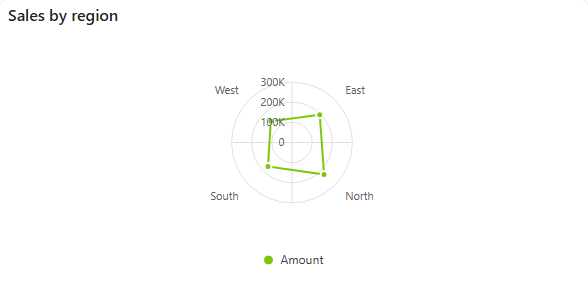
Add a polar chart
- In the designer, open the Charts tab of the Widgets pane and drag Polar Chart onto the dashboard. Resize it as required.
- On the Assign Data tab, pick the Data source.
- Add the number to plot to Values, the field for the segments around the circle to Category, and optionally a field to Series.
- Use More settings for sorting and series colours if needed.
- Name the chart and adjust its look on the Properties tab, then save the dashboard.
The shared settings are described in Common chart settings.
What is different on a polar chart
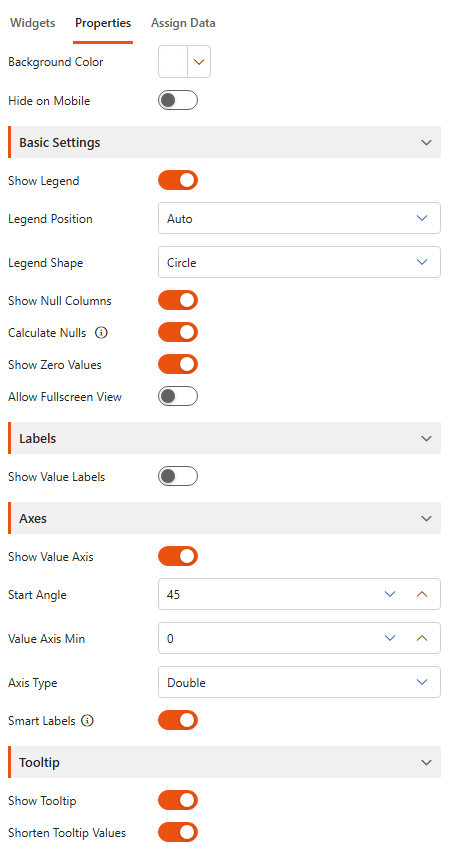
A polar chart has no horizontal and vertical axes, so some settings change on the Properties tab:
| Setting | What it does |
|---|---|
| Start Angle (Axes) | Rotates the chart: the angle, 0 to 360 degrees, where the first category is drawn. |
| Axis Type (Axes) | Double or Logarithmic. Category is not available. |
| Value Axis Min (Axes) | The value at the centre of the circle. Empty means automatic. |
Invert Axes, Value Axis Title, Value Axis Max, Show Category Axis, Category Axis Title and Axis Label Rotation are not shown for polar charts.
Example: employee skill distribution
Goal: show the skill levels of employees across departments.
Data source: a SharePoint list called Employee Skills:
| Column name | Column type | Description |
|---|---|---|
| Employee Name | Single line of text | Name of the employee |
| Skill | Choice | Skill name (e.g. Programming, Design) |
| Department | Choice | Department (e.g. IT, Marketing) |
| Skill Level | Number | Level of skill proficiency (1-10) |
Example data:
| Employee Name | Skill | Department | Skill Level |
|---|---|---|---|
| John Doe | Programming | IT | 8 |
| Jane Doe | Design | Marketing | 7 |
| Oscar Dunnes | Design | Marketing | 8 |
| Marge Connors | Programming | IT | 7 |
| Louise Thompson | Analysis | Finance | 6 |
| Amy Berry | Management | HR | 7.5 |
| Lily O'Brien | Management | Marketing | 8 |
| Ross Anure | Programming | Finance | 7 |
Assign Data:
- Data source: Employee Skills
- Values: Skill Level, aggregated as Average
- Category: Department
- Series: Skill
Properties:
- Title: Employee Skill Distribution
- Subtitle: Skill Levels Across Departments
- Icon: an icon for skills, for example
fa-solid fa-graduation-cap - Title Alignment: Center
- Elevated Border: on
- Show Legend: on, Legend Position: Right, Legend Shape: Circle
- Show Value Labels: on, Shorten Value Labels: on
- Show Null Columns: off, Show Zero Values: off
- Show Value Axis: on, Start Angle: 45, Smart Labels: on
- Show Tooltip: on, Shorten Tooltip Values: off
Filter by employee
Add a dropdown filter on Employee Name so viewers can see the skills of one person.