

Appearance
Pyramid chart
A pyramid chart is a triangle split into segments, one for each data point. It lets you compare values proportionally, in a progressively increasing order.
Pyramids are good at showing hierarchical data and relative positions, but not exact individual values. A well-known example is the food pyramid, where the food groups are placed in the pyramid by the number of servings to eat each day.
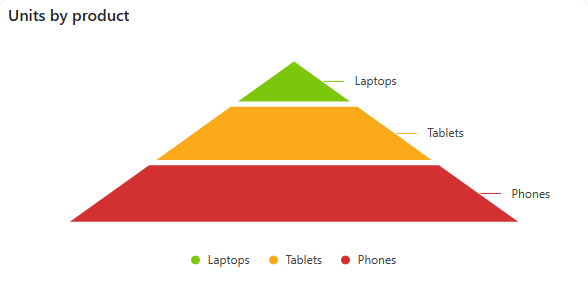
Add a pyramid chart
- In the designer, open the Charts tab of the Widgets pane and drag Pyramid Chart onto the dashboard. Resize it as required.
- On the Assign Data tab, pick the Data source.
- Add the number each segment measures to Value and the field for the segments to Category.
- Name the chart and adjust its look on the Properties tab, then save the dashboard.
Pie, donut and pyramid charts share one settings panel, described in Common chart settings.
Settings worth knowing
| Setting | What it does |
|---|---|
| Chart Width (Layout & Appearance) | The width of the pyramid, 80% by default. A wider or narrower pyramid can suit your data better. |
| Top N values / Show 'Other' (Basic Settings) | Show only the largest segments, and one "Other" segment for the rest. By default all items are shown. |
| Label Value (Labels) | Category, Value or Custom value, for example {category} ({percentageValue}). |
| Label Position (Labels) | Inside or Outside the segments. |