

Appearance
Server isn't responding
Symptom
When you open a dashboard, Sintel BI shows The server isn't responding:
It seems that our server is not responding. Please check with an administrator whether external network traffic is allowed.
In current versions, the same problem shows as a notification instead, and the dashboard still opens: Oops! Some Features Are Unavailable, "We're having trouble connecting to our server. Some features might not work right now."
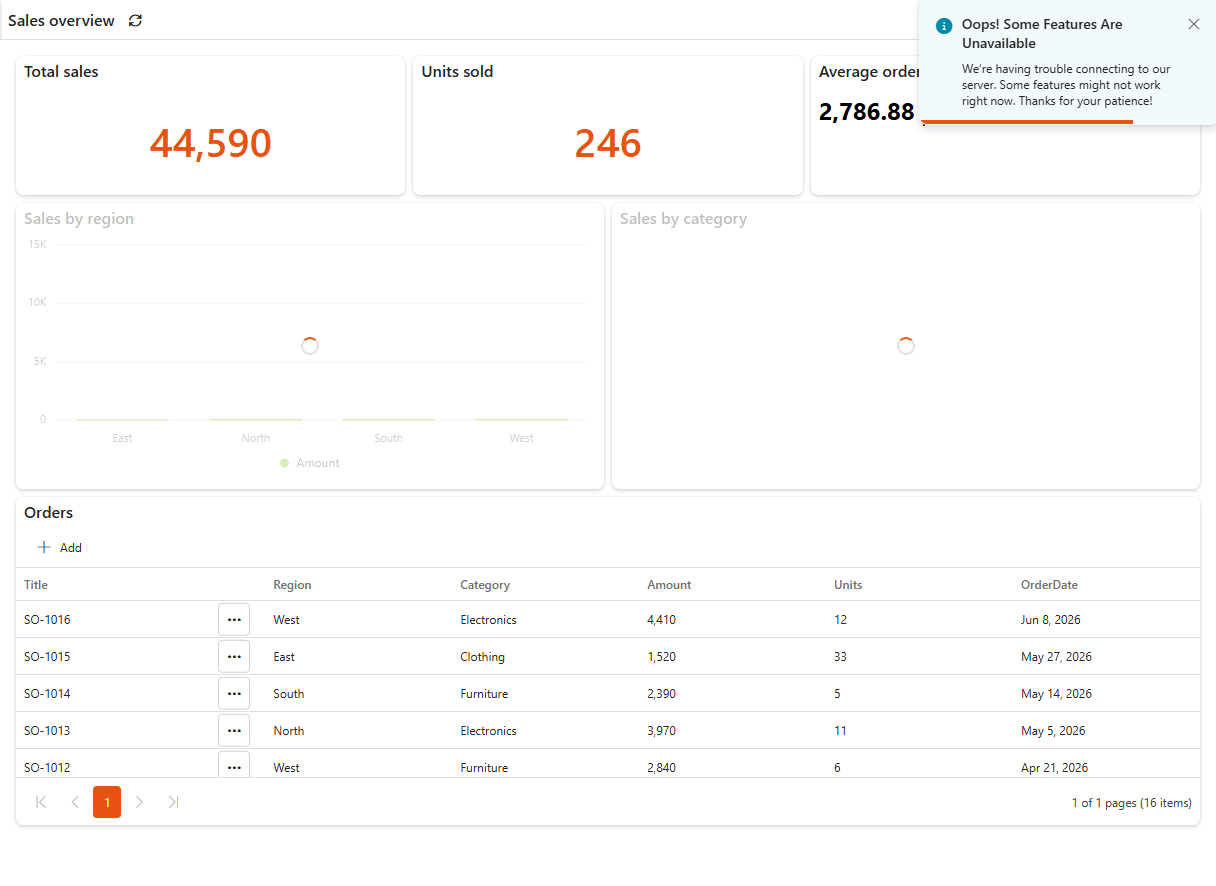
If the dashboard opens and only one or a few widgets show Whoops! An error occurred, see Error displaying data on a dashboard instead.
If you only view dashboards
This isn't caused by your computer or your home network, and you can't fix it yourself. Send this page to your site owner or IT department. How to find your site owner
Cause
Sintel BI couldn't reach the Sintel server that checks your licence. There are two known causes:
- An outdated Sintel BI build. In early 2026 a Microsoft certificate failed to renew automatically, which broke this connection. Sintel has since published an updated Sintel BI build, and tenants still on the old build see this error.
- Network rules. Your network blocks traffic from the browser to Sintel's server.
Fix
Who can fix this
A SharePoint administrator, together with your IT department for the network check. If that isn't you, send this page to your IT department.
Upgrade to the latest build
A SharePoint administrator upgrades the app in the tenant app catalog:
- Open your tenant app catalog:
https://<YourTenantName>-admin.sharepoint.com/_layouts/15/tenantAppCatalog.aspx - Open the classic experience.
- Select the Sintel BI app.
- On the Files tab, click Upgrade Store App.
- If you're asked to trust the app and make it available to all sites in the organisation, we recommend ticking the box.
- Click Deploy. The process can take up to a minute.
- When it finishes, you're taken back to the app catalog. The App version shown should match the latest version listed in Microsoft Marketplace.
See How to update for screenshots of these steps.
Replace the temporary package
When the issue first occurred, Microsoft Marketplace (previously AppSource) couldn't publish the fixed build straight away. In the meantime Sintel provided a downloadable build with the fix, which some customers installed in place of the store app.
If you installed that temporary build, replace it with the official one. In the tenant app catalog's modern experience:
- Open your tenant app catalog:
https://<YourTenantName>-admin.sharepoint.com/_layouts/15/tenantAppCatalog.aspx - Select the Sintel BI app and click Delete.
- In the left menu, click SharePoint Store, search for Sintel BI and add it.
- If you're asked to confirm data access, we recommend Enable this app and add it to all sites. This doesn't add the app to every site automatically, it only makes it available to add. Only enable this app is fine too.
- Click Add. After a few seconds the app is added to the Apps site.
Check the network
If you're on the latest build and still see the message, ask your administrator to check that external network traffic from the browser to Sintel's servers is allowed. The hosts to allow are listed in Security and data.