

Appearance
User filter
A User Filter lets viewers filter the dashboard by a person. For example, you could filter appointments to show those of one employee, or a manager could look at the sales of one sales assistant at a time.
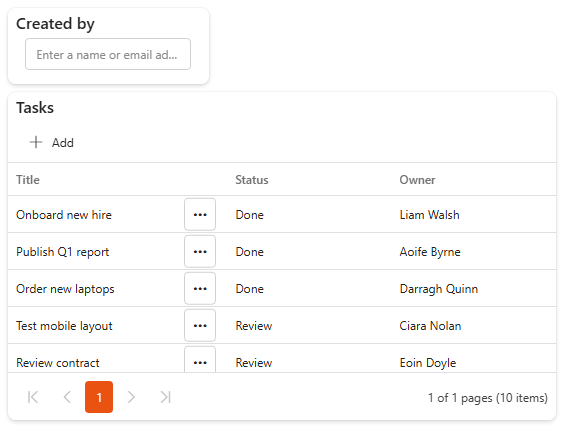
The column must be a Person column
The User filter works on Person or Group columns only. If the people are stored in a title or single line of text column, the filter can't use it.
Users should only see their own data?
Use a data source filter with @Me instead. The data is filtered before it reaches the dashboard, which is more secure and faster. See the Filtering guide.
Add a user filter
- Make sure the data source exists and is already used by a component on the dashboard.
- Open the dashboard in edit mode.
- In the Widgets pane, open the Filters tab and drag User Filter onto the dashboard. Resize it.
- Select the filter and set its properties, see Settings.
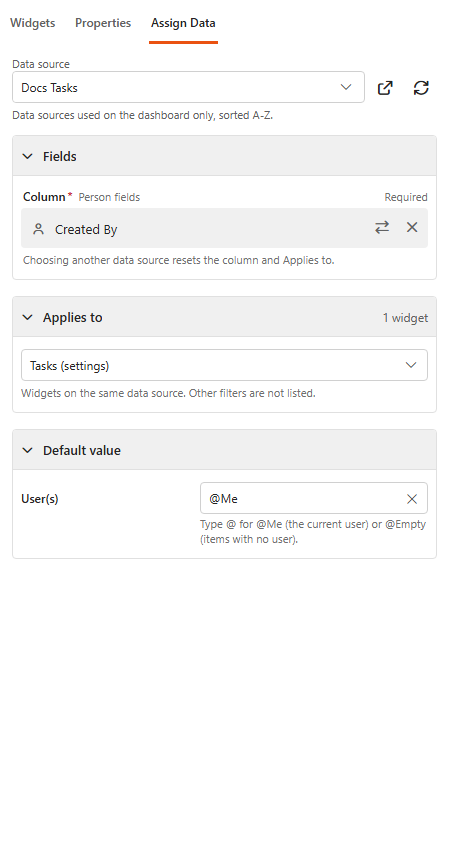
- Open the Assign Data tab and click Choose data source.
- Under Fields, choose the Column: a person field, for example User.
- Under Applies to, choose the components the filter affects, for example the feedback grid. Only components on the same data source are listed, so they always have the person data to filter on.
- Optionally, set a default value in User(s), see below.
- Click Save & Exit.
Set a default value
User(s) are selected when the dashboard opens. Leave it empty to show all users, or pick one or more people. Type @ for two special values:
- @Me: the person viewing the dashboard.
- @Empty: items with no user.
Settings
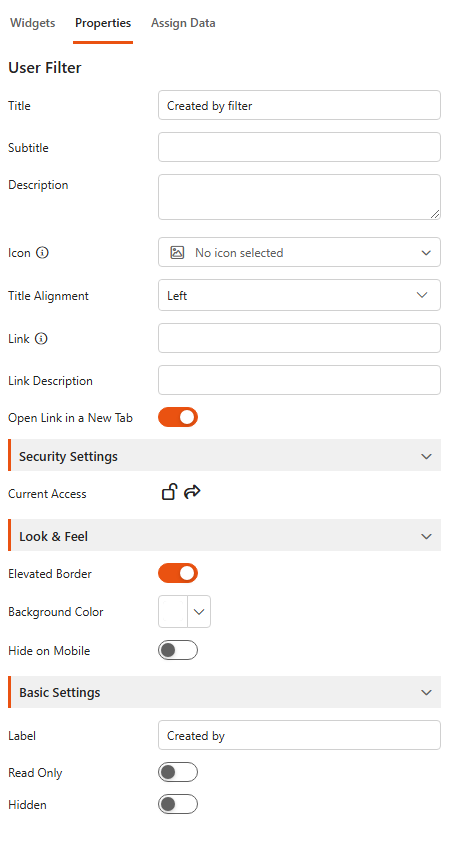
The Properties tab has the common settings:
| Setting | What it does |
|---|---|
| Title | The name of the component. |
| Subtitle | A subtitle under the title. |
| Description | Extra information, shown as a tooltip. It helps viewers without taking space on the dashboard. |
| Icon | A Font Awesome icon shown next to the title. |
| Title Alignment | Left, centre or right. |
| Elevated Border | Under Look & Feel: a raised border around the component. |
Basic Settings
| Setting | What it does |
|---|---|
| Label | Text shown above the people picker. |
| Read Only | Viewers see the selected people but can't change them, so they can't view data related to other users. |
| Hidden | Hides the filter on the dashboard. Its default value still filters the components. |
Related
- Filtering guide: which filter to use when.
- Dropdown filter: filter by person from a list of values that occur in the data.