

Appearance
How aggregated fields work
An aggregated field is a formula that runs once over all rows of a data source and produces one value: a total, an average, a count, the latest date. Add one with the Σ button under a data source.
Fields are lists of values
This is the one big difference from dynamic columns. In an aggregated formula, a field token stands for all of that field's values:
| Token | In a dynamic column | In an aggregated field |
|---|---|---|
{[Hours]} | this row's hours, e.g. 8 | every row's hours, e.g. [3, 8, 13, 6, ...] |
{[Portfolio spent]} (another aggregated field) | its value, 35275 | its value, 35275 |
So you wrap fields in a helper that turns the list into one value:
js
Sum({[Hours]})          // Tasks > Total hours = 146
Sum({[Budget]})         // Project costs > Portfolio budget = 92500
Max({[Expenses_InvoiceDate]})  // Project costs > Latest invoice
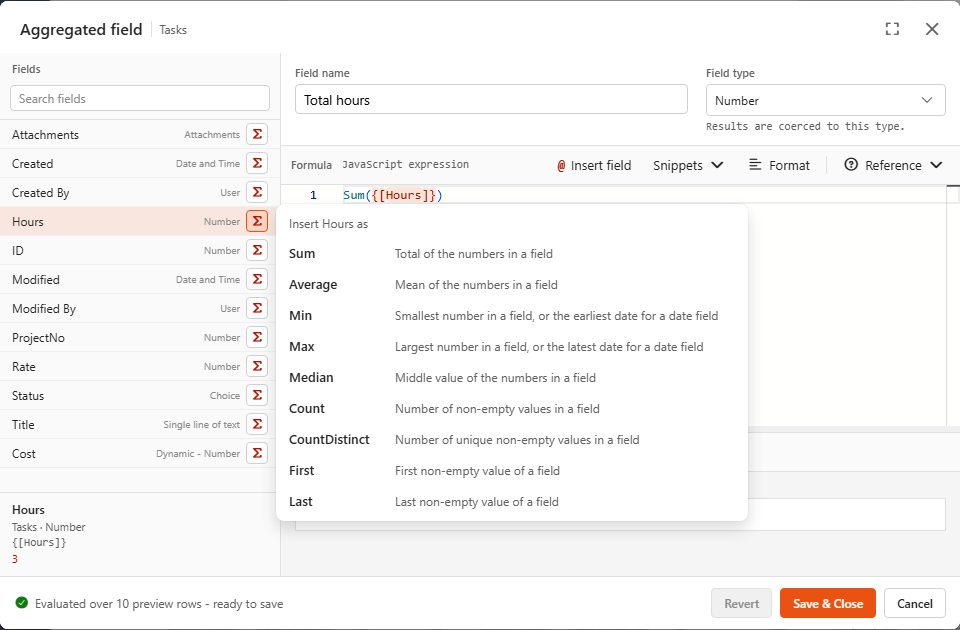
The fastest way is the Σ button next to each field in the Fields list. It offers the helpers that suit the field's type and inserts e.g. Sum({[Hours]}).
![Aggregated field dialog with Sum({[Hours]})](/screenshots/aggregated-field-dialog.png)
All helpers, including the conditional SumIf, CountIf and AverageIf, are on Helpers.
Combining aggregated fields
Another aggregated field is a single number, so you can do arithmetic with it:
js
Math.round({[Portfolio spent]} / {[Portfolio budget]} * 10000) / 100   // portfolio used %
{[Won]} / {[Total]}                                                    // the "Ratio" snippet
As with dynamic columns, the order doesn't matter, but loops are not allowed. The dialog blocks saving if a field refers to itself, directly or through other fields.
When you need row-level conditions: data
data is the full list of rows. Use it when a condition involves several fields of the same row. The (row) => ... part is a small test run on each row, see Formula basics:
js
data.filter((row) => row.Status === 'Open' && row.Hours > 8).length
data.reduce((sum, row) => sum + row.Price * row.Qty, 0) / data.reduce((sum, row) => sum + row.Qty, 0)  // weighted average
Inside data, fields are read by internal name (row.Hours). For a single condition, SumIf / CountIf are simpler.
Where you can use them
Aggregated fields appear under Aggregated fields in component field pickers:
| Component | Use |
|---|---|
| Summary Card, Gauge | value, target, min, max |
| Chart | thresholds, value labels, series (averaged so the per-row copy isn't added up) |
| Accumulation chart | centre label, data labels |
| Pivot grid | values (summary type Max), rows, columns |
| Smart Card | mentions inside text |
| Card, Map, Gantt | as values |
The demo dashboard's KPI card uses Portfolio spent as its value and Portfolio budget as its target.
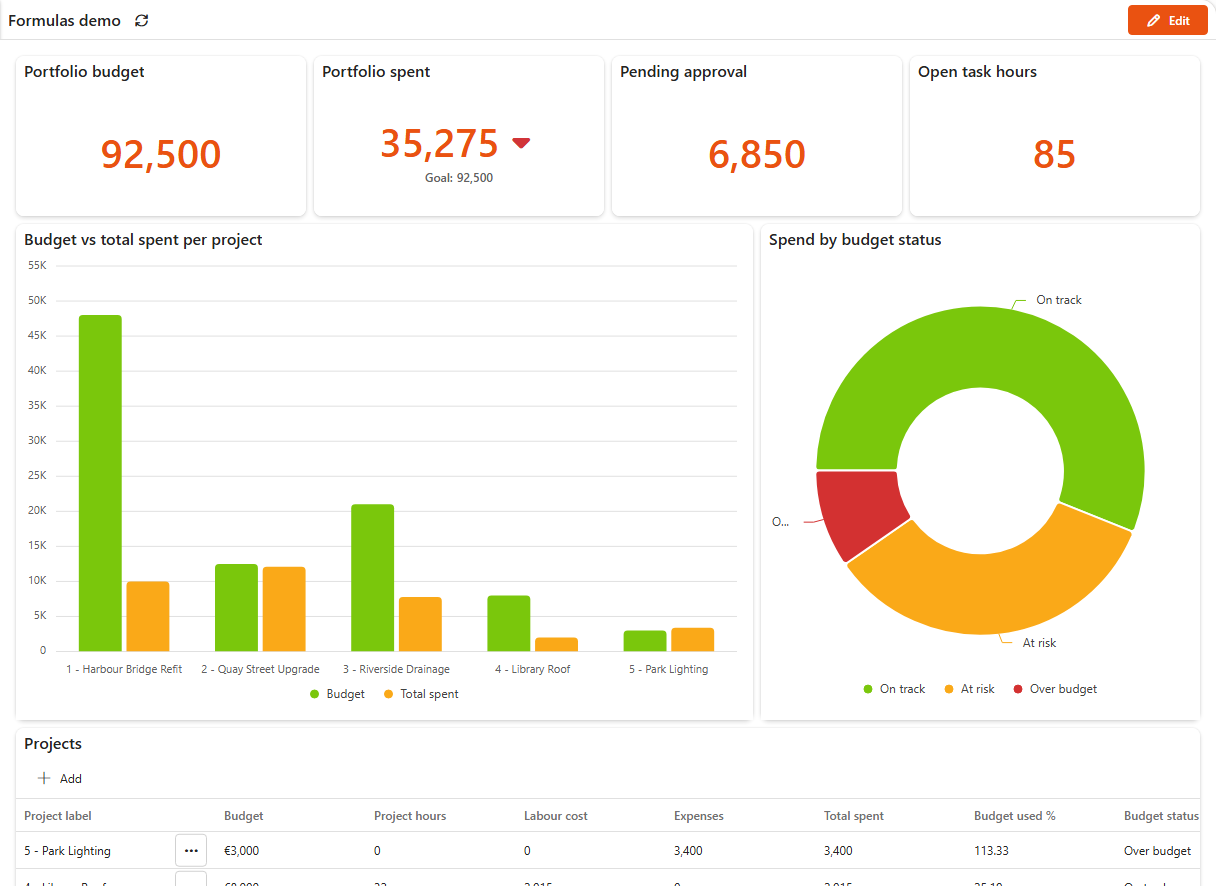
The value is also written onto every row, so a row-level formula can compare each row with it. That's a late dynamic column.
Filters
Aggregated values are calculated after data source filters, but before dashboard filters. If a dashboard filter shows only the North region, Portfolio budget still shows the total of all regions. To total a subset, either:
- make a data source with that filter, or
- write it into the formula:
SumIf({[Budget]}, {[Region]}, 'North').
Preview uses sample rows
The editor's result is calculated over the designer's preview rows (top 10 by default). In the demo, Tasks > Total hours previews as 75 in the editor but is 146 on the dashboard, because Tasks has 20 rows. Switch on Disable data preview limit in the designer to preview over everything.
Reference data is always complete
Data from a Reference only child is never cut to the preview limit, so formulas over {[Tasks_Hours]} preview with the real totals.