

Appearance
Cannot share dashboards with Entra ID (AD) groups
Symptom
One of these:
- You want to share a dashboard with a Microsoft Entra ID (formerly Azure AD) security group, but it doesn't appear when you search for it in Manage Access.
- You share a dashboard with a SharePoint group that contains an Entra ID group. People who are in the SharePoint group through the Entra ID group don't see the dashboard.
Cause
Manage Access only offers people and SharePoint groups. Entra ID groups can't be picked there directly.
A SharePoint group can contain individual users and Entra ID groups (often still called AD groups). Sintel BI can't look inside an Entra ID group to find its members. So when a dashboard is shared through an Entra ID group, Sintel BI can't tell who should see it, and the dashboard doesn't appear for any member of that group.
Fix
Who can fix this
A site owner. If that isn't you, send this page to your site owner.
There are two ways around this.
Option 1: add the users to the SharePoint group directly
Add the people to the SharePoint group themselves, rather than through the Entra ID group.
This is the easiest option, but it bypasses the Entra ID group, which may not be what your IT department prefers.
Option 2: make the dashboard public and secure its list item
Make the dashboard public in Sintel BI, then use SharePoint item-level permissions on the dashboard's item in the SintelBIDashboards list. This takes a little more setup, but you can keep using Entra ID groups and your IT department can keep managing their members.
A supported exception
Lists used by Sintel BI says not to change the Sintel BI lists. Changing the permissions of a dashboard's item as described here is the one supported exception. Don't change the list's own permissions.
Repeat these steps for each dashboard you want to secure.
TIP
SharePoint Online's interface changes often, so the exact steps may differ slightly in your tenant.
Secure the list item (new list interface):
- Open Site contents > SintelBIDashboards, and select (don't open) the dashboard's item.
- Click Manage access on the right of the screen.
- In the Manage access panel, open the menu (...) and click Advanced settings.
- On the Permissions tab of the ribbon, click Stop Inheriting Permissions.
- Remove all permissions except the site's Owners group.
- Grant the relevant SharePoint group Read access, and choose not to send an email.
Only the Owners group and that SharePoint group now have access to the dashboard's item.
Secure the list item (classic list interface):
- Switch the SintelBIDashboards list to the classic experience: Site contents > SintelBIDashboards > List settings > Advanced settings > List experience: Classic experience.
- Open the SintelBIDashboards list and select (don't open) the dashboard's item.
- In the ribbon, choose Items > Shared With > Advanced > Stop Inheriting Permissions.
- Remove all permissions except the site's Owners group.
- Grant the relevant SharePoint group Read access, and choose not to send an email.
Then make the dashboard public in Sintel BI:
- Open Settings > Navigation.
- Click the share icon on the dashboard's row. The Manage Access panel opens.
- Switch on Public dashboard.
You can also do this from the Dashboards page: open the menu on the dashboard's tile and click Share.
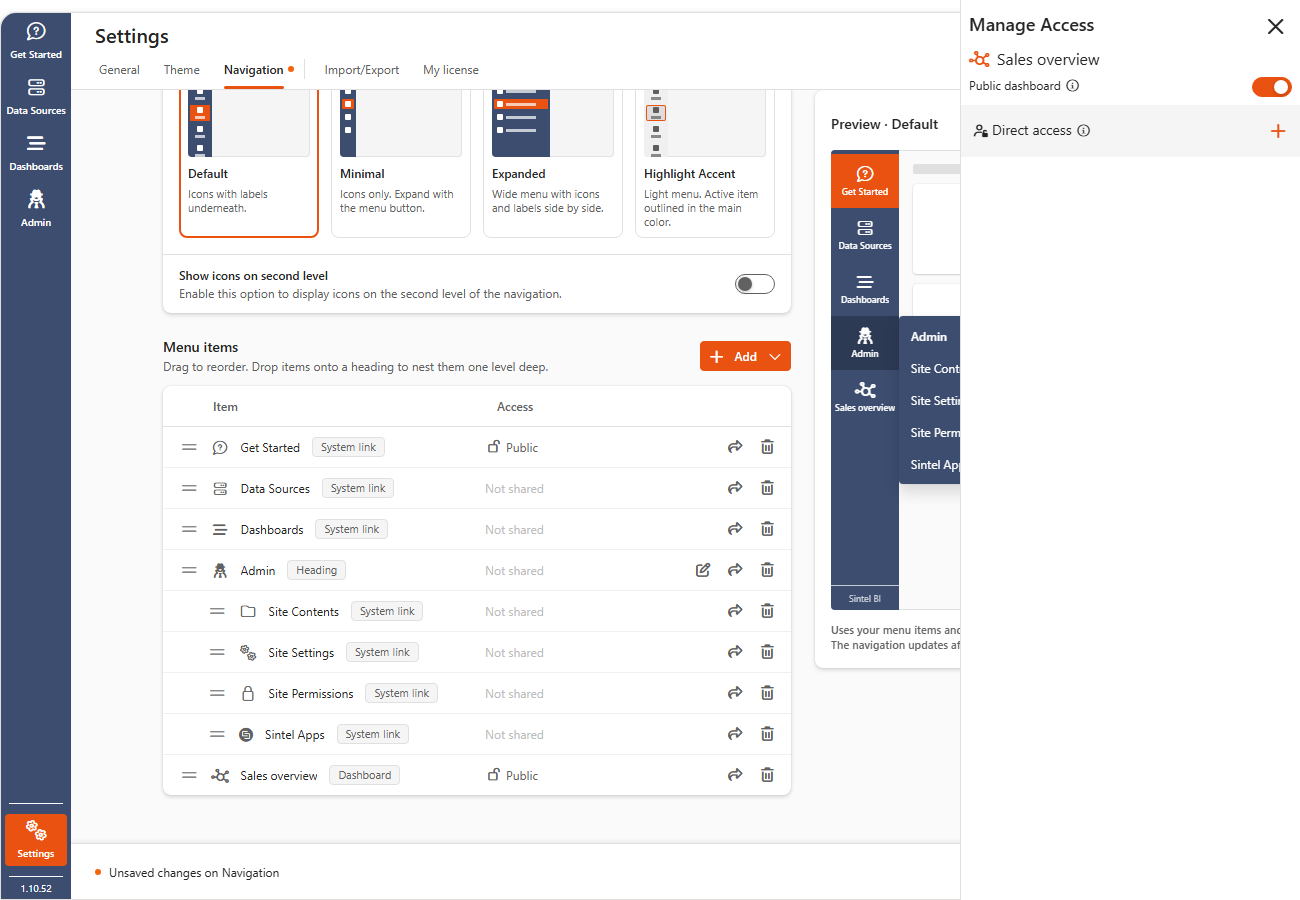
The dashboard is now public in Sintel BI, but only the Owners group and the SharePoint group you added can read its list item. So it only appears for members of those groups, including people who are members through an Entra ID group.