

Appearance
Text
The Text component adds a block of formatted text to a dashboard: headings, paragraphs, lists, clickable links, or code.
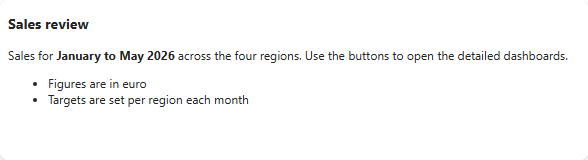
Add a text component
- Open the dashboard in edit mode.
- In the Widgets pane, open the General tab and drag Text onto the dashboard. Resize it.
- Select the component. The Properties tab opens with a text editor.
- Type your text and format it with the toolbar, see below.
- Click Save & Exit.
A Text component has no data source, so it has no Assign Data tab.
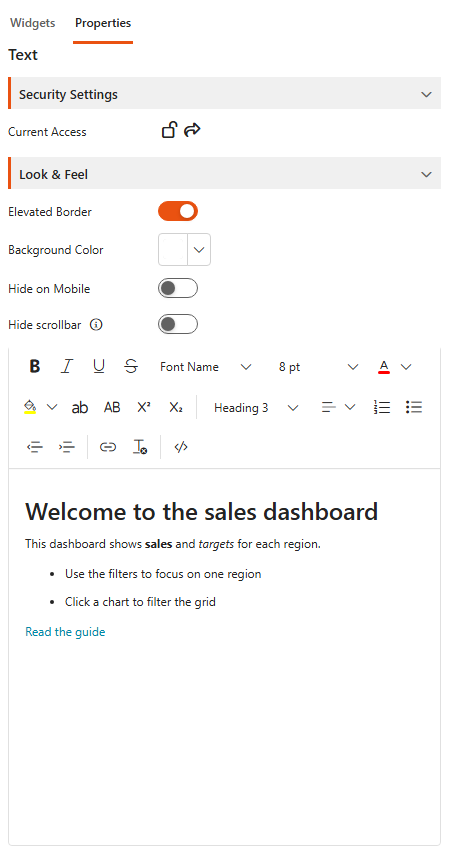
The text editor
The toolbar has:
- Bold, Italic, Underline, Strikethrough, superscript and subscript.
- Font, font size, font colour and background colour.
- Upper case and lower case.
- Formats: Paragraph, Code, Heading 1 to Heading 4 and Plain text.
- Alignment, numbered and bulleted lists, indent and outdent.
- Insert link, to add a clickable link.
- Clear format.
- Source code, to edit the HTML directly.
Settings
| Setting | What it does |
|---|---|
| Hide scrollbar | Hides the vertical scrollbar, even when the text is longer than the component. |
Under Look & Feel you can turn the Elevated Border on or off, change the Background Color and Hide on Mobile. Security Settings control who can see the component, see the Common settings.
TIP
For your own HTML and CSS, such as styled boxes or embedded content, use the Custom HTML component. For text that includes values from your data, use the Smart card.