

Appearance
Dropdown filter
A Dropdown Filter lets viewers filter the dashboard by picking values from a list. The values come from one column of a data source, which makes it ideal for categories such as departments, product types or statuses.
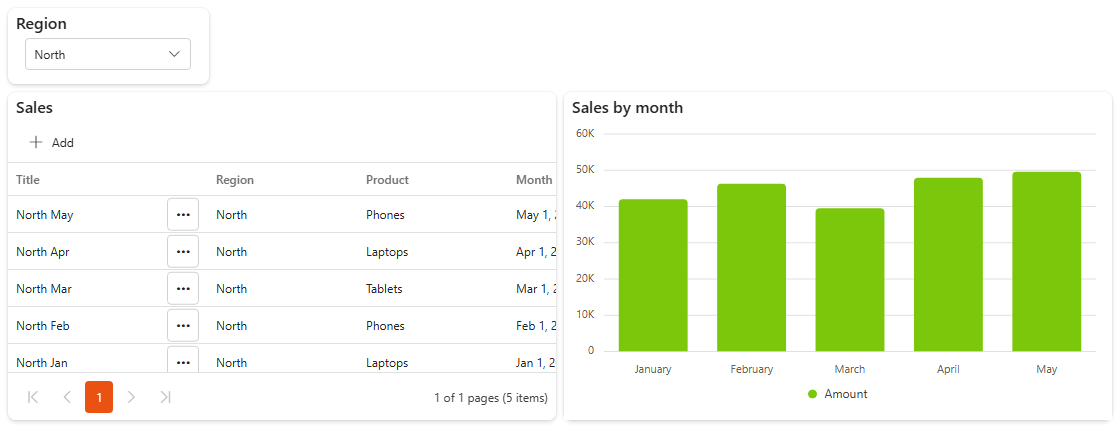
For example, a Dropdown filter on Region lets viewers focus on the sales of one region.
Use the same data source
A Dropdown filter only affects components that use the same data source as the filter. If you filter by department, the grid you want to filter must show data from the data source that has the Department column. To see which data source a component uses, select it in edit mode and open its Assign Data tab. To filter components on several data sources at once, use the Multi-source dropdown filter.
Add a dropdown filter
- Make sure the data source exists and is already used by a component on the dashboard.
- Open the dashboard and click Edit in its top bar, see Change an existing dashboard.
- In the Widgets pane, open the Filters tab and drag Dropdown Filter onto the dashboard. Resize it.
- Select the filter. On the Properties tab, give it a Title and set the Basic Settings, see Settings.
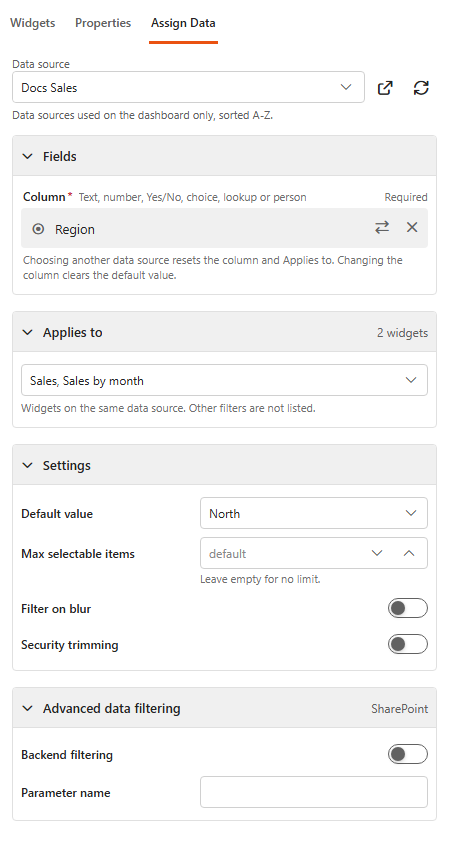
- Open the Assign Data tab and click Choose data source. Only data sources used on the dashboard are listed.
- Under Fields, choose the Column to filter by, for example Department from Patient feedback details. Text, number, Yes/No, choice, lookup and person fields can be used.
- Under Applies to, choose the components the filter affects. Only components on the same data source are listed.
- Optionally, set a Default value, see below.
- Click Save & Exit.
Set a default value
The Default value is selected when the dashboard opens. You can choose:
- one value, for example one department,
- several values, for example a few departments, or
- no value, so all data is shown.
For text columns you can also type values of your own. For MS SQL data sources the values are not loaded, so type them and press Enter.
Data settings
The Settings section of the Assign Data tab:
| Setting | What it does |
|---|---|
| Default value | The values selected when the dashboard opens. Changing the column clears it. |
| Max selectable items | The most values a viewer can select. Leave empty for no limit. |
| Filter on blur | Applies the selection when the viewer closes the dropdown, instead of after every click. Useful when viewers usually pick several values. |
| Security trimming | Restricts the options a viewer sees to the ones they have access to, based on their group membership. |
| Group name pattern | With security trimming: the name of the security group for each option. {{value}} is replaced with the option's text, for example Department - {{value}}. |
| Full access groups | With security trimming: groups whose members see all options. Separate group names with ;#. |
Advanced data filtering
Advanced
Most dashboards don't need these settings. They're for large data sources that are filtered before loading, set up by whoever manages the data source or the SQL database.
Show the advanced settings
Shown for SharePoint and MS SQL data sources.
| Setting | What it does |
|---|---|
| Backend filtering | Passes the selected values to the data source filter named in Parameter name, so the data is filtered before it is loaded. The data source filter must allow a dashboard override. |
| Parameter name | The parameter name of that data source filter. |
| Stored procedure parameter | MS SQL only: passes the selection to the stored procedure parameter named in Parameter name. |
| Custom SQL query | MS SQL only: a query that fetches the dropdown's values, for cases that need their own retrieval logic. |
Settings
The Properties tab has the common Title, Subtitle, Description, Icon and Title Alignment settings, Security Settings, and Look & Feel (Elevated Border, Background Color, Hide on Mobile). See the Common settings.
Basic Settings
| Setting | What it does |
|---|---|
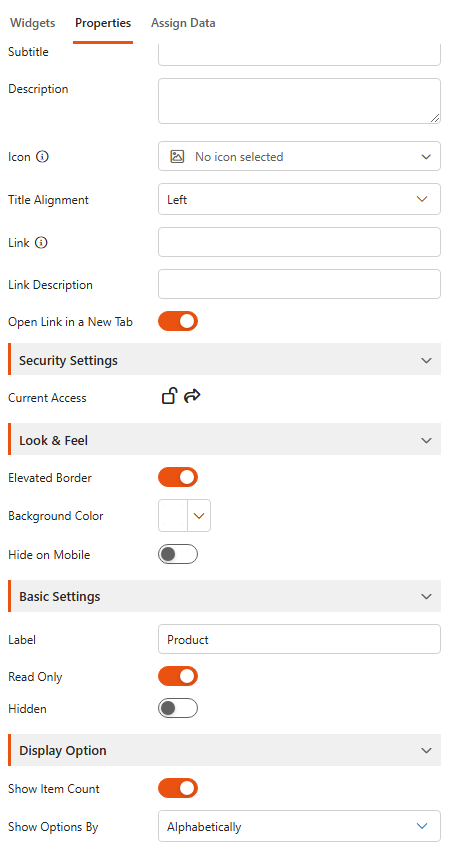
| Label | Text shown above the dropdown. |
| Read Only | Viewers see the selection but can't change it. |
| Hidden | Hides the filter on the dashboard. Its default value still filters the components. |
Display Option
| Setting | What it does |
|---|---|
| Show Item Count | Shows the number of items next to each option. |
| Show Options By | Sorts the options Alphabetically or By Count. |
Example: a read-only filter
Set the Default value to Geriatrics and turn on Read Only. Viewers of the dashboard now see only the feedback of the Geriatrics department and can't switch to another one.
TIP
A read-only filter limits what is displayed, but the other departments' data is still loaded. When viewers must not see other data at all, use a data source filter instead.
Related
- Filtering guide: which filter to use when.
- Multi-source dropdown filter