

Appearance
Grid
A Grid shows the rows of a data source as a table, with one column per field. Viewers can sort, filter, search, group and export it, and for SharePoint lists it can open, add, edit and delete list items.
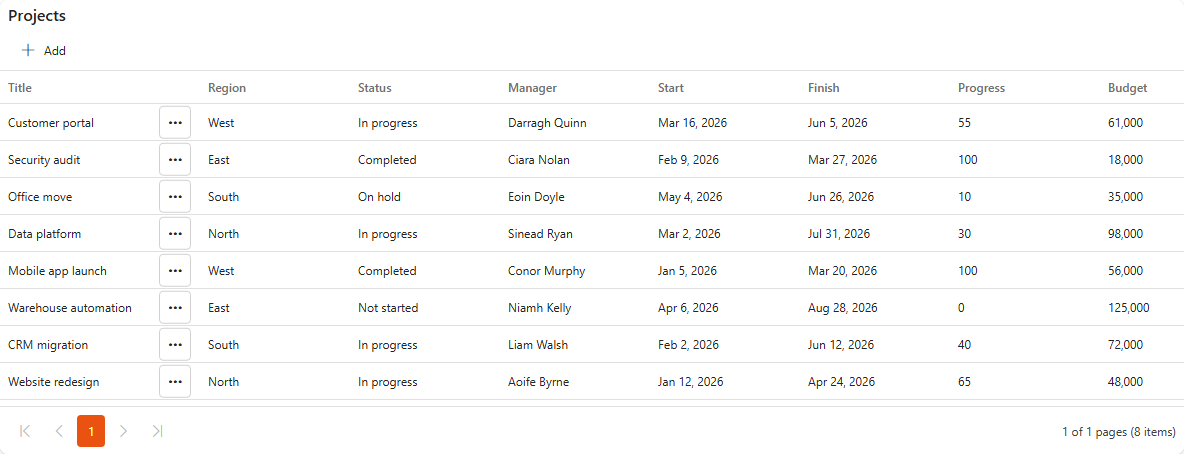
Before you add a grid, create the data source it will show.
Add a grid
- Open the dashboard in edit mode.
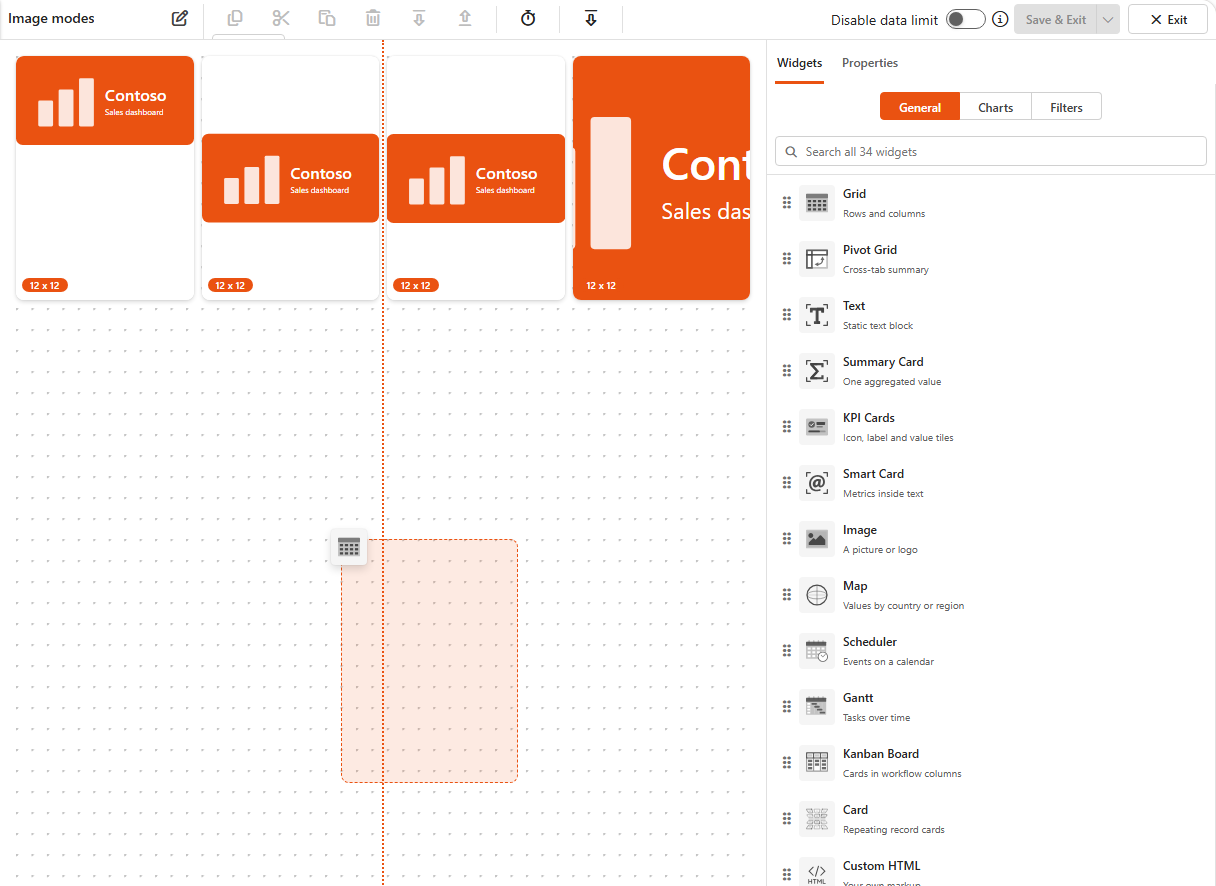
- In the Widgets pane on the left, open the General tab (or search for Grid).
- Drag Grid onto the dashboard and resize it.
- Select the grid. The Properties tab opens on the right.
- Give it a Title and, if you like, a Subtitle, Description (shown as a tooltip) and Icon. These are the same for every component, see the Common settings.
- Open the Assign Data tab and click Choose data source. Pick your data source.
- Add the columns, see Choose the columns.
- Click Save & Exit (or Save to keep editing).
Choose the columns
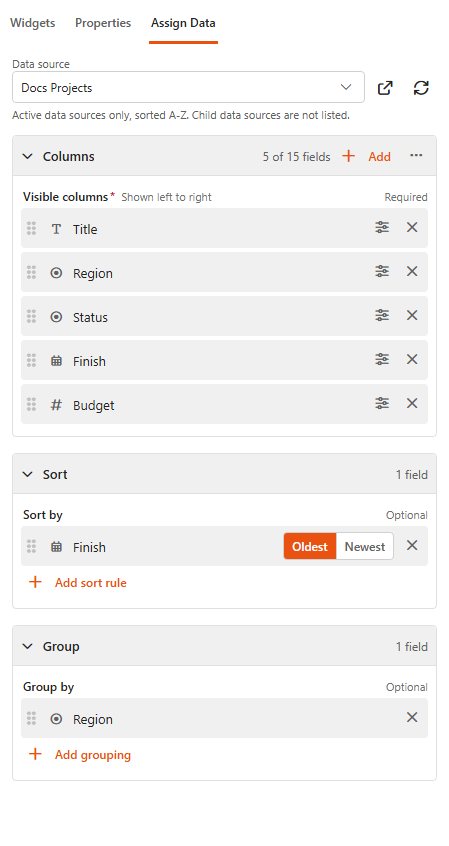
On the Assign Data tab, the Columns section lists the Visible columns, shown left to right.
- Click Add columns and pick fields from the list. The menu next to Add has Add all fields and Remove all columns.
- Drag the columns into the order you want.
- Click the column settings icon on a column to rename it or change how its values are shown, see Column settings.
- Click the x on a column to remove it.
TIP
Keep the number of columns small. A grid with many columns is hard to read, especially on a phone. Turn on Show Column Chooser if viewers need to show and hide columns themselves.
The other two sections arrange the rows:
| Section | What it does |
|---|---|
| Sort > Sort by | Sorts the rows by one or more fields. Click Add a sort rule, pick a field and set the direction. Later rules apply when earlier ones are equal ("then by"). |
| Group > Group by | Groups the rows by one or more fields, for example by Status. Click Add a grouping. Viewers get an Expand/Collapse All button. |
Column settings
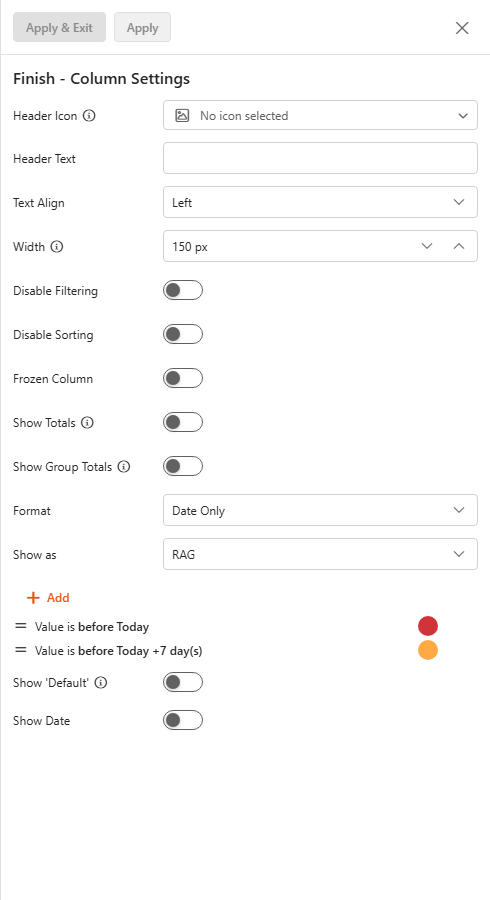
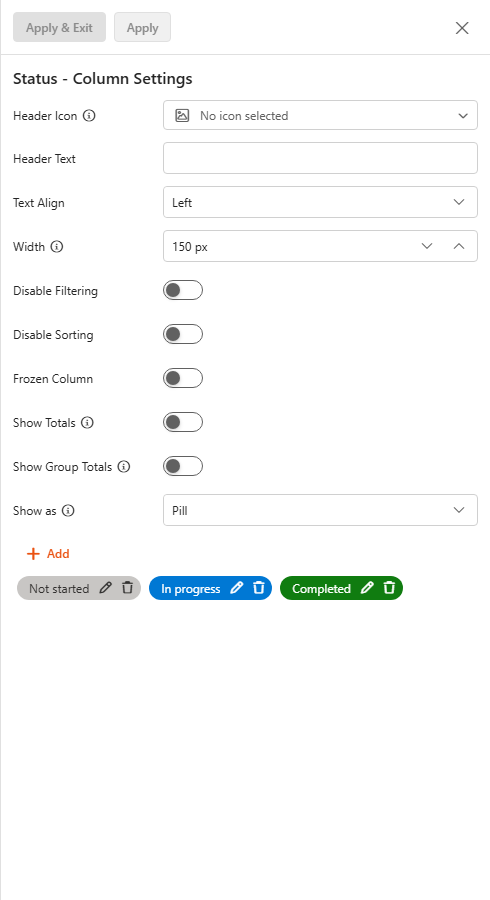
Click the settings icon on a visible column to open Column Settings for it. The options depend on the column type.
| Setting | What it does |
|---|---|
| Header Icon | An icon shown in the column header. |
| Header Text | The column title. Use it to rename a column, for example Date to Date of appointment. |
| Text Align | Where the text sits in the column: left, right, centre or justified. |
| Width | The minimum width of the column. |
| Disable Filtering / Disable Sorting | Turns filtering or sorting off for this column only. |
| Frozen Column | Keeps the column in place while the viewer scrolls sideways. |
| Show Totals | Adds a total row for the column. Choose the Calculation type: Sum, Count or Average. |
| Show Group Totals | Adds a total row to each group, with a Group Calculation Type and Group Totals Position. |
| Format | Date columns: Date Only, Date and Time, Time Only or Custom (enter a Custom Format). |
| Min Decimal Places / Max Decimal Places | Number and currency columns: how many decimals to show. |
| Show Currency | Currency columns: shows the currency symbol. |
| Limit Height / Max Height | Multiple lines of text: caps the row height. |
| Enable Editing | Yes/No columns of a SharePoint list: viewers can tick or untick the value directly in the grid. A column that can be edited can't be shown as a pill. |
| Show as | How the value is displayed, see below. |
| Prefix / Suffix | Text shown before or after the value, for example € or hrs. |
Show as
Show as is where you get what Excel calls conditional formatting: highlight or colour a cell depending on its value, with a pill, a RAG indicator, a KPI colour, a progress bar or your own HTML.
Show as is set to Value by default. Depending on the column type, you can choose:
| Column type | Options |
|---|---|
| Number | Value, Progress Bar (set the Max Value), KPI (set the KPI Threshold: values above it are green, below it red), Custom HTML |
| Text | Value, RAG, Custom HTML, Pill |
| Choice | Value, RAG, Pill |
| Multiple choice | Value, Pill |
| Yes/No | Value, Pill (set the colour of Yes and No) |
| Date | Value, RAG |
| Hyperlink | Value, Icon |
| Multiple lines of text | Value, Custom HTML, and Workflow History where available |
| Person | Name, Name with picture |
Colouring whole rows
A grid can't colour a whole row depending on its values. Formatting applies to one cell at a time. The closest options are:
- show a Pill or RAG in a key column, such as Status or Due date,
- Alternate Row Coloring (shades every second row) and Highlight New Items, see Layout & Appearance.
Show as RAG
RAG shows a red, amber or green indicator next to the value.
- For text and choice columns, pick the values that count as Red, Amber and Green. Turn on Show 'other' to show a grey indicator for values that are in none of the three lists.
- For date columns, add conditions such as value is before today or value is within 7 days from today. Each condition has a Comparison Operator, a Target Value (a preset like today, or a specific Date), an Offset in days and a Target Color. Turn on Show 'Default' and pick a Default Color for dates that match no condition. Show Date controls whether the date is shown next to the indicator.
Show as Pill (colour cells by value)
Pill colours a cell's background depending on its value, and can add an icon.
- Set Show as to Pill.
- Click Add. In Pill Settings, enter or pick the Value, then choose the Background Color, Text Color and an optional Icon. The Preview shows the result.
- Repeat for each value.
If the list is used by a Sintel Apps form, click Import from Sintel Apps to import the form's status values and colours in one go.
Show as Custom HTML
Custom HTML replaces the cell with your own HTML. These tags are replaced in each row:
| Tag | Replaced with |
|---|---|
{value} | This column's value (empty if there's none) |
{[FieldName]} | Another field of the same row, by internal name. Press @ in the box to pick a field. |
{webUrl} | The address of the current site |
{encode(...)} | The text inside the brackets, URL-encoded, for example {encode({[Title]})} |
For example, a link to a details page: <a href="{webUrl}/SitePages/Project.aspx?name={encode({value})}">{value}</a>. Values are inserted as they are stored, without formatting. See Templating tokens for the details.
Settings
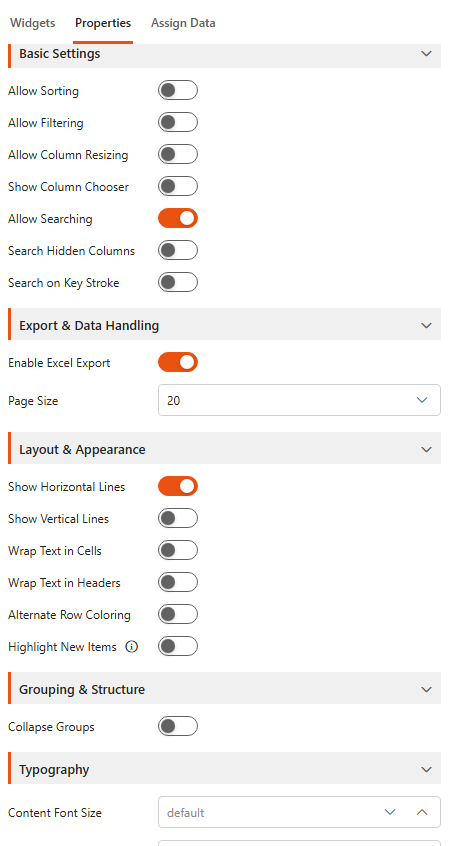
The Properties tab of a grid has these sections below the common title, security and look & feel settings.
Basic Settings
| Setting | What it does | Default |
|---|---|---|
| Allow Sorting | Viewers can sort by clicking a column header. | Off |
| Allow Filtering | Adds a filter menu to every column header. | Off |
| Allow Column Resizing | Viewers can drag a column edge to make it wider or narrower. | Off |
| Show Column Chooser | Adds a button where viewers choose which columns to show. | Off |
| Allow Searching | Adds a search box, for example to find a person's name or a date. | Off |
| Search Hidden Columns | With searching on: also searches columns hidden with the column chooser. | Off |
| Search on Key Stroke | With searching on: searches while the viewer types, instead of on Enter. | Off |
Export & Data Handling
| Setting | What it does | Default |
|---|---|---|
| Enable Excel Export | Adds an Excel Export button that downloads the grid's rows as an Excel file. | Off |
| Page Size | Rows per page: 10, 20 or 50, or Disabled to show all rows on one page. | 20 |
Layout & Appearance
| Setting | What it does | Default |
|---|---|---|
| Show Horizontal Lines | Lines between rows. | On |
| Show Vertical Lines | Lines between columns. | Off |
| Wrap Text in Cells | Long text wraps onto several lines instead of being cut off. | Off |
| Wrap Text in Headers | The same for column headers. | Off |
| Alternate Row Coloring | Shades every second row. | Off |
| Highlight New Items | Highlights items added since the viewer's last visit. | Off |
Grouping & Structure
| Setting | What it does | Default |
|---|---|---|
| Collapse Groups | Grouped rows start collapsed, so viewers open only the groups they need. | Off |
Typography
| Setting | What it does |
|---|---|
| Content Font Size | Font size of the rows. Empty uses the default. |
| Header Font Size | Font size of the column headers. |
Item Actions
Available once a SharePoint list or library is the data source.
| Setting | What it does |
|---|---|
| Allow Adding | Adds an Add button to the toolbar that opens the new item form. New Form Query Params adds parameters to that form's URL. |
| Allow Viewing | Viewers can open an item. |
| Allow Editing | Viewers can edit an item. The form always opens in edit mode. |
| Allow Deleting | Viewers can delete an item. |
| Context Menu Order | The position of the item actions in the row's context menu. Enter 0 to hide the context menu. |
Item Form
Available once Allow Adding, Allow Viewing or Allow Editing is on.
| Setting | What it does |
|---|---|
| Open Item In | Where the item form opens: Current Tab, Dialog, New Tab, Panel or Custom Form Dialog. |
| Width / Height | Size of the dialog or panel. For a panel, leave the width empty for the default; at least 340 px is suggested. |
| Open on Row Click | Panel only: opens the item in the panel when a row is clicked. Double-click and the Edit/View actions always open it. |
Try the settings with real data
Assign data first, then come back to the Properties tab and switch the options on and off one by one. You'll see straight away how each one changes the grid.
Related
- Pivot grid: summarise rows into a cross-tab.
- Dropdown filter: let viewers filter the grid.
- Dynamic columns: add calculated columns to the data source and show them in the grid.