

Appearance
Button
The Button component adds one or more buttons to a dashboard. A button opens another dashboard of the app or any other page, which makes moving between dashboards quick and intuitive. The button of the current dashboard is highlighted, so a row of buttons works as navigation without any extra set-up.

Add a button component
- Open the dashboard in edit mode.
- In the Widgets pane, open the General tab and drag Button onto the dashboard. Resize it.
- Select the component. On the Properties tab, under Buttons, click Add and choose Dashboard or Link, see below.
- Repeat for every button. Drag the buttons by their handle to change the order.
- Adjust the Styling if you need to.
- Click Save & Exit.
A Button component has no data source, so it has no Assign Data tab.
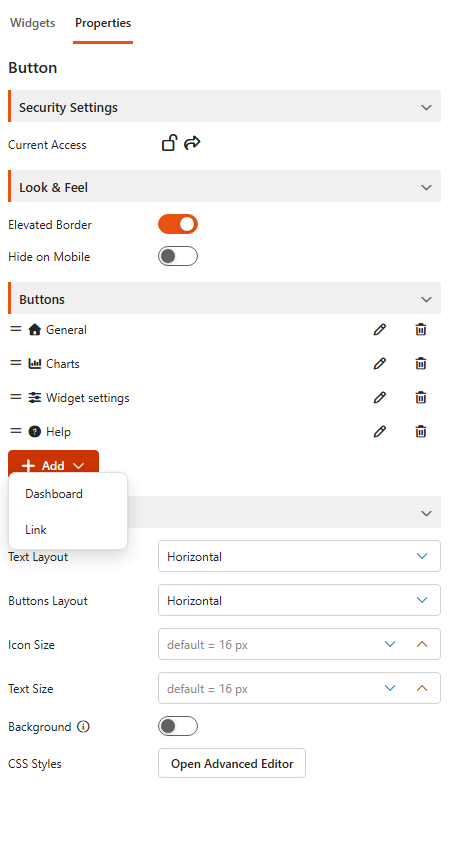
Add a dashboard button
Add > Dashboard opens a button to another dashboard of the app.
| Setting | What it does |
|---|---|
| Dashboard (required) | The dashboard the button opens. |
| Title (required) | The button text. |
| Icon | An optional Font Awesome icon. |
| Background | Gives this button its own Color, Hover Color, Font Color and Font Hover Color. |
The button of the dashboard that is currently open is highlighted, so a row of dashboard buttons works as navigation.
Add a link button
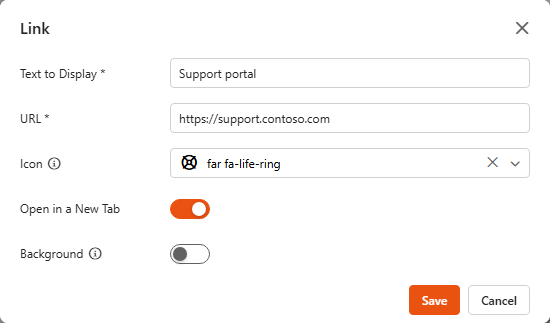
Add > Link opens a URL, for example an external website or a SharePoint page.
| Setting | What it does |
|---|---|
| Text to Display (required) | The button text. |
| URL (required) | The page the button opens. |
| Icon | An optional Font Awesome icon. |
| Open in a New Tab | Opens the link in a new browser tab. |
| Launch Form in a Dialog | Shown when the URL is a SharePoint list form (for example NewForm.aspx): opens the form in a dialog on the dashboard. Set the Form Width and Form Height. |
| Background | Gives this button its own colours. |
Edit or delete a button
- Click the pencil icon next to a button to change its text, target or icon.
- Click the trash icon to delete it.
Settings
Security Settings
Current Access shows whether the component is public (everyone can see it), private (administrators only), or shared with specific users and groups. Click Manage access to change it.
Look & Feel
| Setting | What it does |
|---|---|
| Elevated Border | A raised border around the component. |
| Hide on Mobile | Hides the buttons on phones, if they're not needed on small screens. |
Styling
| Setting | What it does |
|---|---|
| Text Layout | Horizontal: icon and text side by side. Vertical: icon above the text. |
| Buttons Layout | Arranges the buttons Horizontally or Vertically. |
| Icon Size | Size of the icons. Default 16 px. |
| Text Size | Size of the button text. Default 16 px. |
| Background | Custom Color, Hover Color, Font Color and Font Hover Color for all buttons. When you pick a background colour, hover and font colours are suggested for you, overriding the theme defaults. |
| CSS Styles | Click Open Advanced Editor to style the buttons with your own CSS, see below. |
Style the buttons with CSS (optional)
Advanced: CSS
This section is for people comfortable with CSS. You don't need it: the buttons already work as navigation.
For a look of your own, add CSS under CSS Styles. It applies to this component only. Each button has the class button, the button of the current dashboard also has active, and the text sits in .textWrapper .text.
This example turns the buttons into dark tabs with an orange active tab and an animated underline:

Show the example CSS
css
/* Base button styles */
.button {
    background: #1c2833; /* Solid dark background */
    color: #bdc3c7 !important; /* Soft light text */
    border: 2px solid transparent; /* Invisible border */
    padding: 12px 20px;
    text-decoration: none; /* Remove underline */
    display: inline-block;
    font-size: 18px;
    font-weight: 600;
    text-align: center;
    position: relative; /* Needed for animation positioning */
    overflow: hidden; /* Prevent overflow during animations */
    transition: background 0.3s ease, color 0.3s ease; /* Smooth button transitions */
    cursor: pointer;
}

/* Hover effects */
.button:hover {
    background: #34495e; /* Highlighted hover background */
    color: #f39c12 !important; /* Bright hover text */
    border-color: #f39c12; /* Highlight border */
}

/* Active button styles */
.button.active {
    background: #ff5c23;
    color: #ffffff !important;
    border-color: #ff5c23;
    font-weight: 700;
}

/* Text animation: initial state */
.button .textWrapper .text {
    position: relative;
    display: inline-block;
    transition: transform 0.3s ease, color 0.3s ease; /* Smooth animations for text */
    z-index: 1; /* Keep it above any pseudo-elements */
}

/* Text animation on hover */
.button:hover .textWrapper .text {
    transform: translateY(-2px); /* Slight upward shift on hover */
    color: #f39c12 !important; /* Change text colour on hover */
}

/* Underline effect for the text */
.button .textWrapper .text::after {
    content: '';
    position: absolute;
    left: 0;
    bottom: -2px; /* Just below the text */
    width: 100%;
    height: 2px;
    background: #f39c12; /* Highlight colour for the underline */
    transform: scaleX(0); /* Hidden by default */
    transform-origin: right;
    transition: transform 0.3s ease; /* Smooth scaling effect */
}

/* Reveal the underline on hover */
.button:hover .textWrapper .text::after {
    transform: scaleX(1); /* Fully visible */
    transform-origin: left; /* Expands from left to right */
}
Related
- Navigation: the app's navigation menu between dashboards.
- Custom HTML: the Advanced Editor in detail.