

Appearance
Data sources
A data source tells Sintel BI where your data lives. You connect data sources to the components on your dashboards (grids, charts, cards and so on) to show that data.
Open the Data Sources page from the left navigation menu in Sintel BI. The top of the page has the Create Data Source tiles, and below them is the list of your data sources.
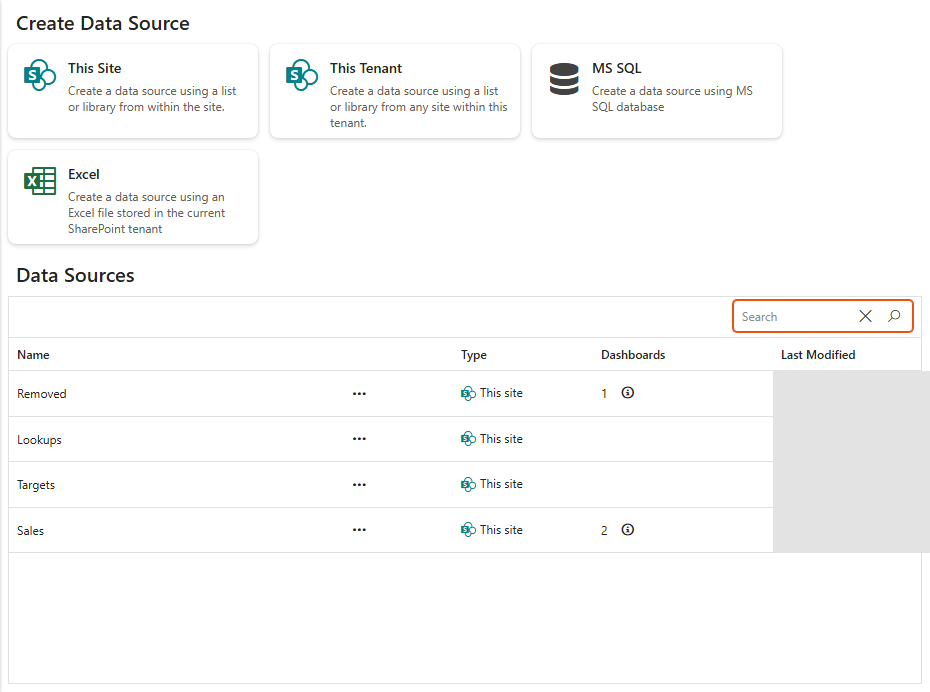
Data source types
| Type | Uses |
|---|---|
| This Site | A list or library in the current SharePoint site. |
| This Tenant | A list or library in any SharePoint site in your tenant that you have access to. |
| MS SQL | A table, view or query in a Microsoft SQL Server database, see MS SQL. |
| Excel | A sheet of an Excel file stored in SharePoint, see Excel. |
Which tiles you see depends on your Sintel BI licence.
Create a data source
- Click Data Sources in the left menu.
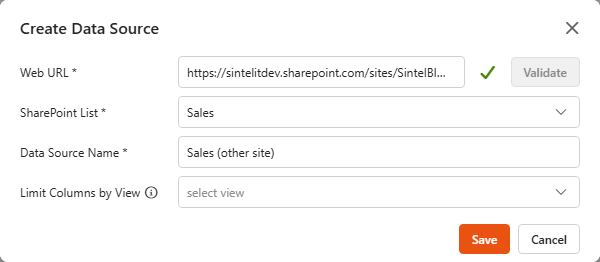
- Click This Site to use a list or library from the current site, or This Tenant to use one from another site.
- For This Tenant, enter the site address in Web URL and click Validate.
- Pick the list or library in SharePoint List.
- Enter a Data Source Name.
- Optionally pick a view in Limit Columns by View. The view's columns are shown in the same order as in the list; the other columns are still available but hidden.
- Click Save.
The new data source appears in the list.
The data sources list
| Column | Shows |
|---|---|
| Name | The data source name. Click the row to open it in the designer. |
| … | The row menu, see below. |
| Status | Whether the data source is active. |
| Type | This Site, This Tenant, MS SQL or Excel. |
| Dashboards | How many dashboards use it. Click the number to see the list of dashboards, with links. |
| Last Modified | When it was last changed. |
Use the search box above the list to find a data source by name.
The row menu
Click the three dots … on a row to open its menu.
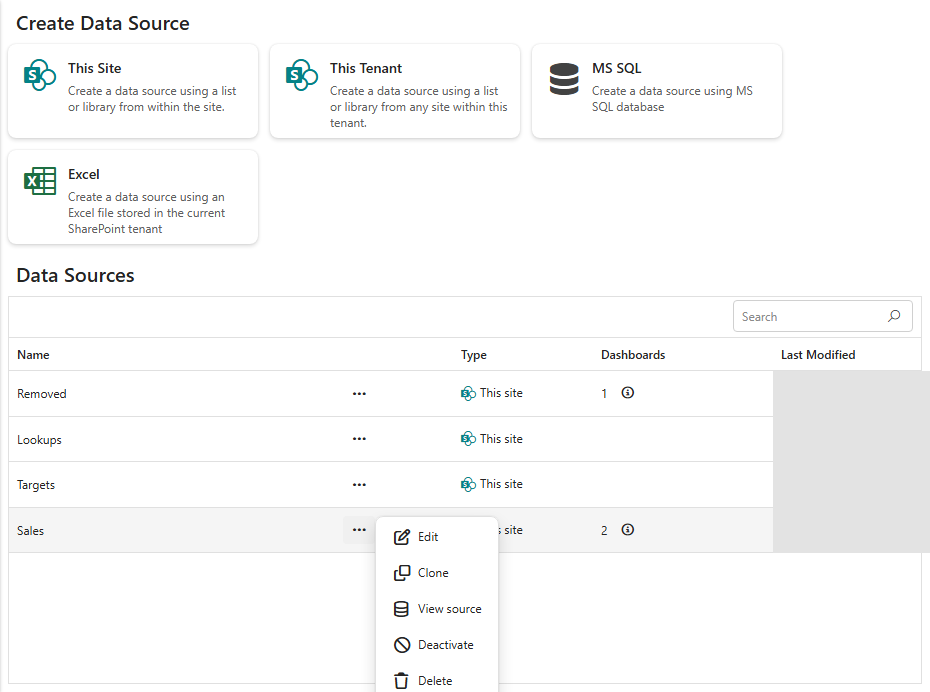
Edit
Opens the data source in the data source designer.
Clone
Creates a copy of the data source, named after the original with - Copy at the end. Rename it to something that suits you. Cloning is handy when you need similar data sources for different regions or departments.
Clone is not available for a merged data source.
View source
Opens the SharePoint list or library behind the data source in a new tab. Only shown for This Site and This Tenant data sources.
Deactivate / Activate
A deactivated data source no longer sends data to your dashboards. Click Activate on the same menu to switch it back on.
Delete
Permanently deletes the data source. Sintel BI asks you to confirm and tells you how many dashboards use it, so check the Dashboards column first.
The data source designer
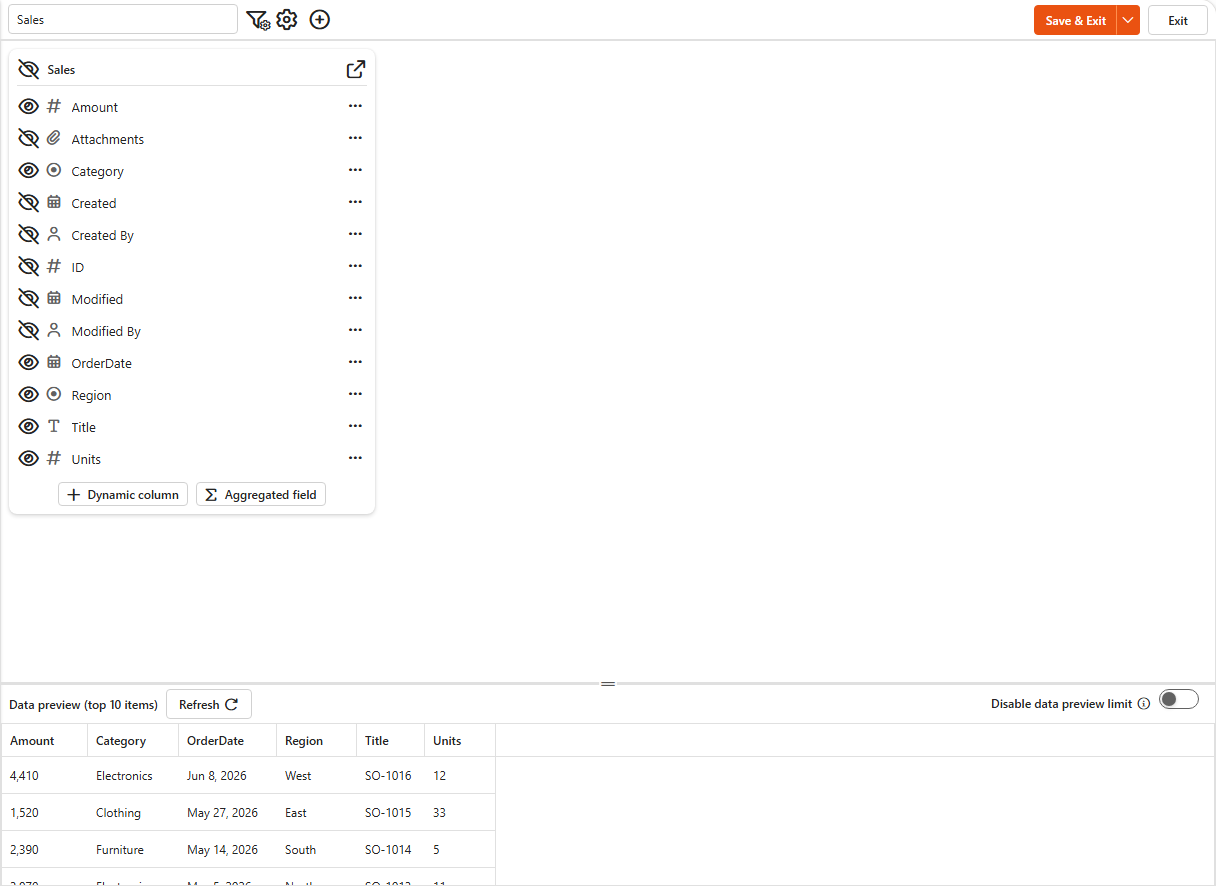
Click Edit (or the row) to open the designer. The data source is shown as a tile with all its fields, and the Data preview at the bottom shows its data.
Rename the data source
Click the title in the top bar, type the new name and click Save.
Show and hide fields
All fields are shown by default. Click the eye icon next to a field to hide it, or use the eye at the top of the tile to show or hide all fields at once. Hidden fields are not offered in dashboard components.
Change the field order
Drag and drop the fields into the order you want. You can also open a field's actions (… next to the field) and choose Move to Top or Move to Bottom.
Rename a field
- Click … next to the field.
- Choose Rename.
- Enter the new name and confirm.
A pencil icon marks a field that has been renamed.
Field types
The icon in front of each field shows its type (for example text, number, date, user, choice or attachments). Hover over the icon to see the type name.
Filter the data
The filter icon in the top bar opens the data source filter. It limits the rows Sintel BI loads, which is the best option for large lists. See Data source filter. Filtering is available for SharePoint and MS SQL data sources. For large lists, timeouts and other limits, see Requirements and limits.
Data source settings
The cog icon in the top bar opens Data Source Settings:
| Setting | What it does |
|---|---|
| Top Count | The maximum number of items to load. Leave it empty to load all items (the default). |
| Exclude Folders | SharePoint only. Leaves folders out of the data. |
Click Apply or Apply & Exit, then save the data source.
Preview the data
Click Refresh in the Data preview to load the data with your latest changes. By default the preview shows the top 10 items; switch on Disable data preview limit to load the full data set.
Formulas
Use + Dynamic column at the bottom of the tile to add a calculated column, and Aggregated field to add a value calculated over all rows. See The formula editor and Writing dynamic column formulas.
Connect another data source
The + icon in the top bar (Connect data source) adds a second data source to this one. See Merge data sources.
Save
Click Save to keep working, or Save & Exit to save and go back. Exit leaves without saving (Sintel BI asks first if you have unsaved changes).