

Appearance
MS SQL
An MS SQL data source reads data from a Microsoft SQL Server database: a table, a view, or the result of your own SQL query.
Adding an MS SQL data source has one extra step compared to other data sources: after creating it, you configure its columns.
What you'll need from IT
Ask the person who manages the database (your IT department or database administrator) for:
- a connection string for the database, with a SQL login that can read the data you need,
- the name of the table or view to use, or a SQL query that returns the data,
- a firewall rule that lets Sintel BI connect, if the server only accepts known addresses (see Allow Sintel BI through your firewall).
If they have questions about security, send them the questions for IT and security teams at the end of this page.
Add an MS SQL data source
- Click Data Sources in the left menu.
- Click the MS SQL tile.
- Paste your connection string into Connection String and click Validate. A green tick shows that the connection works.
- Choose a Mode:
- Table/View: pick a table or view in Table/View.
- Query: enter a SQL statement in Query.
- Enter a Data Source Name.
- Click Save.
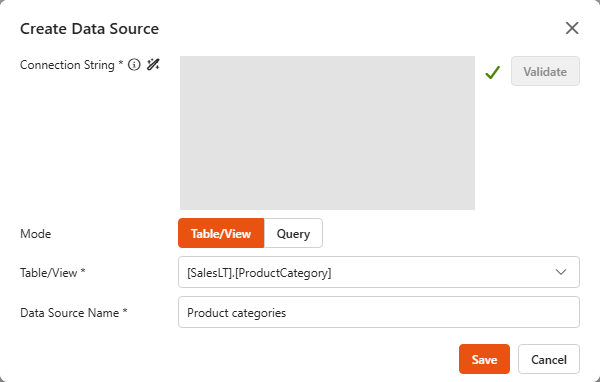
The connection string
A connection string holds what Sintel BI needs to reach the database: the server name, the database name, the login and other options. You usually find it in an application's configuration file, or you get it from the administrator or developer who set up the database.
Try it with the demo database
Click the wand icon next to Connection String (Use sample connection string). It fills in a connection string to Sintel's demo database, so you can try MS SQL data sources without a database of your own.
Allow Sintel BI through your firewall
Some SQL servers only accept connections from known IP addresses. Sintel BI connects from a single static IP address, 20.229.106.231. Add it to your server's firewall allowlist.
Configure the columns
Sintel BI does not import the columns of an MS SQL data source automatically. That lets you pick only the data you need, which helps performance and keeps control over what is shown.
- Open the data source (click it in the list, or … > Edit).
- Click Configure in the data source tile. The Configure Data Source dialog opens.
- Add the columns in one of two ways:
- Read from database loads all columns of the table, view or query. Then go through them, check each column's Type, and delete the ones you don't need with the bin icon.
- Add column adds one column at a time. Enter its Name (the column name in the database) and pick its Type.
- Click Save, then save the data source.
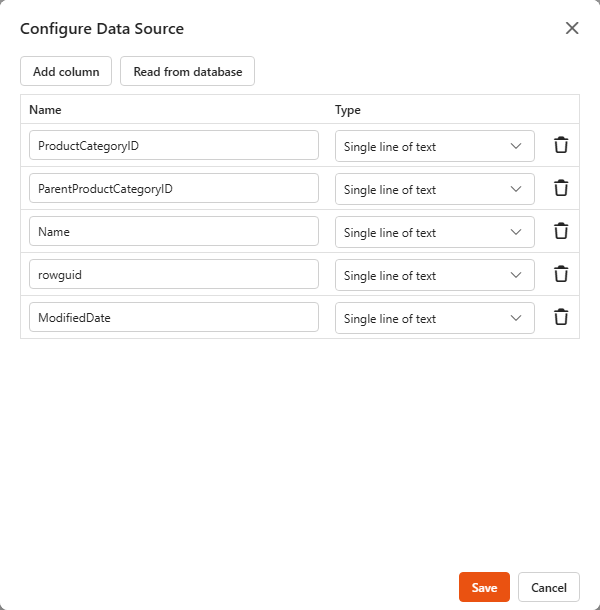
The column types are:
| Type | Use for |
|---|---|
| Single line of text | Short text |
| Multiple lines of text | Long text |
| Yes/No | True/false values |
| Number | Numbers |
| Date and Time | Dates and times |
After the first configuration, the Configure (cog) icon in the tile header opens the same dialog.
Test a query
In Query mode, the code icon in the tile header (Test query) opens the Test Query dialog. Enter a SQL statement and click Test query to see the rows it returns, without changing the data source. Only the first 10 rows are shown.
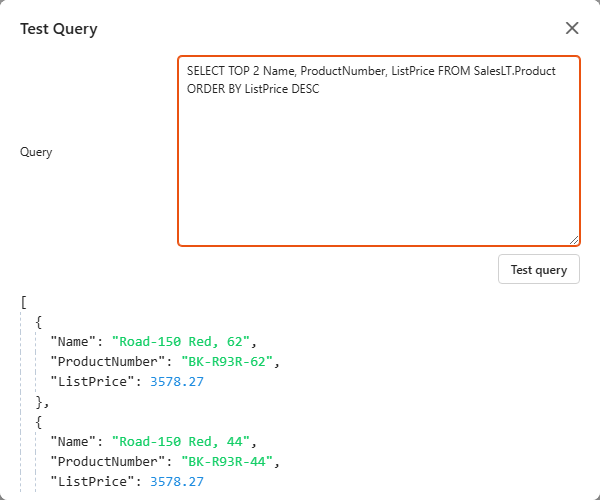
Update the connection string
The database icon in the tile header (Update connection string) opens Update MS SQL Connector. You can enter a new connection string, switch between Table/View and Query, and pick another table or query.
WARNING
Updating the connection string can't be undone. Check the new connection with Validate before you save.
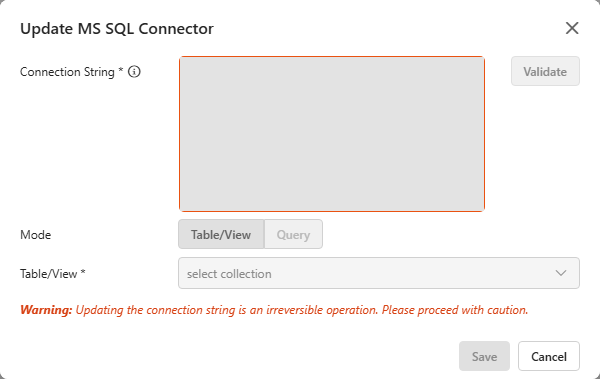
Everything else
Renaming, cloning, filtering, activating and deleting an MS SQL data source work like any other data source, see Data sources. You can also filter MS SQL data at the source.
For IT and developers
Connection string examples
Use the standard SQL Server (SqlClient) format. Only SQL authentication (a SQL login with a user name and password) is supported. Windows authentication and Microsoft Entra ID logins aren't.
Azure SQL Database:
text
Server=tcp:yourserver.database.windows.net,1433;Initial Catalog=YourDatabase;User ID=sintelbi_reader;Password=...;Encrypt=True;TrustServerCertificate=False;Connection Timeout=30;SQL Server in your own network or on a virtual machine:
text
Server=tcp:sql.yourcompany.com,1433;Initial Catalog=YourDatabase;User ID=sintelbi_reader;Password=...;Encrypt=True;TrustServerCertificate=False;Connection Timeout=30;- The sample string behind the wand icon uses the same format as the Azure SQL example.
- The backend uses Microsoft.Data.SqlClient 5, where Encrypt is on by default. The server needs a certificate the backend can trust. If it only has a self-signed certificate, add
TrustServerCertificate=True(less secure). - Give the login read access only to the tables and views the dashboards need.
Network
There is no on-premises agent or gateway to install. The Sintel BI backend, hosted in Azure, connects to your server directly over the internet. An on-premises server must accept inbound connections on its SQL port (usually 1433) from 20.229.106.231, for example through a firewall rule or port forward. For Azure SQL, add the IP as a server firewall rule.
Timeouts and row limits
| Setting | Value |
|---|---|
| Connect timeout when you click Validate | 15 seconds |
| Connect timeout when loading data | From the connection string (Connection Timeout, 15 seconds if not set) |
| Query timeout when loading data | 120 seconds |
| Rows loaded into a dashboard | No limit: every row the table, view or query returns is loaded into the browser |
| Rows shown by Test query | The first 10 |
For large tables, return only the rows and columns the dashboard needs. See also Requirements and limits.
Writing a query
In Query mode, a data source filter (including a value set through a dashboard override) is added to the end of your query as text:
- if the query contains the word
WHEREanywhere, the filter is added asAND (...), - otherwise it's added as
WHERE ....
So when you use filters, write a plain SELECT ... FROM ... WHERE ...:
- don't end the query with
ORDER BY,GROUP BY,HAVINGorUNION, - don't put a
WHEREonly inside a subquery or CTE, because the filter is then added asANDto the outer query.
For anything more complex, create a view in the database and use Table/View mode, or use a stored procedure. Sort and group in the components instead.
Stored procedures
A query that starts with EXEC or EXECUTE runs a stored procedure. Data source filters aren't added to it. Instead, dashboard filters pass parameters: in the filter's SQL settings, turn on Stored procedure parameter and enter the procedure's parameter name (without @) in Parameter name. See the Dropdown and Date filters.
The parameters are added after the procedure name as named parameters, for example EXEC dbo.GetSales @Region="North,South":
| Filter | Parameter |
|---|---|
| Dropdown | @Name: the selected values, joined with commas |
| Date | @Name: the date as a UTC ISO timestamp |
| Date Range | @Name_start and @Name_end: UTC ISO timestamps |
A parameter is left out while its filter is empty, so give the procedure's parameters default values.
For hosting, encryption and what reaches Sintel's servers, see Security and data.
Security questions
These answers are for IT and security teams reviewing Sintel BI.
Is the connection direct, or through a gateway? Connections to your database are made server side by the Sintel BI backend, not from the user's browser. The backend connects straight to your server from a single static outgoing IP address, so you only need to allow one IP on your firewall. There is no agent or gateway to install in your network: an on-premises server must accept inbound connections from that IP (see Network). Once the data source is saved, database credentials never leave the backend.
Is anything stored in the browser? No. The connection string is entered once, when you create the data source. It is stored securely on the backend and can't be read back through the UI. The browser only holds the normal session information the app needs.
Does the data go through Sintel BI, other data centres, or straight from the browser? All database traffic comes from the Sintel BI backend (the single IP above). There is no direct connection from the browser to the database.
Can it connect to lakehouses, data warehouses or Databricks? Sintel BI supports SQL Server compatible databases with SQL authentication. Microsoft Fabric Lakehouse or Warehouse, Azure Synapse and Databricks need Microsoft Entra ID or token-based authentication, which isn't supported at the moment.