

Appearance
Filtering guide: understanding your options
Filters narrow down the data a dashboard shows. Sintel BI has several kinds of filter, and they differ in when they are applied. Picking the right one makes your dashboard faster and easier to use.
Data source filters vs dashboard filter components
| Data source level | Dashboard level | |
|---|---|---|
| Filters | Data source filter, Dashboard override | Dropdown, Multi-source dropdown, Date, User, Date Range |
| Applied | Before the data is loaded into the dashboard | After the data is loaded |
| Who changes them | The designer, in the data source or the dashboard properties | The viewer, on the dashboard |
| Performance | Less data is queried, so dashboards load faster | All the data is loaded first, so large data sets load more slowly |
Data source level filters reduce the amount of data that is queried, which improves performance, especially with large data sets. Dashboard level filters are components on the dashboard. They let viewers refine what's displayed, but don't change the query itself.
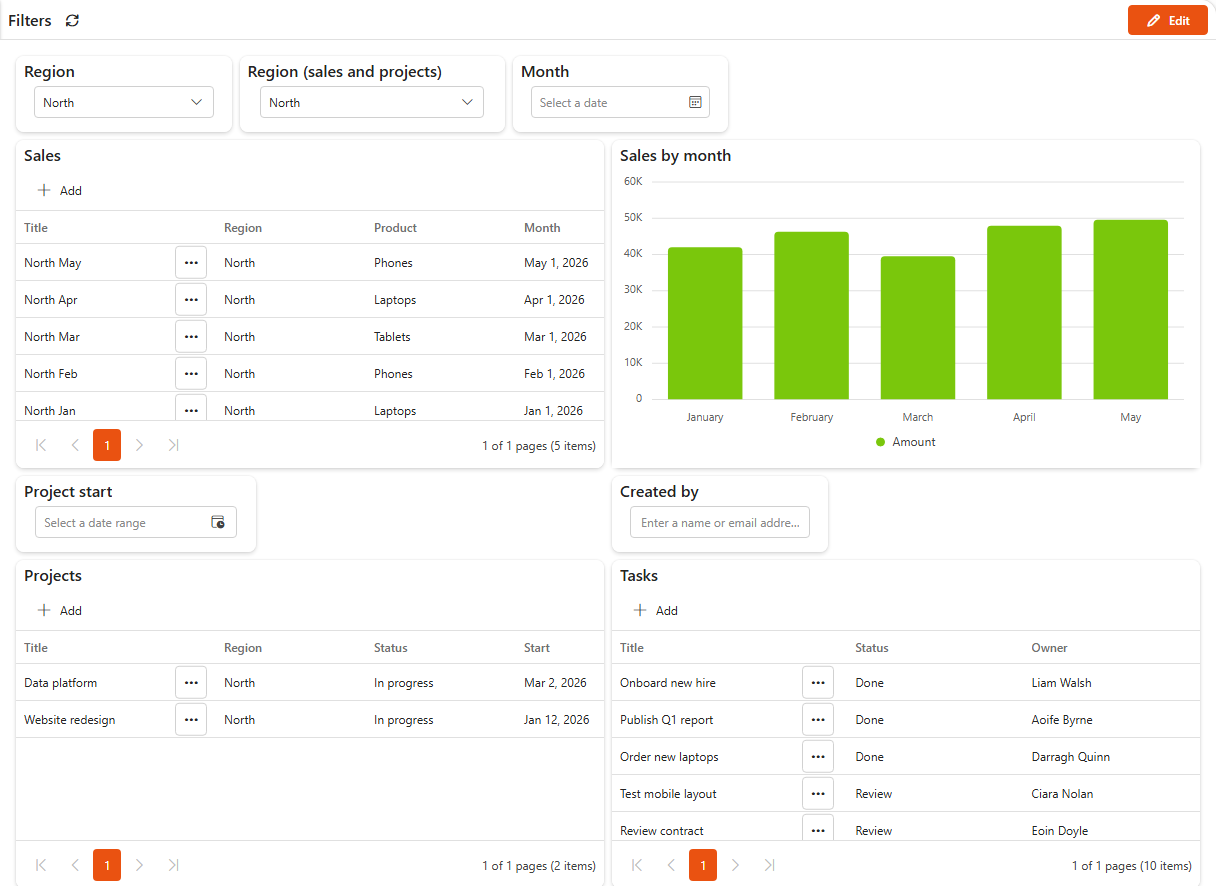
Data source level
Data source filter
A data source filter restricts the data before it is loaded into the dashboard, so only relevant data is queried.
- Use it when the data set is large, or you always want to limit the data, for example to a date range or to the current user's items.
- Works with text, number, date and other column types.
- Advantages: better performance, because less data is processed and displayed. Better control, because only relevant or sensitive data reaches the dashboard.
- Disadvantage: fixed. Viewers can't change it on the dashboard.
Dashboard override
A dashboard override is a data source filter with Allow dashboard override turned on. Each dashboard then sets the filter value itself, so one data source can serve several dashboards with different filters, without copies of the data source.
- Use it when you need the performance of a data source filter, but different values on different dashboards, for example one dashboard per region.
- Works with text-based filters.
- Advantage: improved performance, and no duplicated data sources.
- Disadvantage: viewers still can't change the value on the dashboard, unless a filter component passes its value to it (see Backend filtering on the Dropdown filter).
Dashboard level
User filter
The User filter filters data by a person, for example appointments for one employee.
- Use it when viewers need to see data for themselves or for a specific colleague. For example, on a sales dashboard, manager Sally sees everyone's sales and uses the User filter to look at one sales assistant at a time.
- Advantage: flexible for managers and other authorised users who need a per-person breakdown.
- Disadvantage: only applies to person fields.
Users should only see their own data?
Then use a data source filter with @Me instead. The data is filtered before it reaches the dashboard, which is more secure and faster.
Date filter
The Date filter filters data by one date, such as today or a date the viewer picks.
- Use it when the dashboard shows data with a date field.
- Disadvantage: like other dashboard level filters, it works on data that is already loaded.
For a period such as Last 7 days, This month or This quarter, use the Date Range filter instead.
Dropdown filter
The Dropdown filter lets viewers pick one or more values from a list, for example a department or a product type.
- Use it when viewers filter by category.
- Advantages: easy to set up and intuitive to use. Every component it is linked to updates when the selection changes.
- Disadvantage: works on loaded data, so it can slow large dashboards down.
Multi-source dropdown filter
The Multi-source dropdown filter is a dropdown whose values come from columns of several data sources. One selection filters components on all of them.
- Use it when related data sits in different data sources, for example a Region column in both a Sales and a Support tickets data source.
- Advantage: one filter updates every linked component, whichever data source it uses.
- Disadvantage: may slow the dashboard down if the data sources are large.
Good to know
- A filter component only affects the components you choose in its Applies to list. For most filters, these must use the same data source as the filter.
- Filters loading order in the dashboard properties (Data section) loads filters one after another. Use it when one filter should narrow down the options of the next. By default, all filters load at the same time.
- Every filter component has Read Only and Hidden switches. A read-only filter with a default value is a simple way to show viewers a fixed slice of the data.