

Appearance
The formula editor
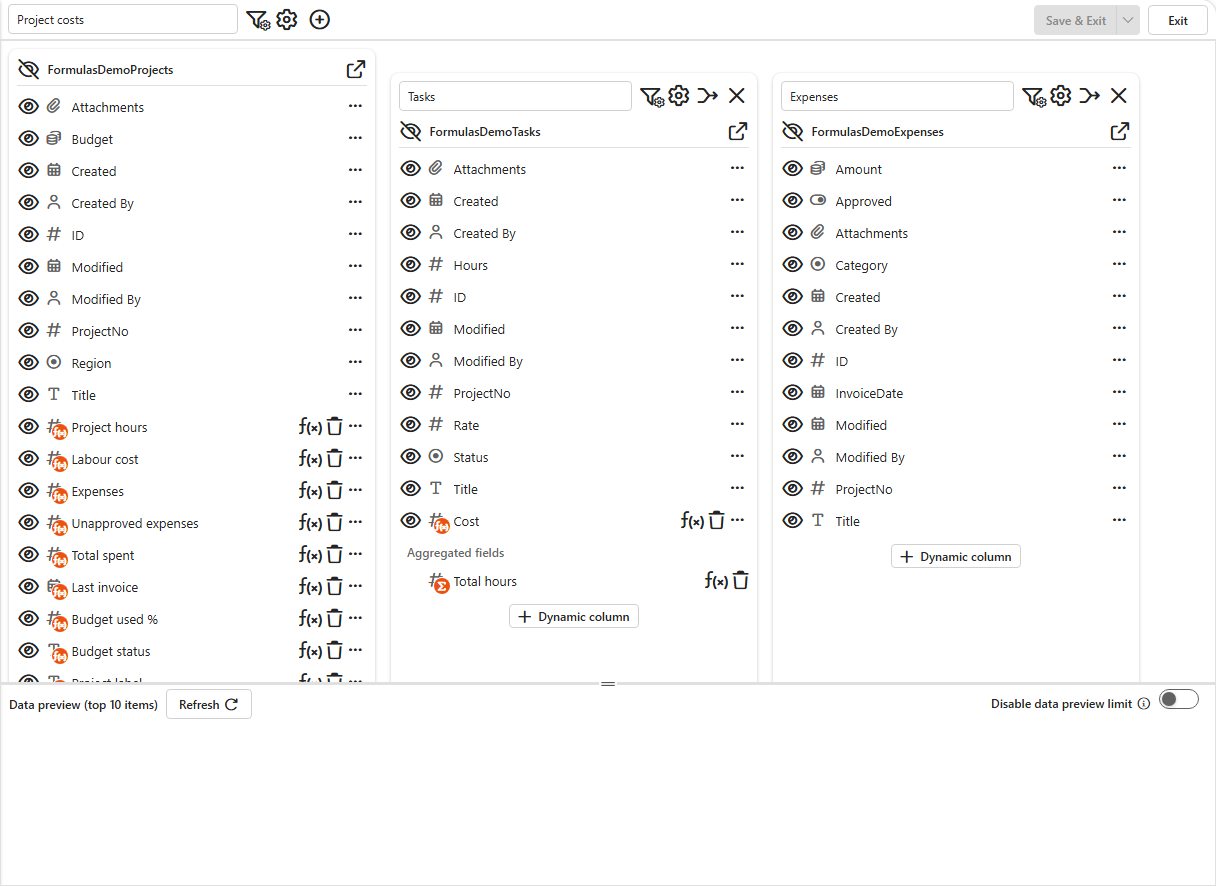
Dynamic columns and aggregated fields share one editor. Open it from the data source designer:
+under a data source adds a dynamic column.Σadds an aggregated field.f(x)next to an existing field edits it.
Full screen
The maximise icon in the dialog's title bar switches the editor to full screen, which gives long formulas more room.
A tour of the dialog
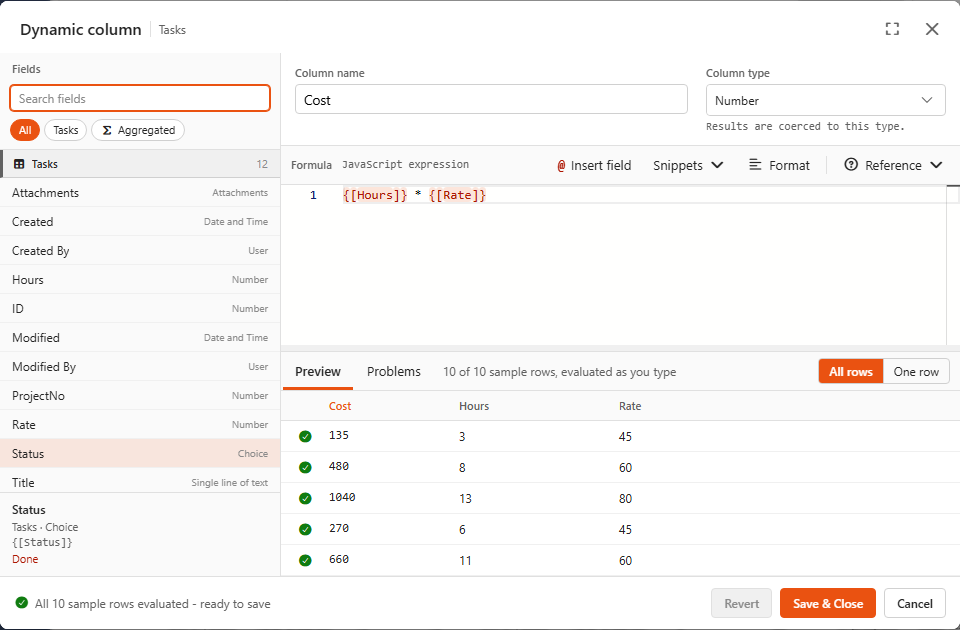
| Area | What it does |
|---|---|
| Fields (left) | Every field you can use. Click one to insert it at the cursor. The footer shows the selected field's type, its token and its value in the previewed row. |
| Column name / type | The name users see, and the type the result is converted to: Single Line of Text, Number, Date and Time or Yes/No. |
| Formula | The expression. Fields appear as orange tokens such as {[Hours]}. |
| @ Insert field | Opens field search at the cursor. Typing @ in the formula does the same. |
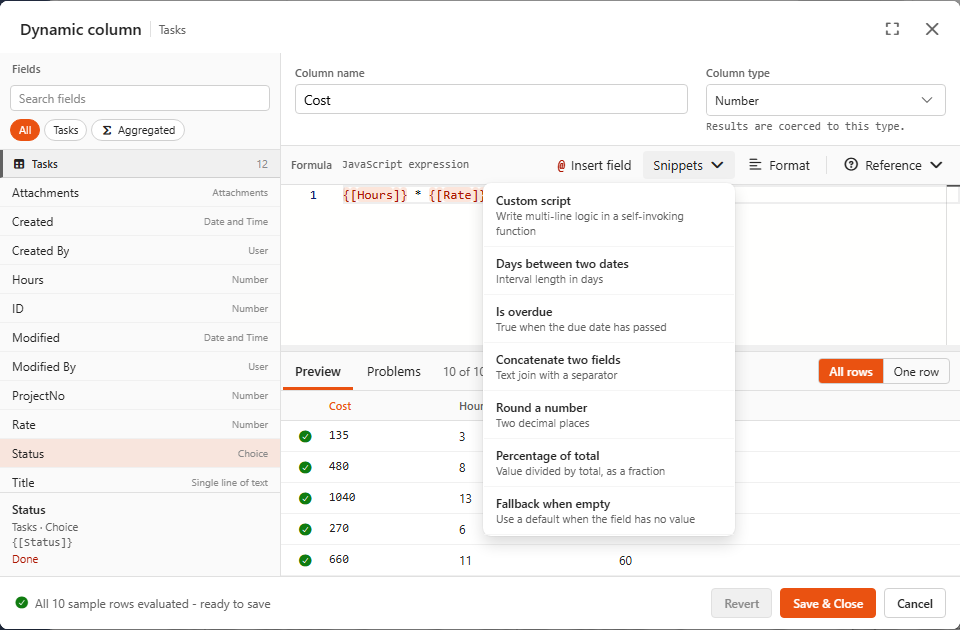
| Snippets | Ready-made formulas to start from, see Snippets. |
| Format | Tidies up the formula's layout. |
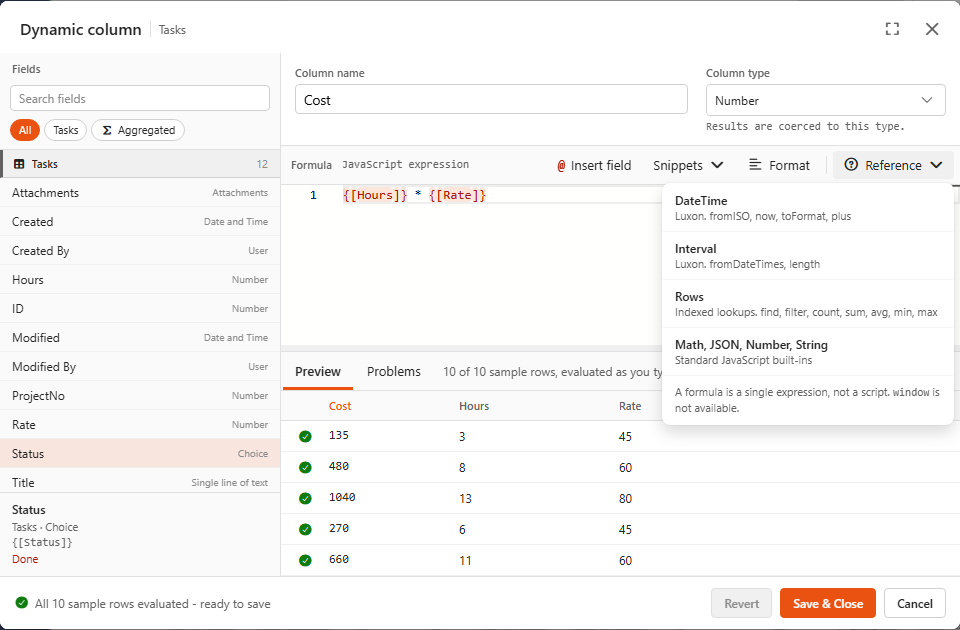
| Reference | What you can use in a formula: DateTime, Interval, Rows, Math and, where they apply, the aggregation helpers. |
| Preview / Problems | Results calculated as you type, and any errors or warnings. |
Snippets and Reference menus
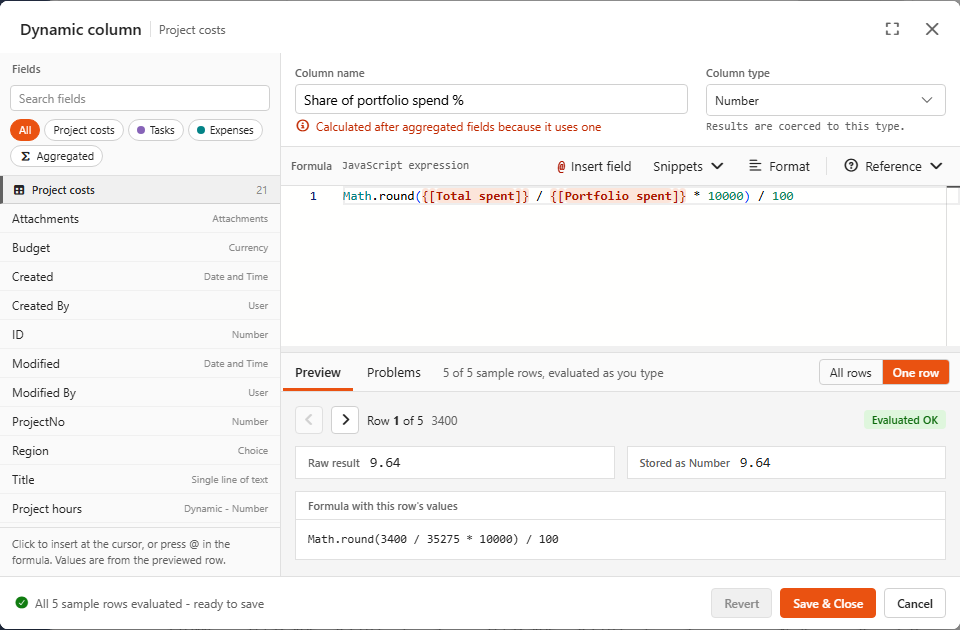
Preview: all rows or one row
All rows shows the result for every sample row, next to the fields the formula uses. One row steps through rows one at a time. It also shows the formula with that row's values filled in, which is the quickest way to see why a result is what it is.
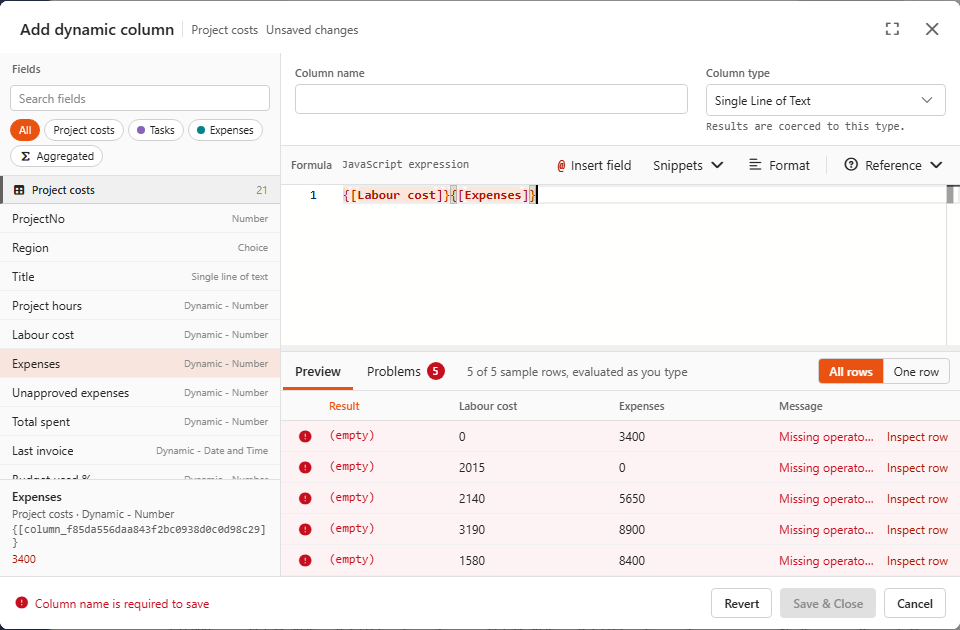
Problems
A red row means the formula failed for that row. The cell shows (empty) and the Message column explains why. Inspect row opens the row in the One row view.
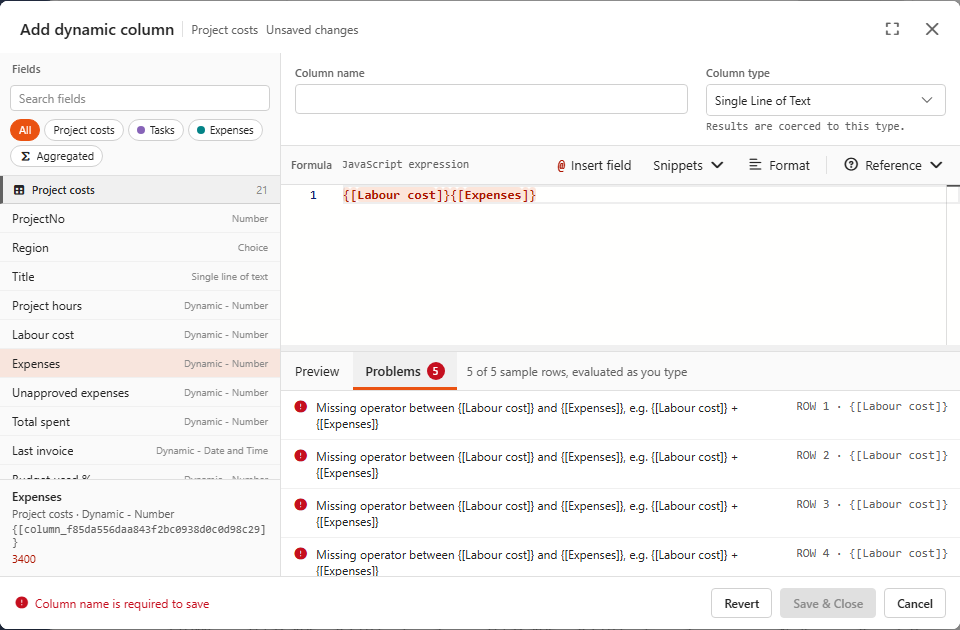
The Problems tab lists the same errors, plus warnings such as a field that doesn't exist. You can still save a formula with errors: failing rows just get an empty value. See Troubleshooting for the common messages.
Tokens are names, not values
When you click Cost in the Fields list, the editor shows {[Cost (Tasks)]}. The formula actually stores the field's internal name, which for a dynamic column looks like {[Tasks_column_37af16b8...]}. The editor displays the friendly name for you.
So:
- Insert fields by clicking them (or with
@) rather than typing the token by hand, especially for dynamic columns and aggregated fields. - Plain list columns use their SharePoint internal name, e.g.
{[ProjectNo]}. Typing those by hand works. - In this guide, examples like
{[Total spent]}mean "insert the Total spent field".
Sample rows
The preview uses the designer's preview rows (the top 10 by default; the Disable data preview limit switch in the designer removes the limit). For dynamic columns that's all you need. For aggregated fields it matters, see How aggregated fields work.