

Appearance
Scheduler
The Scheduler shows the items of a data source as events on a calendar. Use it for event management, room bookings, hot desks, shift rotas or anything else with a start and a finish.
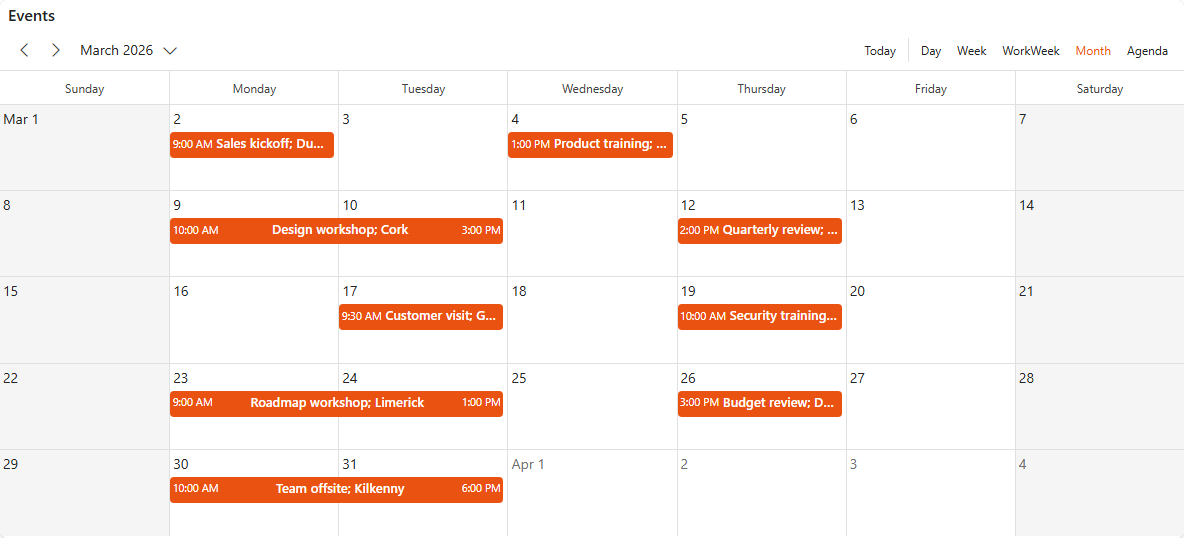
A SharePoint list with a title, a start date and a finish date is all you need. SharePoint's Event itinerary list template is a good starting point: it creates a list for event information that you can connect to the Scheduler straight away. Whether you organise conferences, manage room reservations or optimise hot desk use, the Scheduler shows these activities in a clear, visual way.
Add a scheduler
- Create a data source on your events list.
- Open the dashboard in edit mode.
- In the Widgets pane, open the General tab and drag Scheduler onto the dashboard. Resize it.
- Select the scheduler. On the Properties tab, give it a Title and, if you like, a Subtitle, Description and Icon (see the Common settings).
- Under Look & Feel, decide whether it has an Elevated Border and whether to Hide on Mobile.
- Under Scheduler Settings, choose the Default View.
- Optionally, set up an action button, see Add an action button.
- Open the Assign Data tab and assign the fields, see below.
- Click Save & Exit.
Assign the fields
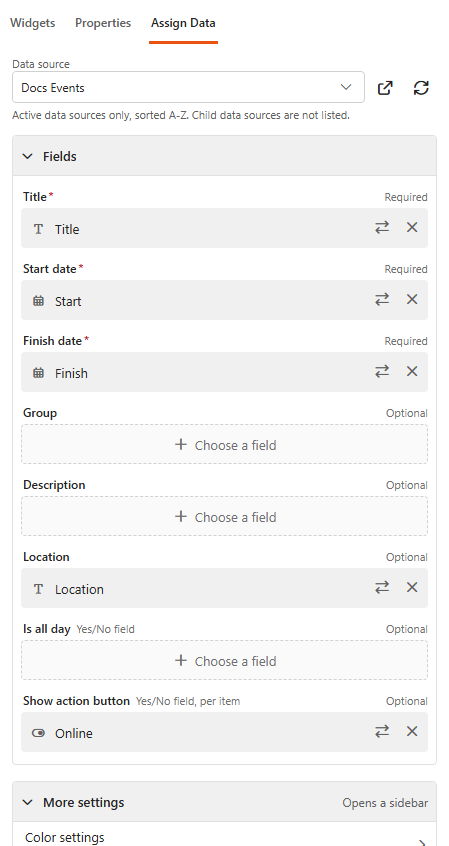
On the Assign Data tab, click Choose data source and pick your events data source. Then fill in the Fields:
| Field | What it does |
|---|---|
| Title (required) | The event name shown on the calendar. |
| Start date (required) | When the event starts. Date fields only. |
| Finish date (required) | When the event ends. Date fields only. |
| Group | Groups events by a text, choice, lookup or person field. For a conference you could group by Session type; for a hairdresser's bookings, by hairdresser or by treatment. |
| Description | Text shown in the event details. |
| Location | Where the event takes place. |
| Is all day | A Yes/No field that marks all-day events. |
| Show action button | A Yes/No field: the action button is shown only on events where it is Yes. |
Under More settings > Color settings you can give events their own colours. Add a Value (an event title) and pick a Color. Events without a mapping use the default event colour.
Settings
Scheduler Settings
| Setting | What it does |
|---|---|
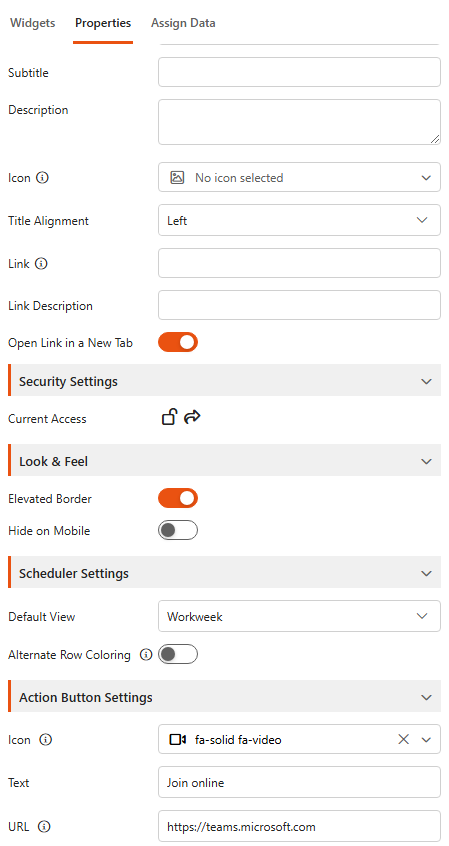
| Default View | The view the calendar opens in: Day, Week, Workweek, Month or Agenda. Viewers can switch view. |
| Alternate Row Coloring | Shades every second row. Applies when events are grouped. |
Add an action button
An action button appears in an event's details when the viewer clicks the event. For example, a workshop schedule can have a Book a place button that opens a booking form. The settings are available when the data source is a SharePoint list.
| Setting | What it does |
|---|---|
| Icon | An icon on the button. |
| Text | The button text. |
| URL | The page the button opens. {{id}} is replaced with the event's item ID, see the example below. |
For example, this URL opens a booking form and passes it the session's item ID:
https://contoso.sharepoint.com/sites/events/Lists/Bookings/NewForm.aspx?SessionId={{id}}The button shows only when the URL and an icon or text are set. If you assign a Show action button field, it shows only on events where that field is Yes.
What else can I use the Scheduler for?
- Employee shift scheduling: plan shifts, breaks and assignments across departments or locations.
- Project management: show project timelines, milestones and task deadlines so the whole team stays aligned.
- Appointment booking: salons, healthcare providers or consultants can show free time slots, with an action button that opens the booking form.
- Equipment or resource reservations: check the availability of rooms, desks, vehicles or equipment and avoid double bookings.
- Training and course scheduling: list sessions and workshops, and let people register through the action button.
- Travel and conference management: bring itineraries, conference schedules and session details together in one view.
- Maintenance and service scheduling: plan routine maintenance, service appointments and inspections to keep downtime low.
Related
- Kanban board: items as cards in workflow columns.
- Date filter: filter the events by date.