

Appearance
Kanban board
A Kanban Board shows the items of a data source as cards in workflow columns, such as To do, In progress and Completed. It gives your team a real-time snapshot of where every task stands.
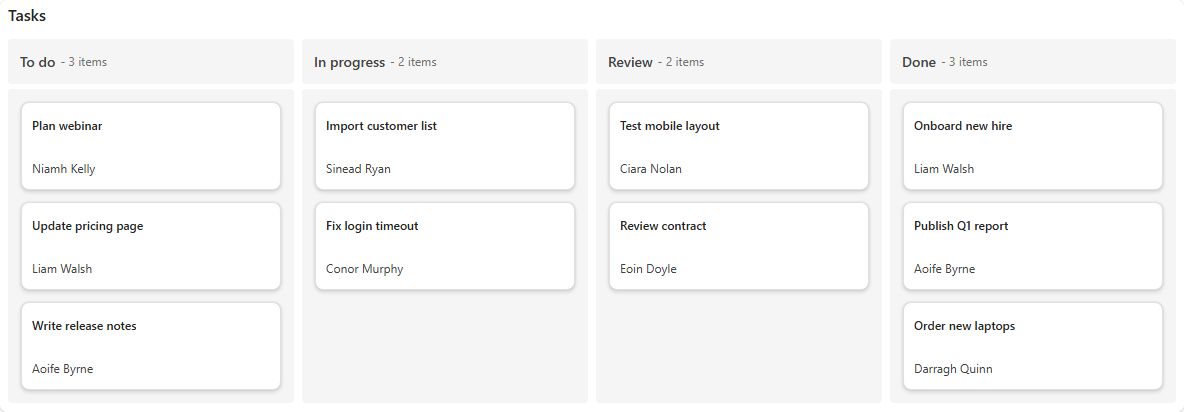
What is a Kanban board?
A Kanban board is a visual project management tool that helps teams track work. It's divided into columns that represent the stages of a workflow. Each task is a card, placed in the column that matches its current stage. As work progresses, the card's status changes and it appears in the next column.
In Sintel BI, the columns come from a field of your data source, usually a Status choice field. The board is read-only: viewers move a card by changing the item's status, for example in its form.
Add a Kanban board
- Create a data source on your tasks list.
- Open the dashboard in edit mode.
- In the Widgets pane, open the General tab and drag Kanban Board onto the dashboard. Resize it.
- Select the board. On the Properties tab, give it a Title and, if you like, a Subtitle, Description and Icon (see the Common settings).
- Open the Assign Data tab, click Choose data source and pick the data source.
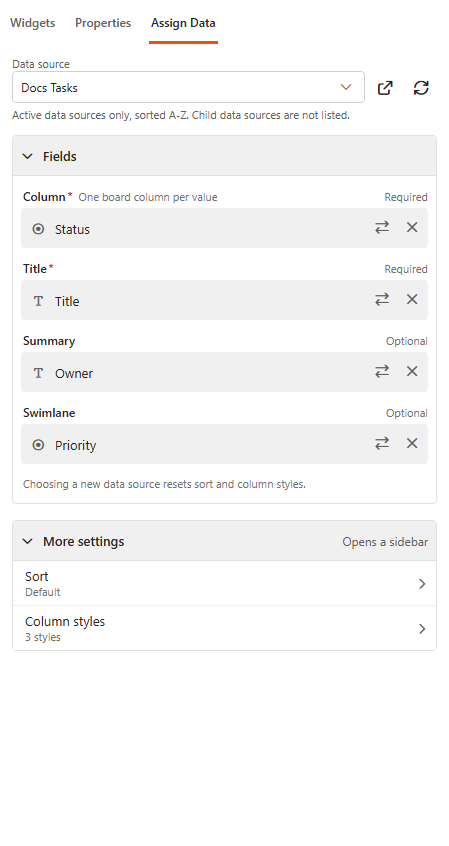
- Assign the fields, see below.
- Optionally, set the column order and styles under More settings.
- Click Save & Exit.
Assign the fields
| Field | What it does |
|---|---|
| Column (required) | One board column per value of this field, for example per Status. Text, choice, person or Yes/No fields. |
| Title (required) | The card title. |
| Summary | Text shown on the card under the title. |
| Swimlane | Splits the board into horizontal lanes, one per value of this field. |
Choosing another data source resets the sort and column styles.
Swimlanes
A swimlane is a horizontal row across the board that groups related cards. It adds structure, especially when a board is shared between teams or departments. Common uses:
- Team members: one lane per person or group, to see the workload of each.
- Work types: bug fixes, new features, maintenance or customer support.
- Priority: High, Medium and Low, so the most critical work is handled first.
- Project phases: planning, development, testing and deployment.
- Dependencies: for example Predecessor tasks and Successor tasks.
- Client or customer: one lane per client, to manage work for different stakeholders.
Column order and styles
Under More settings on the Assign Data tab:
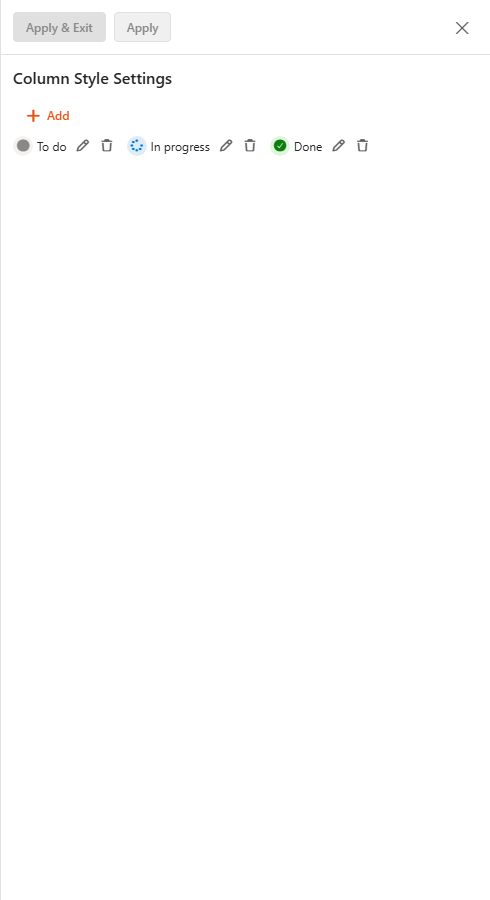
- Sort: sets the order of the columns. Add the column values in the order you want them to appear, for example Not started, In progress, Done. Without a custom order, the default order is used.
- Column styles: gives a column an icon and colours. Click Add, choose the Value, then set Show Background Color / Background Color, Icon Color and Icon. If the list is used by a Sintel Apps form, Import from Sintel Apps imports the form's status values and colours.
Settings
Settings
| Setting | What it does |
|---|---|
| Enable Details Button | Shows a View details link icon on each card. |
| Empty Columns | Shows columns that have no cards. |
| Items Count | Shows the number of cards in each column header. |
| Swimlane Items Count | Shows the number of cards in each swimlane header. |
| Swimlane Avatar | Shows the person's picture in the swimlane header (person fields). |
| Card Title Avatar | Shows the person's picture next to the card title (person fields). |
| Card Summary Avatar | Shows the person's picture next to the card summary (person fields). |
Item Form
Available once a SharePoint list or library is the data source.
| Setting | What it does |
|---|---|
| Open Item In | What happens when a card is clicked: Don't Open, Current Tab, Dialog, New Tab, Panel or Custom Form Dialog. |
| Width / Height | Size of the dialog or panel. |