

Appearance
Pie chart
A pie chart is a circle divided into slices. Each slice is one category, and the whole pie is 100 per cent, so the size of a slice shows its share of the total.
A good pie chart gives information at a glance. It gets hard to read with too many categories; use Top N values and Show 'Other' to keep the number of slices small.
For example, a pie chart can show a company's top marketing expenditures, with each slice labelled with its percentage of the total spend.
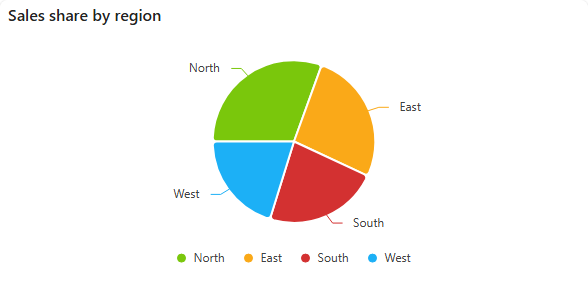
Add a pie chart
- In the designer, open the Charts tab of the Widgets pane and drag Pie Chart onto the dashboard. Resize it as required.
- On the Assign Data tab, pick the Data source.
- Add the number each slice measures to Value (for example Sum of Cost) and the field for the slices to Category (for example Channel).
- Name the chart and adjust its look on the Properties tab, then save the dashboard.
Pie, donut and pyramid charts share one settings panel, described in Common chart settings.
Settings worth knowing
| Setting | What it does |
|---|---|
| Top N values / Show 'Other' (Basic Settings) | Show only the largest slices, and one "Other" slice for the rest. By default all items are shown. |
| Outer Radius / Inner Radius (Layout & Appearance) | The size of the pie, and of the hole in its middle. An inner radius above 0 turns it into a donut. |
| Start Angle / End Angle (Layout & Appearance) | Where the slices start and end. 270 to 90 draws a half pie. |
| Label Value (Labels) | Category, Value or Custom value. |
| Label Position (Labels) | Inside or Outside the slices. |
Example: show percentages
To label each slice with its share of the total, set Label Value to Custom value and Custom Value to:
{category}: {percentageValue}{percentageValue} gives a whole percentage such as 24%; {percentageValue1} and {percentageValue2} give one and two decimal places. {total} inserts the total of all slices.