

Appearance
Warning when opening a dashboard
Symptom
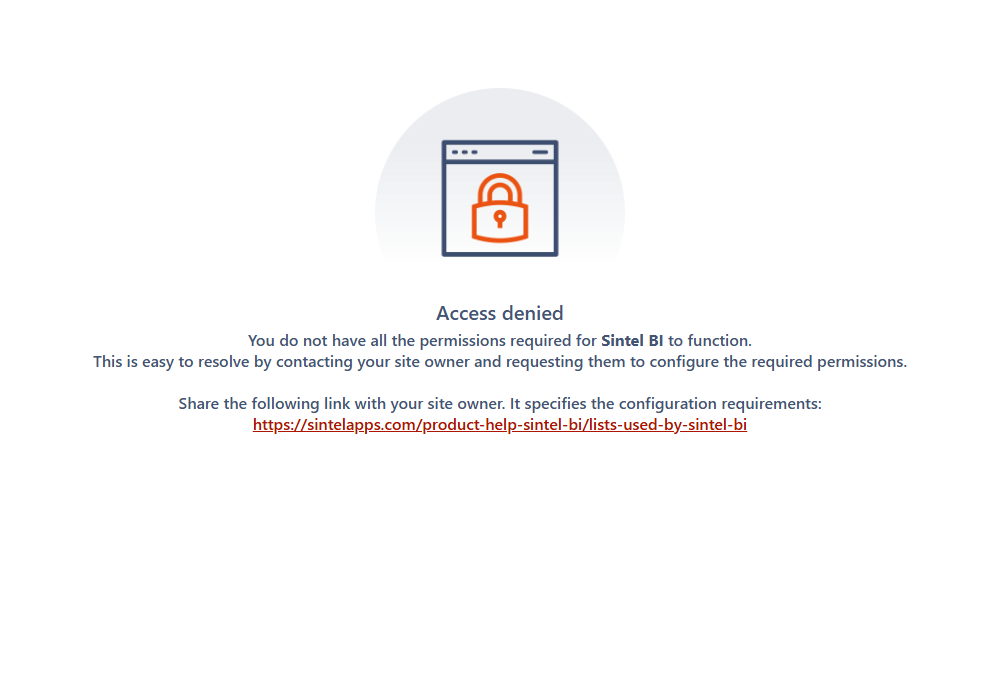
When you open a Sintel BI dashboard, you get an error or warning instead of the dashboard. In current versions Sintel BI shows an Access denied screen:
You do not have all the permissions required for Sintel BI to function. This is easy to resolve by contacting your site owner and requesting them to configure the required permissions.
One user or everyone?
The same Access denied screen can have different causes. Check who gets it first:
| Who gets it | Likely cause | What to do |
|---|---|---|
| Only one person or a few, while others open dashboards fine | They get access to the site some other way than through the groups that have access to the Sintel BI lists, for example they were added to the site directly. Four Sintel BI lists have their own permissions, so they don't pick this up. | Add them to the site's Visitors group (or the group you use instead). See Read access to the site. |
| Everyone (site owners may still be fine), and an error names the SintelBISPPrincipals list | The Visitors group lost Edit on that list. | SintelBISPPrincipals does not exist |
| Everyone (site owners may still be fine), after permissions on the site's lists were changed | The permissions of several Sintel BI lists were changed. | Follow the fix on this page. |
If you only view dashboards
This isn't caused by your computer. Send this page to your site owner. How to find your site owner
Cause
The permissions on one or more of the lists Sintel BI uses were changed.
Sintel BI keeps its configuration (data sources, dashboards, components and so on) in a set of lists on the site. Everyone who opens dashboards needs read access to these lists, and edit access to four of them. Typically someone broke permission inheritance on some of these lists and removed access from them.
Fix
Who can fix this
A site owner. If that isn't you, send this page to your site owner.
Reset the lists' permissions:
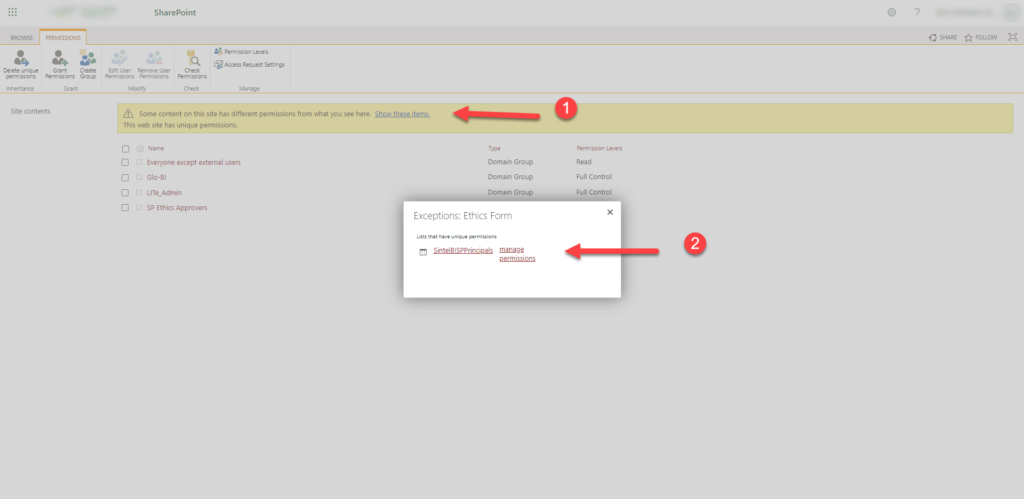
- Open Site settings > Site permissions (for example
https://PathToYourSite/_layouts/user.aspx). - If any content on the site has unique permissions, a message says so. Click Show these items.
- The Exceptions dialog lists the lists with unique permissions. Next to a Sintel BI list (the names start with
SintelBI), click manage permissions.
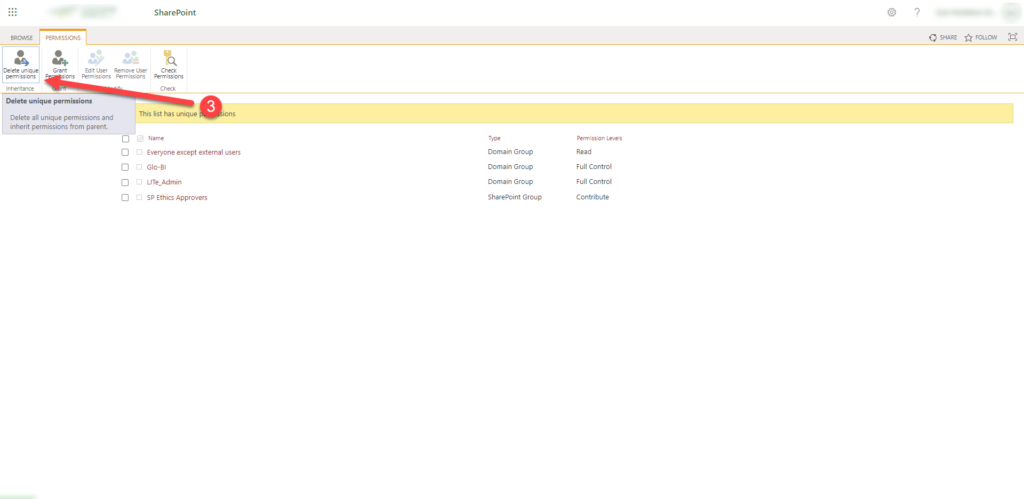
- On the list's permissions page, click Delete unique permissions, so the list inherits its permissions from the site again. Repeat for each Sintel BI list except these four, which are meant to have unique permissions: SintelBIDashboards, SintelBIComponents, SintelBIRecycledDashboards and SintelBISPPrincipals.
- Check each of those four lists: open its permissions page (List settings > Permissions for this list) and make sure the site's Visitors group has Edit. If it doesn't:
- If the page says the list inherits permissions from its parent, click Stop Inheriting Permissions first.
- Click Grant Permissions, enter the site's Visitors group, choose Edit and click Share.
WARNING
Don't delete the unique permissions of the four lists above, or change them to read-only for visitors. People then can't open dashboards. See SintelBISPPrincipals does not exist.
See Lists used by Sintel BI for every list Sintel BI uses, what it's for and the permissions it needs.