

Appearance
Dashboard override
Dashboard override lets a dashboard change the value of a data source filter rule. Instead of making several copies of a data source, each with a different filter, you keep one data source and let each dashboard decide which values to load.
For example, a sales data source has a filter on Region. One dashboard shows "North", another "South", and both use the same data source.
Advanced
This is an advanced feature. You need to be comfortable with data source filters, and user values are written in a short code format (shown below). Most dashboards don't need it.
Step 1: Allow the override on a filter rule
- Open the data source in the designer and click the filter icon.
- Add a rule (or pick an existing one), for example on Region.
- Switch on Allow Dashboard Override.
- Enter a Parameter Name, for example
RegionFilter. The dashboard uses this name to refer to the rule. - Click Apply and save the data source.
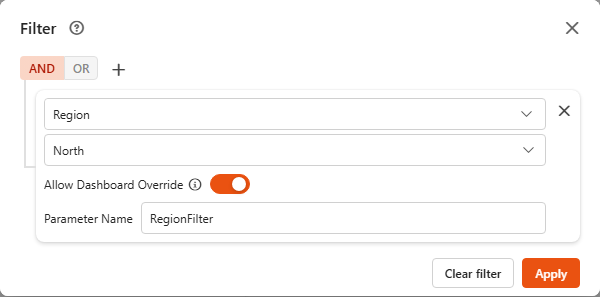
The rule's own value is used until a dashboard sets the parameter.
Step 2: Set the value on the dashboard
- Open the dashboard in the dashboard designer.
- Click an empty part of the dashboard so no component is selected, and open the Properties tab.
- In the Data section, find Data Source Filters.
- Type
@to see the parameters you created, and pick one. - Add
=and the value, for example{[RegionFilter]}=North. - Save the dashboard.
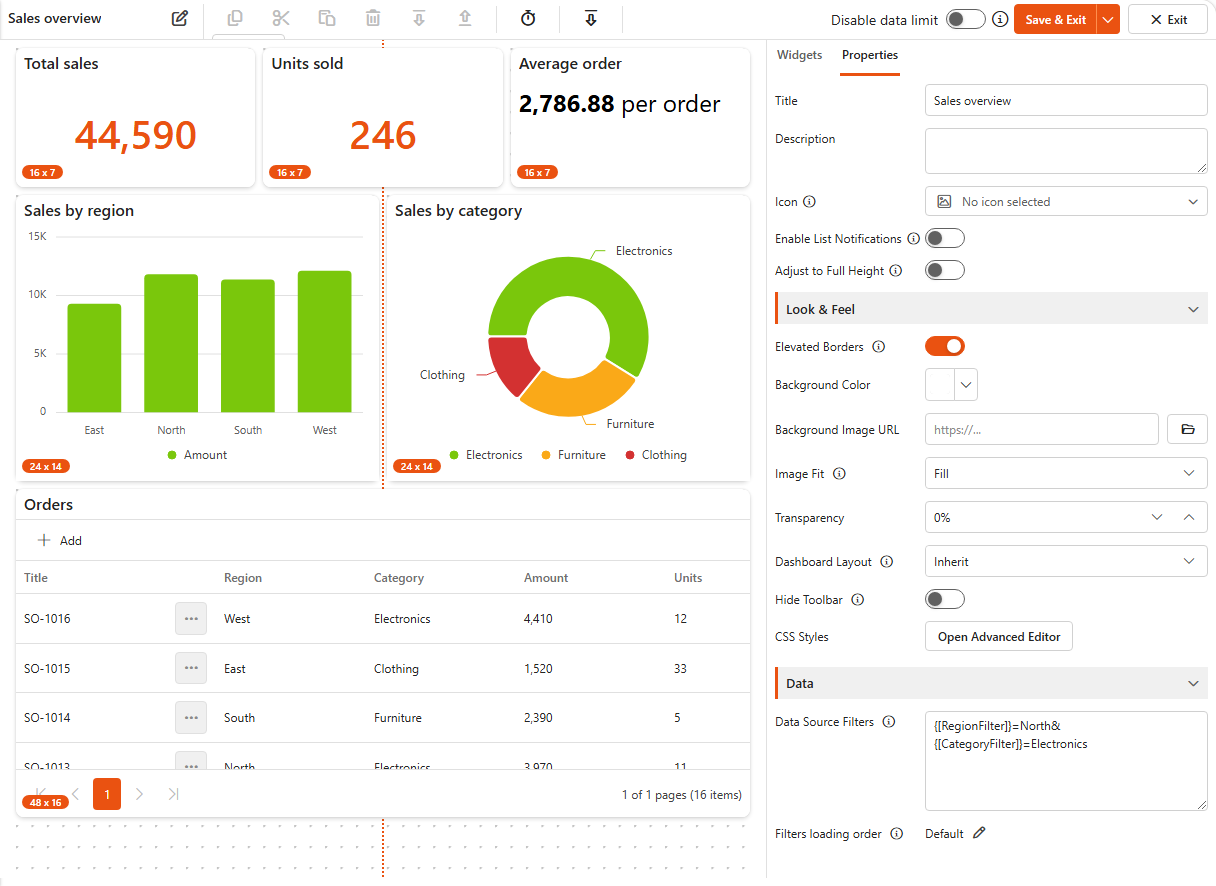
The format
Data Source Filters uses the format of a URL query string:
- One parameter:
{[ParameterName]}=Value, for example{[RegionFilter]}=North. - Several parameters: join them with
&, for example{[RegionFilter]}=North&{[CategoryFilter]}=Electronics. - Several values for a Choice, Yes/No or Lookup rule: repeat the parameter, for example
{[RegionFilter]}=North&{[RegionFilter]}=South. - Yes/No values are
1(Yes) and0(No). Lookup values are the IDs of the looked-up items.
User fields
A user value is written as JSON with the user's display name:
{[UserFilter]}={"displayText": "Beyonce Knowles"}To mean "the person viewing the dashboard", use the special @Me value. "type": 16 is the code that tells Sintel BI it means @Me rather than a person called "@Me", so copy it exactly:
{[UserFilter]}={"displayText": "@Me", "type": 16}Full example
The data source has filter rules on Region, Category and a user field, each with Allow Dashboard Override on. To show data for the North region, the Electronics category, for Beyonce Knowles:
{[RegionFilter]}=North&{[CategoryFilter]}=Electronics&{[UserFilter]}={"displayText": "Beyonce Knowles"}Or for the person viewing the dashboard:
{[RegionFilter]}=North&{[CategoryFilter]}=Electronics&{[UserFilter]}={"displayText": "@Me", "type": 16}Which rules can be overridden
Values typed in Data Source Filters work for Text, Choice, Yes/No, Lookup and User rules.
Date and Number rules are best driven by a filter component instead (see below).
Let a filter component set the parameter
The Dropdown, Date and Date range filter components can also set a parameter, so users change the data source filter from the dashboard itself. In the filter component's data settings, open Advanced data filtering, switch on Backend filtering and enter the same Parameter name as in the data source filter rule. See Dropdown filter and Date filter.
Good to know
- A parameter name only works if the matching rule has Allow Dashboard Override on.
- If the dashboard doesn't set a parameter, the rule keeps the value set in the data source.
- Dashboard variants have the same Data Source Filters field, so each variant can load different data.