

Appearance
Image
The Image component shows a picture on a dashboard, such as a logo, a banner or a diagram. You can make it a clickable link.

Add an image
- Upload the image somewhere your viewers can open it, for example the site's Site Assets library, and copy its URL.
- Open the dashboard in edit mode.
- In the Widgets pane, open the General tab and drag Image onto the dashboard. Resize it.
- Select the component. On the Properties tab, paste the image's address into URL under Basic Settings.
- Choose the Mode, and the padding and link if you need them, see Settings.
- Click Save & Exit.
An Image component has no data source, so it has no Assign Data tab.
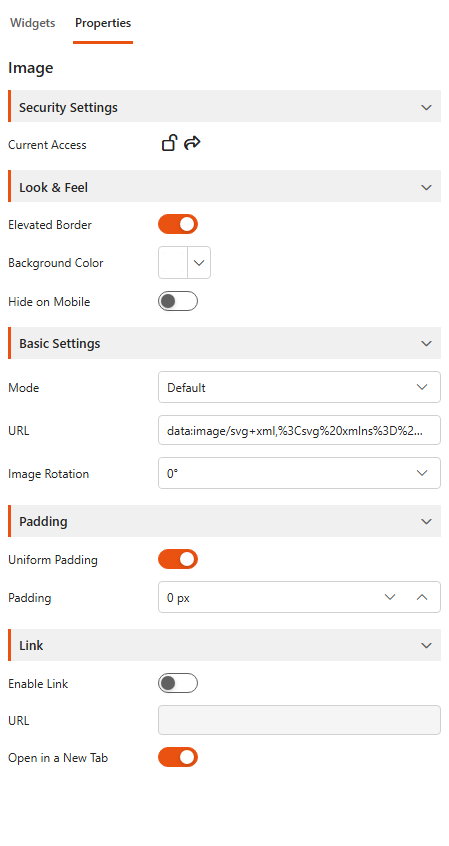
Settings
Basic Settings
| Setting | What it does |
|---|---|
| Mode | How the image fits the component, see below. |
| URL | The address of the image. |
| Image Rotation | Rotates the image by 0°, 90°, 180° or 270°. |
Mode
| Mode | What it does |
|---|---|
| Default | Shows the image at its original size. |
| Fill | Stretches the image to fill the whole component. |
| Uniform | Resizes the image proportionally, without clipping, to fit the component. |
| Uniform To Fill | Resizes the image proportionally to fill the component. Edges may be clipped if the image's shape differs from the component's. |
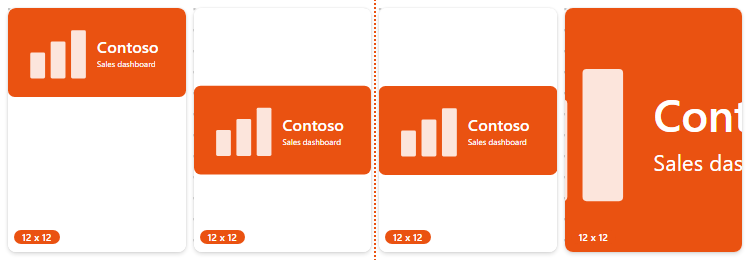
From left to right: Default, Fill, Uniform and Uniform To Fill.
Padding
Padding adds space between the image and the edge of the component.
| Setting | What it does |
|---|---|
| Uniform Padding | On: one Padding value for all four sides. Off: set Padding Left, Padding Right, Padding Top and Padding Bottom separately. |
Link
| Setting | What it does |
|---|---|
| Enable Link | Makes the image clickable. |
| URL | The page the image opens. |
| Open in a New Tab | Opens the link in a new browser tab instead of the current one. |
Under Look & Feel you can turn the Elevated Border on or off, change the Background Color and Hide on Mobile. Security Settings control who can see the component, see the Common settings.