

Appearance
Writing dynamic column formulas
Where to type it
Data Sources > open the data source > + Dynamic column at the bottom of its field list. See The formula editor.
A dynamic column is a calculated, read-only column. Its formula runs once for every row, and the result is stored on that row like any other value. You can then show, sort, filter, group and chart it like a normal column. Nothing is written back to SharePoint.
Used to Excel formulas?
Formula basics for spreadsheet users translates the notation used on this page, such as {[Field]}, ? : and ??.
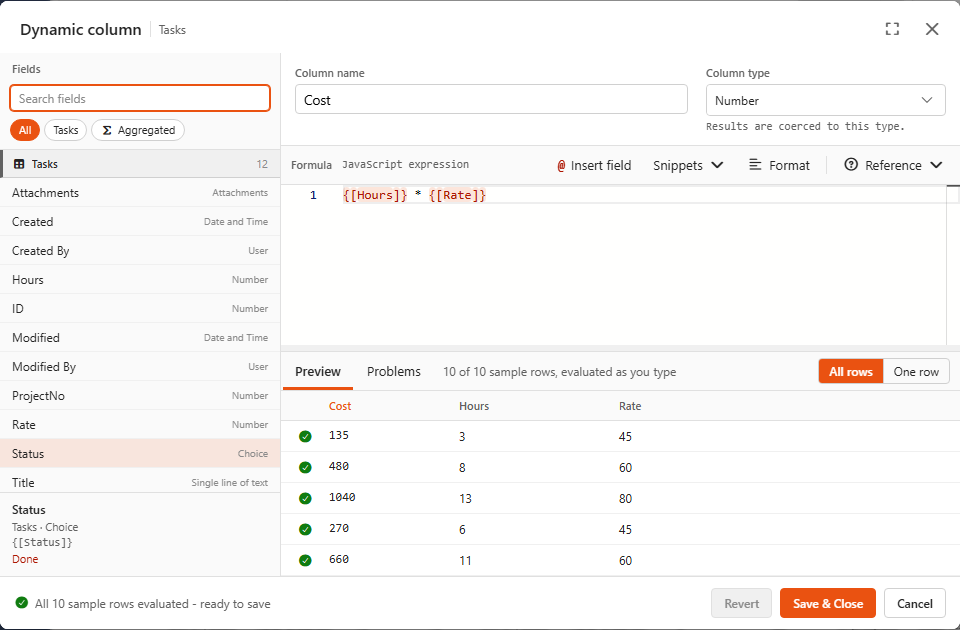
Your first formula
In the demo, Tasks > Cost is:
js
{[Hours]} * {[Rate]}{[Hours]} is replaced by the current row's Hours value, {[Rate]} by its Rate, and the two are multiplied. Set the column type to Number.
The rules
- A formula is one expression. It produces a value, like a spreadsheet formula. It can't be a list of statements, see multi-line logic for the way around that.
- Fields are tokens:
{[InternalName]}. Insert them from the Fields list or with@. - The result is converted to the column type. Number turns text like
"12"into 12 and anything not numeric into empty. Single Line of Text turns any value into text. Date and Time accepts dates, ISO strings and LuxonDateTimes. Yes/No turns the value into true/false. - Errors don't break the data source. A row whose formula fails just gets an empty value.
Everyday formulas
Arithmetic and rounding
js
{[Hours]} * {[Rate]}                                  // Cost
Math.round({[Total spent]} / {[Budget]} * 10000) / 100 // Budget used %, 2 decimals
Conditions with ? :
condition ? valueIfTrue : valueIfFalse. Chain them for more than two outcomes. From the demo, Budget status (type Single Line of Text):
js
{[Budget used %]} > 100 ? 'Over budget' : {[Budget used %]} > 80 ? 'At risk' : 'On track'| Operator | Means |
|---|---|
=== / !== | equals / not equals (use these rather than ==) |
> >= < <= | comparisons |
&& / || / ! | and / or / not |
Text
js
{[FirstName]} + ' ' + {[LastName]}             // join with +
`${{[ProjectNo]}} - ${{[Title]}}`              // template text, see note below
{[Title]}.toUpperCase()
{[Title]}.includes('Bridge')
The demo's Project label is `${{[ProjectNo]}} - ${{[Title]}}` → 1 - Harbour Bridge Refit.
Double braces in template text
Inside backtick text, ${ } inserts a value, and the field token itself is {[...]}, so you end up with ${{[Title]}}. A token placed directly in quoted text ('ID-{[ID]}') is inserted as text too.
Empty values
A field with no value arrives as null. Use ?? to supply a default, and ?. to read a property that might not exist:
js
{[Region]} ?? 'Unassigned'
{[Author_UserDetails]}?.email ?? null
Dates
Dates are handled with Luxon, available as DateTime and Interval. Date fields arrive as ISO text, so convert them with DateTime.fromISO first:
js
DateTime.fromISO({[DueDate]}) < DateTime.now()                       // is overdue (Yes/No)
Interval.fromDateTimes(DateTime.fromISO({[StartDate]}),
                       DateTime.fromISO({[EndDate]})).length('days') // days between
DateTime.fromISO({[Created]}).toFormat('yyyy-MM')                    // month bucket for charts
DateTime.fromISO({[InvoiceDate]}).plus({ days: 30 }).toISO()          // due date, type Date and Time
Multi-line logic
When a formula gets long, wrap it in a function that runs immediately. Inside, you can use const, if and return:
js
(() => {
    const spent = {[Total spent]};
    const budget = {[Budget]};
    if (!budget) return null;
    return Math.round(spent / budget * 100);
})()
The Custom script snippet inserts this shape for you.
Using other dynamic columns
A dynamic column can use other dynamic columns. In the demo, Total spent is {[Labour cost]} + {[Expenses]}, and Budget used % uses Total spent. Sintel BI works out the order for you, so a column may even use one defined below it. Just don't create a loop (A uses B, B uses A).
For developers: how the formula is evaluated
The formula is compiled once per column with new Function. Each token becomes an argument, and the row's values are passed in. Objects and arrays are passed as copies, so a formula can't modify the source row; reference data is the exception and is shared read-only. window is null inside a formula, but other browser globals are reachable, so this is not a security sandbox.
More examples
Replace the field names with your own fields: select a token, then click the field in the Fields list. The comment after each formula is the column type to pick.
Percentages and ratios
js
{[Total]} > 0 ? {[Completed]} / {[Total]} * 100 : 0                    // % complete, Number
{[Total]} > 0 ? Math.round({[Completed]} / {[Total]} * 100) + '%' : '0%' // "75%", Single Line of Text
{[Revenue]} > 0 ? ({[Revenue]} - {[Cost]}) / {[Revenue]} * 100 : 0       // profit margin %, Number
{[Total]} > 0 ? {[Value]} / {[Total]} : 0                              // ratio without dividing by zero, Number
Calculations
js
{[Revenue]} * 0.15                                       // 15% tax, Number
{[Score1]} * 0.5 + {[Score2]} * 0.3 + {[Score3]} * 0.2   // weighted score, Number
Labels
All of these are Single Line of Text:
js
{[Completed]} === {[Total]} ? 'Complete' : 'In Progress'
{[Priority]} === 'High' ? 'High Priority' : 'Normal Priority'
{[Revenue]} >= {[Target]} ? 'Met Target' : 'Below Target'
{[Sales]} >= 1000 ? 'High' : {[Sales]} >= 500 ? 'Medium' : 'Low'
'$' + {[Revenue]}
'Rank ' + {[Rank]}
{[Value]} >= 1000000 ? ({[Value]} / 1000000).toFixed(1) + 'M'
    : {[Value]} >= 1000 ? ({[Value]} / 1000).toFixed(1) + 'K'
    : String({[Value]})                                   // 1,500 → "1.5K"
Dates
js
DateTime.fromISO({[Date]}).toFormat('MMMM')                              // month name, Single Line of Text
DateTime.now().toISODate()                                              // today, Date and Time
DateTime.fromISO({[Deadline]}) < DateTime.now() ? 'Overdue' : 'On Time' // Single Line of Text
Next
- Snippets: every built-in starting point explained.
- Aggregated fields: one value over all rows.