Appearance
Common chart settings
Most charts in Sintel BI share one settings panel. This page describes it once, so the page for each chart type only covers what is different about that type.
- Column, stacked column, line, stacked line, step line, spline, area, spline area, RAG line, RAG area and polar charts use the settings in the first part of this page.
- Pie, donut and pyramid charts have their own panel, see Pie, donut and pyramid charts.
- The Gauge has its own settings, see Gauge.
Add a chart
- Open the dashboard and click Edit in its top bar, see Change an existing dashboard.
- In the Widgets pane, open the Charts tab and drag the chart onto the dashboard.
- Resize it as required.
- With the chart selected, open the Assign Data tab, pick a Data source and fill the field slots, see Assign data.
- Open the Properties tab to name the chart and adjust how it looks, see Properties.
- Click Save & Exit, or Save from its drop-down to keep editing.
Define a data source first
A chart needs a data source. If you don't have one yet, see Data sources, or use Add new data source at the bottom of the Data source list on the Assign Data tab.
Assign data
Data source
Pick the data source in the Data source selector at the top of the Assign Data tab. The list shows the data sources already used on this dashboard first, then the other active data sources. Browse all data sources at the bottom of the list opens a larger view. The icons next to the selector open the data sources page in a new tab and refresh the list.
Fields
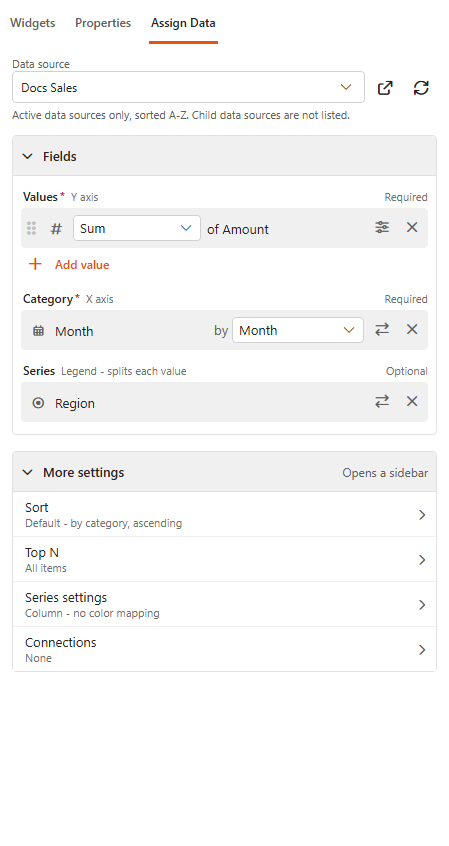
A chart has three field slots. Click a slot (or its + button) to open the field picker, then click a field to add it. The picker can be searched.
| Slot | What it does |
|---|---|
| Values (Y axis, required) | The numbers the chart plots. You can add several values; each one becomes its own series. Next to each value, choose how it is aggregated: Sum, Count, Unique Count or Average for number fields, Count or Unique Count for other fields. Aggregated fields are already calculated and need no aggregation. |
| Category (X axis, required) | What the chart is broken down by, for example Month or Region. For a date field, choose how dates are grouped: Year, Month, Day, Day of Week, Date, Date and Time or Month and Year. |
| Series (Legend, optional) | Splits each value by a second field, for example Sales by Month split by Region. Date fields can be grouped as for Category. |
Each field in a slot has its own actions: drag the handle to reorder values, Replace to swap the field, and Remove. Number values also have Value settings, which set the Min Decimal Places and Max Decimal Places shown on the chart.
Count items per month
To show how many items there are per month (a count per month), add a field that is never empty, such as ID, to Values and choose Count: Count counts the rows. Then add a date field to Category and group it by month:
- Month groups by the month name only, so January of every year lands in one column.
- Month and Year keeps each month of each year apart, for example January 2025 and January 2026. Use it when your data covers more than one year.
More settings
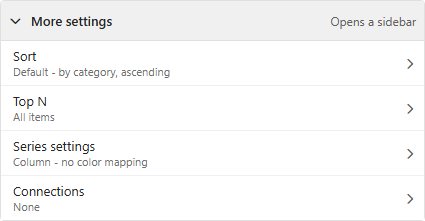
The More settings list opens a sidebar for each group of options. Each row shows a summary of what is set. Every sidebar has Apply and Apply & Exit buttons.
| Sidebar | What it does |
|---|---|
| Sort | Sort by a value or the category, and Sort Direction (ascending or descending). By default the chart is sorted by the category. The undo icon clears the sorting. |
| Top N | Show only the top items. Pick the Value field to rank by and enter the number in Top N values (empty shows all items). Show 'Other' groups the remaining items into one "Other" item; it applies only to Count and Sum. |
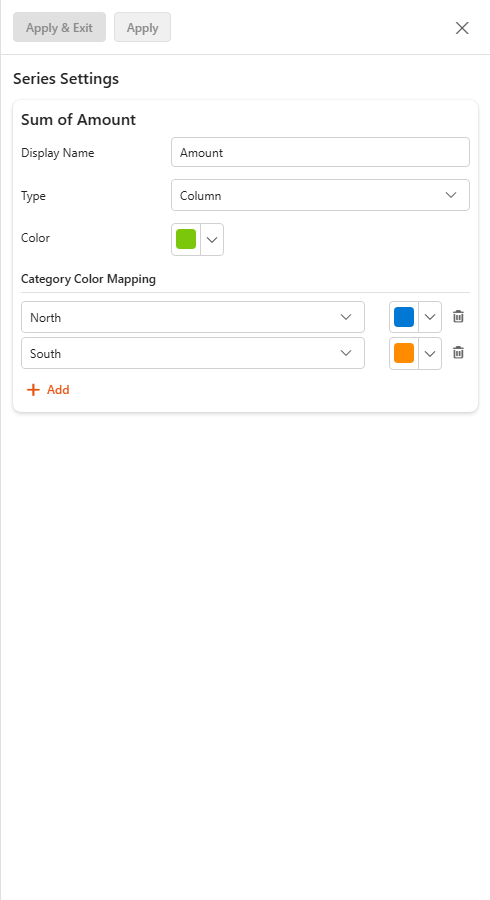
| Series settings | For each value: its Display Name (the name shown in the legend and tooltip), its Type, and its colours. See Series settings. |
| Connections | Pick other Components on the dashboard that use the same data source. When a viewer clicks a category on this chart, those components are filtered to it. Clear dynamic filters in the dashboard's top bar removes the filter again. |
Series settings
| Setting | What it does |
|---|---|
| Display Name | Renames the series. A renamed value shows an "as ..." badge in the Values slot. |
| Type | The series type: Column, Bar, Line, Area, Spline, Stacking Column, 100% Stacking Column, Stacking Bar, 100% Stacking Bar, Spline Area, Step Line, Stacking Line, 100% Stacking Line, RAG Line, RAG Area or Polar. The chart widget you dragged sets the starting type. Giving values different types makes a combination chart, for example columns with a line. |
| Color | The colour of the series, when the chart has no Series field. |
| Category Color Mapping | Without a Series field: a fixed colour for specific category values. Click Add to add a value and its colour. If the category is a Sintel Apps status column, Import from Sintel Apps fills the mapping with the status colours. |
| Row Color Mapping | With a Series field: a fixed colour for specific values of that field. |
RAG Line and RAG Area series have no colour settings: their colours come from the RAG settings.
Properties
The Properties tab starts with the title, link, Security Settings and Look & Feel settings that every component has, see Common settings. The chart settings follow them.
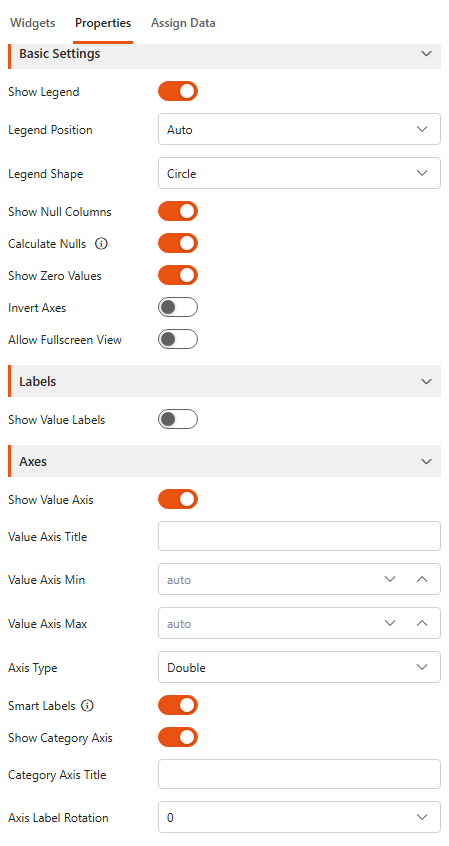
Basic Settings
| Setting | What it does |
|---|---|
| Show Legend | Shows the legend, which names each series. |
| Legend Position | Auto, Top, Left, Bottom or Right. |
| Legend Shape | The legend marker: SeriesType (matches the chart type), Circle, Pentagon, Triangle or Rectangle. |
| Show Stack labels value | Stacked charts only: shows the total at the top of each stack. |
| Show Null Columns | Shows categories that have no value. |
| Calculate Nulls | Includes empty values in the calculations. |
| Show Zero Values | Shows values of 0. |
| Invert Axes | Swaps the axes, so columns become horizontal bars. Not available for polar charts. |
| Allow Fullscreen View | Lets viewers expand the chart to full screen. |
Labels
| Setting | What it does |
|---|---|
| Show Value Labels | Shows the value on each column or point. |
| Label Value | Value, or Custom value to build your own label. |
| Shorten Value Labels | Abbreviates large numbers, for example 12K. |
| Custom Value | The label text when Label Value is Custom value. Supported tags: {category}, {value}, {value1}, {value2}, {percentageValue}, {percentageValue1}, {percentageValue2}, {total}, {shortenedValue}, {shortenedValue1}, {shortenedValue2} and {series}. Aggregated fields of the data source can be used too; the info icon lists their tokens. |
| Value Label Color | The colour of the labels. |
For example, a custom value of {category}: {shortenedValue} shows labels like March: 12.5K.
Axes
| Setting | What it does |
|---|---|
| Show Value Axis | Shows the value (Y) axis. |
| Value Axis Title | A title for the value axis, for example "Number of sales". |
| Value Axis Min | The lowest value shown. Empty means automatic. For example, set it to 12 to focus on weeks with more than 12 sales. |
| Value Axis Max | The highest value shown. Empty means automatic. |
| Axis Type | Double (a normal number scale), Logarithmic or Category. |
| Smart Labels | Abbreviates the numbers on the axis. Available when the axis type is Double. |
| Show Category Axis | Shows the category (X) axis. |
| Category Axis Title | A title for the category axis. |
| Axis Label Rotation | Rotates the category labels: -90, -45, 0, 45 or 90 degrees. Useful for long names. |
Tooltip
| Setting | What it does |
|---|---|
| Show Tooltip | Shows the value when a viewer hovers over a column or point. |
| Shorten Tooltip Values | Abbreviates large numbers in the tooltip. |
RAG Settings
This section appears only when the chart has a RAG Line or RAG Area series. See RAG line chart.
Pie, donut and pyramid charts
Pie, donut and pyramid charts show parts of a whole, so they have no axes. They share their own settings panel.
Assign data
| Slot | What it does |
|---|---|
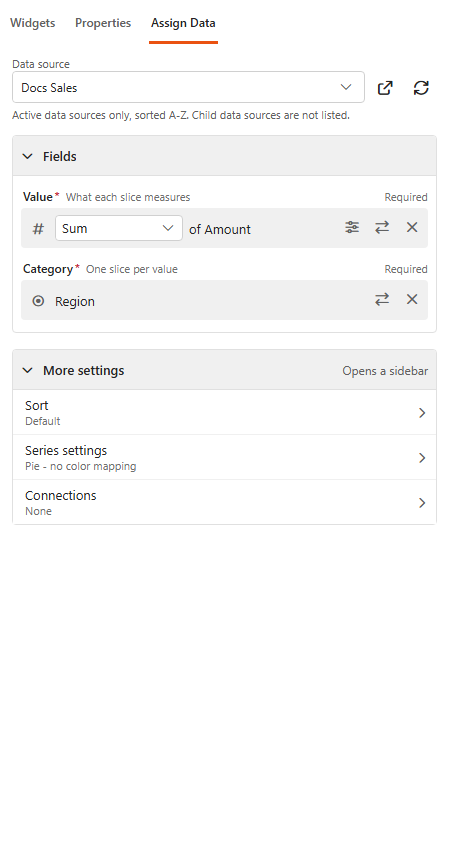
| Value (required) | What each slice measures, with the same aggregation choice as for other charts. |
| Category (required) | One slice per value of this field. Date fields can be grouped. |
More settings has:
| Sidebar | What it does |
|---|---|
| Sort | A custom order for the slices. Click Add and pick the category values in the order you want them. Without a custom order, the default order is used. |
| Series settings | The Display Name and Type of the series (Pie, Funnel or Pyramid), and the Color Mapping: a fixed colour for specific category values. Without a mapping, the default colour palette is used. Import from Sintel Apps fills the mapping from Sintel Apps status colours where available. |
| Connections | As for other charts: clicking a slice filters the selected components. |
Properties
The title, link, security and Look & Feel settings are the Common settings. Then:
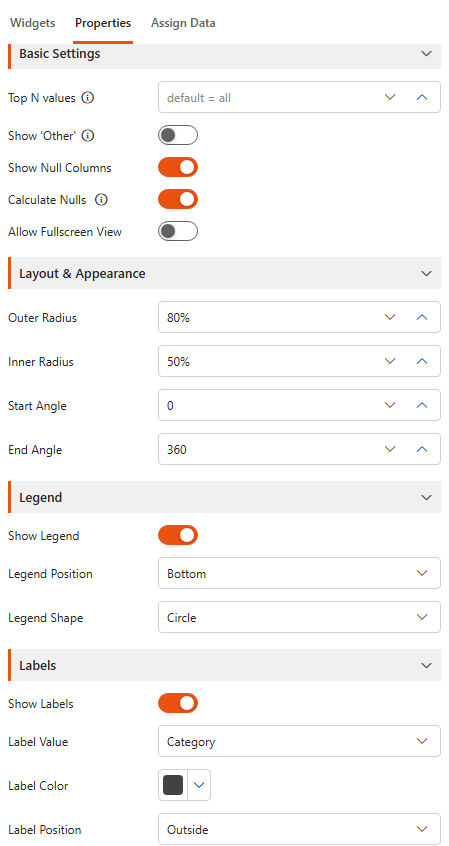
Basic Settings
| Setting | What it does |
|---|---|
| Top N values | Shows only the largest items. Empty shows all items. |
| Show 'Other' | Shows one slice for all the remaining items. |
| Show Null Columns | Shows categories that have no value. |
| Calculate Nulls | Includes empty values in the calculations. |
| Allow Fullscreen View | Lets viewers expand the chart to full screen. |
Layout & Appearance
| Setting | What it does |
|---|---|
| Outer Radius | Pie and donut: the size of the chart, as a percentage. |
| Inner Radius | Pie and donut: the size of the hole in the middle. 0 is a pie; a donut starts at 50%. |
| Start Angle / End Angle | Pie and donut: where the slices start and end, in degrees (0 to 360). For example, 270 to 90 draws a half circle. |
| Chart Width | Pyramid: the width of the pyramid, 80% by default. |
Legend: Show Legend, Legend Position and Legend Shape, as for other charts.
Labels
| Setting | What it does |
|---|---|
| Show Labels | Shows a label on each slice. |
| Label Value | Category, Value or Custom value. |
| Shorten Value Labels | Abbreviates large numbers. |
| Custom Value | The label text. Supported tags: {category}, {value}, {value1}, {value2}, {percentageValue}, {percentageValue1}, {percentageValue2}, {total}, {shortenedValue}, {shortenedValue1} and {shortenedValue2}, plus the data source's aggregated fields. |
| Label Color | The colour of the labels. |
| Label Position | Inside or Outside the slices. |
| Show Center Label | Shows text in the middle of the chart, most useful on a donut. |
| Center Label | The centre text, Total {totalValue} by default. Supported tags: {totalValue}, {shortenedTotalValue}, {shortenedTotalValue1} and {shortenedTotalValue2}. |
| Center Label Font Size | The size of the centre text. |
For example, a custom label of {category} ({percentageValue}) shows each slice's share of the total, for example North (42%).
Tooltip: Show Tooltip and Shorten Tooltip Values, as for other charts.