

Appearance
Custom landing page
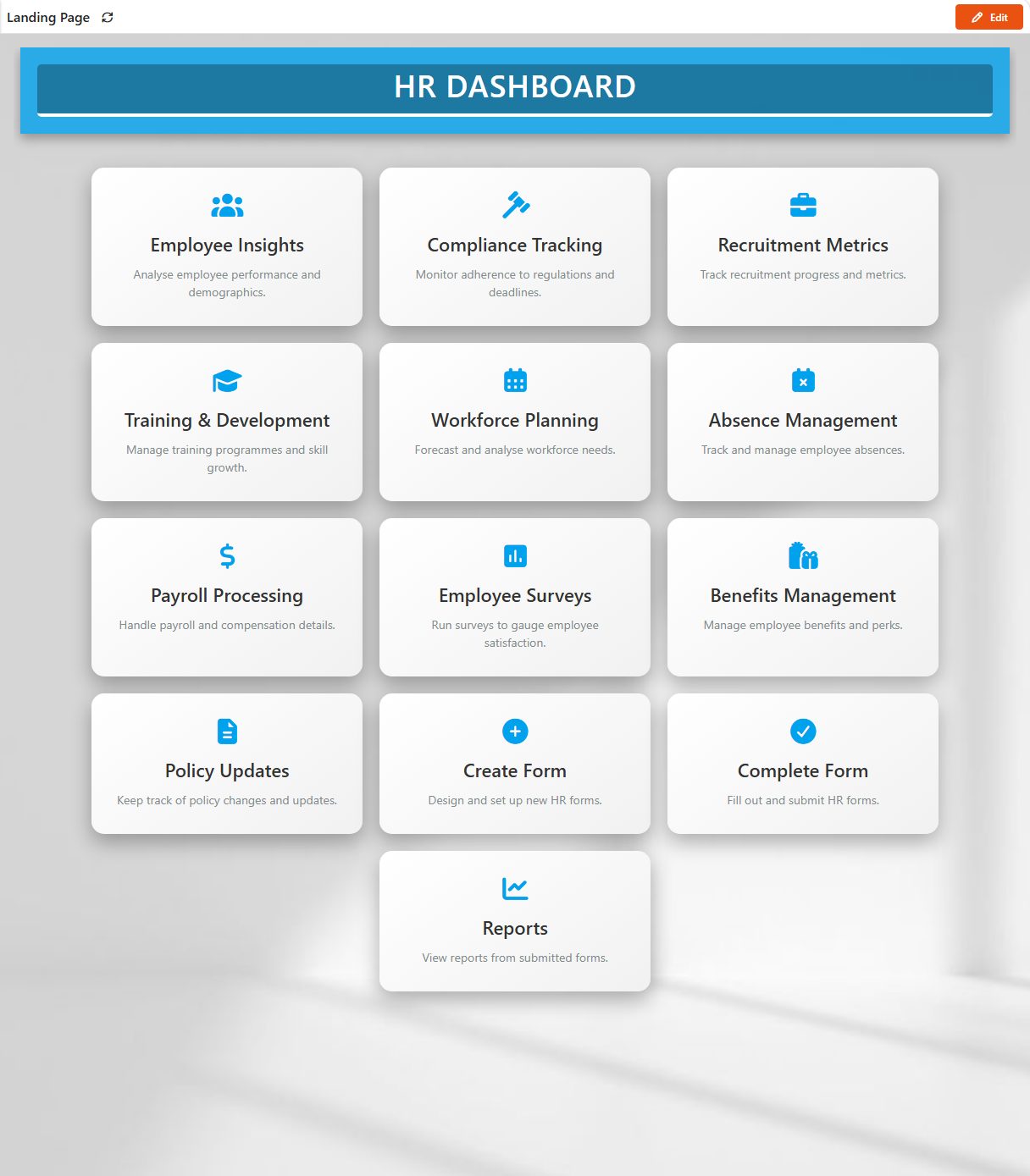
The landing page is what people see when they open Sintel BI. By default it's the Dashboards page. You can make it any dashboard instead, and with a little CSS and HTML you can turn that dashboard into a branded start page with tiles that link to your other dashboards, forms and sites.
Advanced: CSS and HTML
Setting the landing page (the first section) needs no code. Styling it, in the sections after that, is for people comfortable editing CSS and HTML.
Set up the landing page
- Create a dashboard. On the Dashboards page, add a new dashboard. Give it a clear name such as Landing Page and save it.
- Make it the landing page.
- Open Settings at the bottom of the left navigation.
- On the General tab, pick your dashboard in Landing page.
- Click Save in the bar at the bottom of the page.
- Optional: make it the site's home page. If the landing page should also be the SharePoint site's home page, make the Sintel BI page the site's home page. See Configure on a site.
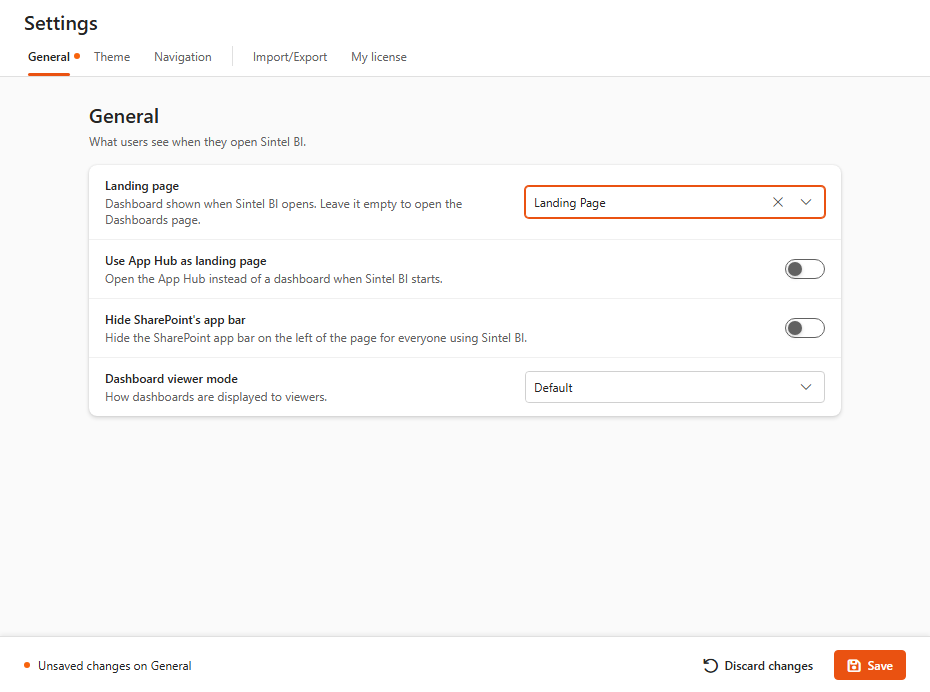
| Setting | What it does |
|---|---|
| Landing page | The dashboard shown when Sintel BI opens. Leave it empty to open the Dashboards page. |
| Use App Hub as landing page | Opens the App Hub instead of a dashboard. While it's on, Landing page isn't used. See App Hub. |
Custom dashboards win
If a custom dashboard (Settings > Custom dashboards) is set as the landing page, it takes priority over both settings. The General tab shows a note when this is the case.
Style the landing page with CSS
- Open your Landing Page dashboard in edit mode.
- Click an empty area of the dashboard, so no widget is selected. The Properties tab on the right shows the dashboard's settings.
- In Look & Feel, find CSS Styles and click Open Advanced Editor.
- Paste your CSS and save the dashboard.
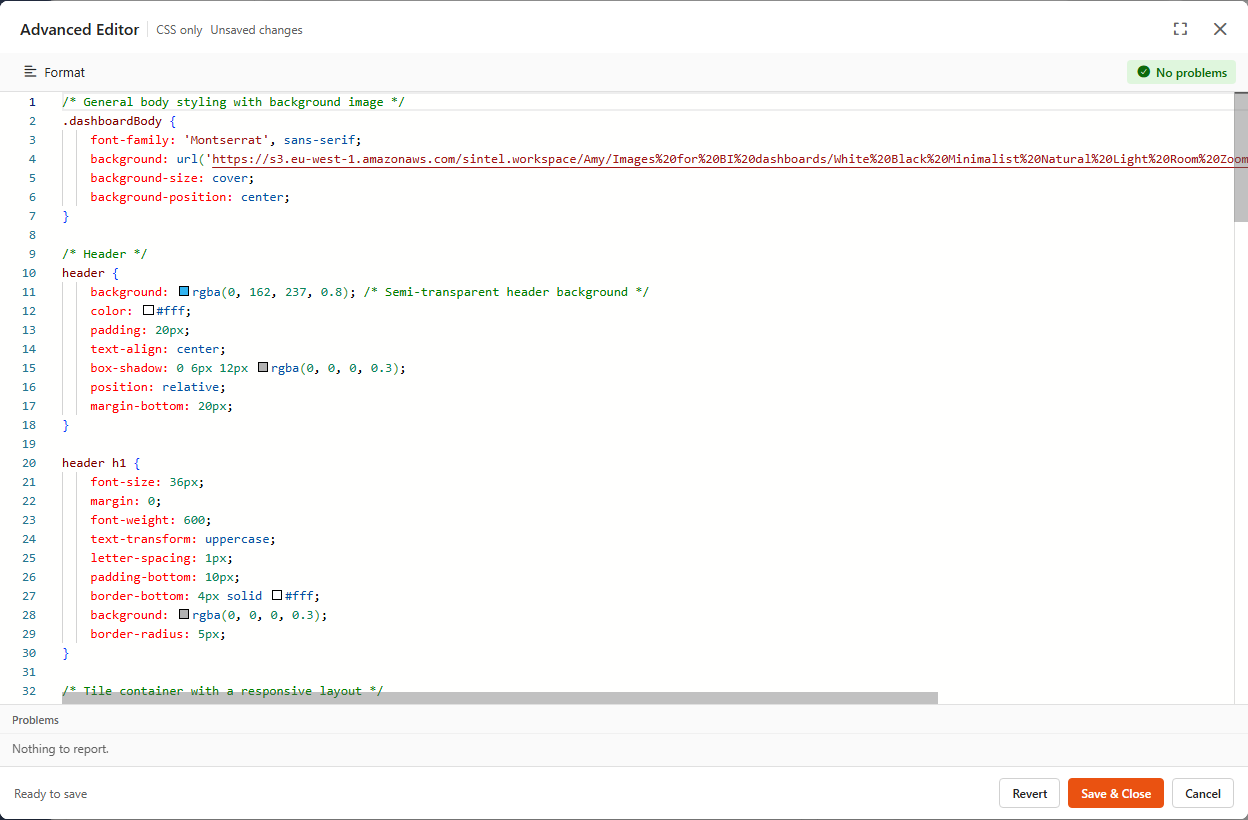
Here's an example. It sets a background image, styles a header and lays out a responsive grid of tiles with hover effects. The last two rules make the widgets transparent, so the background shows through.
Show the example CSS
css
/* General body styling with background image */
.dashboardBody {
    font-family: 'Montserrat', sans-serif;
    background: url('https://s3.eu-west-1.amazonaws.com/sintel.workspace/Amy/Images%20for%20BI%20dashboards/White%20Black%20Minimalist%20Natural%20Light%20Room%20Zoom%20Background.jpg') no-repeat center center fixed;
    background-size: cover;
    background-position: center;
}

/* Header */
header {
    background: rgba(0, 162, 237, 0.8); /* Semi-transparent header background */
    color: #fff;
    padding: 20px;
    text-align: center;
    box-shadow: 0 6px 12px rgba(0, 0, 0, 0.3);
    position: relative;
    margin-bottom: 20px;
}

header h1 {
    font-size: 36px;
    margin: 0;
    font-weight: 600;
    text-transform: uppercase;
    letter-spacing: 1px;
    padding-bottom: 10px;
    border-bottom: 4px solid #fff;
    background: rgba(0, 0, 0, 0.3);
    border-radius: 5px;
}

/* Tile container with a responsive layout */
.tile-container {
    display: flex;
    flex-wrap: wrap;
    gap: 20px;
    justify-content: center;
    padding: 20px;
    position: relative;
    z-index: 1;
}

/* Tiles */
.tile {
    text-align: center;
    width: 260px;
    cursor: pointer;
    padding: 30px;
    border-radius: 15px;
    background: linear-gradient(145deg, #ffffff, #f1f1f1);
    box-shadow: 0 10px 25px rgba(0, 0, 0, 0.3);
    transition: transform 0.6s ease, box-shadow 0.6s ease, background 0.6s ease;
    color: #333;
    font-size: 16px;
    position: relative;
    overflow: hidden;
}

/* Tile hover animation with a gradient effect */
.tile::before {
    content: '';
    position: absolute;
    top: 0;
    left: 0;
    width: 100%;
    height: 100%;
    background: radial-gradient(circle, rgba(255, 255, 255, 0.3), transparent);
    opacity: 0;
    transition: opacity 0.6s ease;
    z-index: 0;
}

.tile:hover::before {
    opacity: 1;
}

.tile:hover {
    transform: translateY(-15px) scale(1.05);
    background: linear-gradient(145deg, #e0e0e0, #ffffff);
    box-shadow: 0 20px 35px rgba(0, 0, 0, 0.35);
}

/* Icons, with a zoom and rotate animation on hover */
.tile .icon {
    font-size: 30px;
    margin-bottom: 15px;
    color: #00a2ed;
    transition: transform 0.4s ease, color 0.4s ease;
    display: inline-block; /* Needed for the transform effects */
}

.tile:hover .icon {
    color: #007bb5;
    transform: scale(1.2) rotate(360deg);
}

/* Tile title and description */
.tile .title {
    font-weight: 600;
    font-size: 22px;
    margin-bottom: 10px;
    color: #333;
    z-index: 1;
}

.tile .description {
    font-size: 14px;
    color: #7f8c8d;
    line-height: 1.5;
    z-index: 1;
}

/* Links inside tiles */
.tileLink {
    text-decoration: none;
    color: inherit;
    position: relative;
    display: flex;
    flex-direction: column;
    align-items: center;
}

/* Smaller screens */
@media screen and (max-width: 768px) {
    .tile-container {
        flex-direction: column;
        align-items: center;
    }

    .tile {
        width: 90%;
        max-width: 360px;
        margin: 10px 0;
    }

    header h1 {
        font-size: 28px;
    }
}

/* Transparent widgets, so the background image shows through */
[componentid] {
    background-color: transparent !important;
    box-shadow: none !important;
}

.dashboardComponent {
    background-color: transparent !important;
}
Add the content with HTML
- Drag a Text widget onto the dashboard and make it as large as the content needs.
- In the text editor, click the
</>button to switch to code view. - Paste your HTML, then save the dashboard.
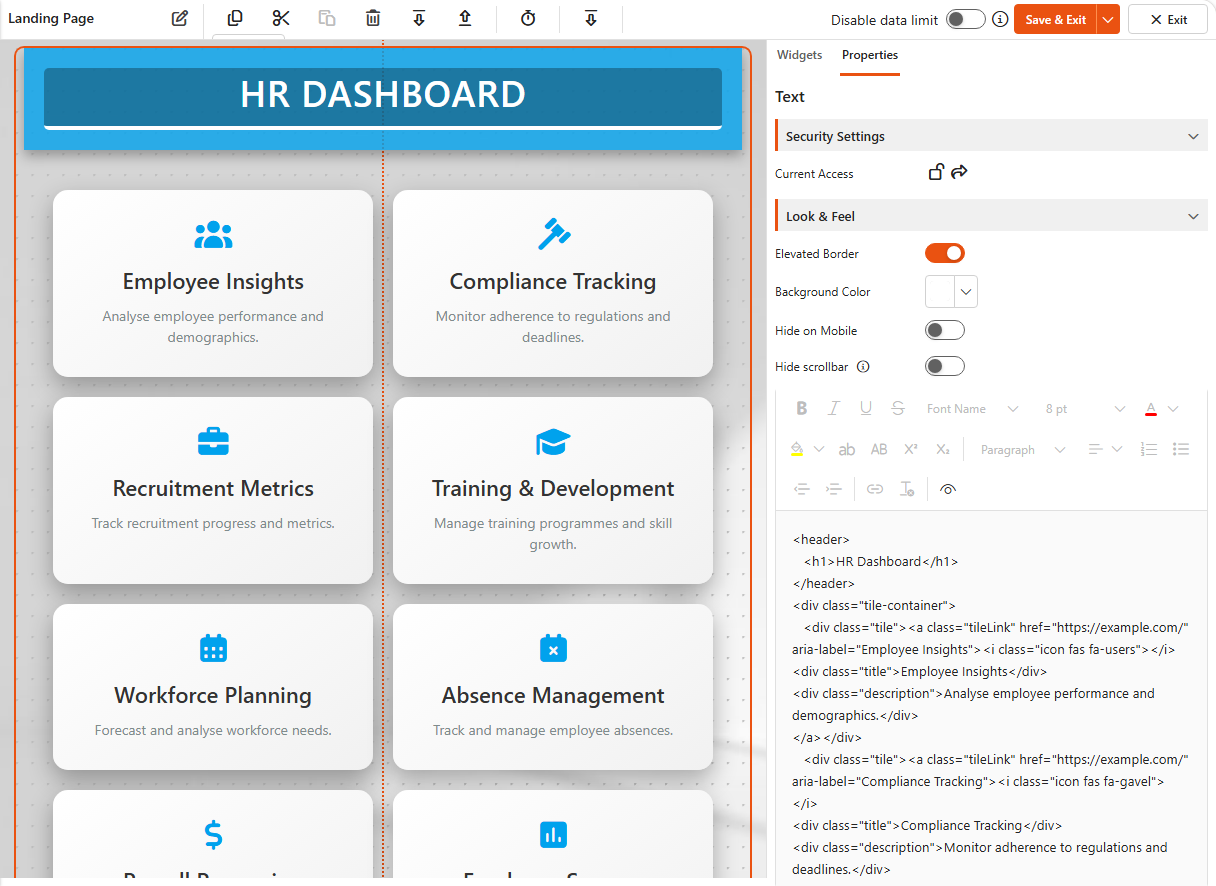
This HTML matches the CSS above. Each tile is a link: replace the href values with the addresses of your own dashboards, forms or sites.
Show the example HTML
html
<header>
<h1>HR Dashboard</h1>
</header>
<div class="tile-container">
<div class="tile">
<a class="tileLink" href="https://example.com/" aria-label="Employee Insights">
<i class="icon fas fa-users"></i>
<div class="title">Employee Insights</div>
<div class="description">Analyse employee performance and demographics.</div>
</a>
</div>
<div class="tile">
<a class="tileLink" href="https://example.com/" aria-label="Compliance Tracking">
<i class="icon fas fa-gavel"></i>
<div class="title">Compliance Tracking</div>
<div class="description">Monitor adherence to regulations and deadlines.</div>
</a>
</div>
<div class="tile">
<a class="tileLink" href="https://example.com/" aria-label="Recruitment Metrics">
<i class="icon fas fa-briefcase"></i>
<div class="title">Recruitment Metrics</div>
<div class="description">Track recruitment progress and metrics.</div>
</a>
</div>
<div class="tile">
<a class="tileLink" href="https://example.com/" aria-label="Training and Development">
<i class="icon fas fa-graduation-cap"></i>
<div class="title">Training & Development</div>
<div class="description">Manage training programmes and skill growth.</div>
</a>
</div>
<div class="tile">
<a class="tileLink" href="https://example.com/" aria-label="Workforce Planning">
<i class="icon fas fa-calendar-alt"></i>
<div class="title">Workforce Planning</div>
<div class="description">Forecast and analyse workforce needs.</div>
</a>
</div>
<div class="tile">
<a class="tileLink" href="https://example.com/" aria-label="Absence Management">
<i class="icon fas fa-calendar-times"></i>
<div class="title">Absence Management</div>
<div class="description">Track and manage employee absences.</div>
</a>
</div>
<div class="tile">
<a class="tileLink" href="https://example.com/" aria-label="Payroll Processing">
<i class="icon fas fa-dollar-sign"></i>
<div class="title">Payroll Processing</div>
<div class="description">Handle payroll and compensation details.</div>
</a>
</div>
<div class="tile">
<a class="tileLink" href="https://example.com/" aria-label="Employee Surveys">
<i class="icon fas fa-poll"></i>
<div class="title">Employee Surveys</div>
<div class="description">Run surveys to gauge employee satisfaction.</div>
</a>
</div>
<div class="tile">
<a class="tileLink" href="https://example.com/" aria-label="Benefits Management">
<i class="icon fas fa-gifts"></i>
<div class="title">Benefits Management</div>
<div class="description">Manage employee benefits and perks.</div>
</a>
</div>
<div class="tile">
<a class="tileLink" href="https://example.com/" aria-label="Policy Updates">
<i class="icon fas fa-file-alt"></i>
<div class="title">Policy Updates</div>
<div class="description">Keep track of policy changes and updates.</div>
</a>
</div>
<div class="tile">
<a class="tileLink" href="https://example.com/" aria-label="Create Form">
<i class="icon fas fa-plus-circle"></i>
<div class="title">Create Form</div>
<div class="description">Design and set up new HR forms.</div>
</a>
</div>
<div class="tile">
<a class="tileLink" href="https://example.com/" aria-label="Complete Form">
<i class="icon fas fa-check-circle"></i>
<div class="title">Complete Form</div>
<div class="description">Fill out and submit HR forms.</div>
</a>
</div>
<div class="tile">
<a class="tileLink" href="https://example.com/" aria-label="Reports">
<i class="icon fas fa-chart-line"></i>
<div class="title">Reports</div>
<div class="description">View reports from submitted forms.</div>
</a>
</div>
</div>Custom HTML widget
For larger pages, the Custom HTML widget is an alternative to the Text widget.
Another example: project management
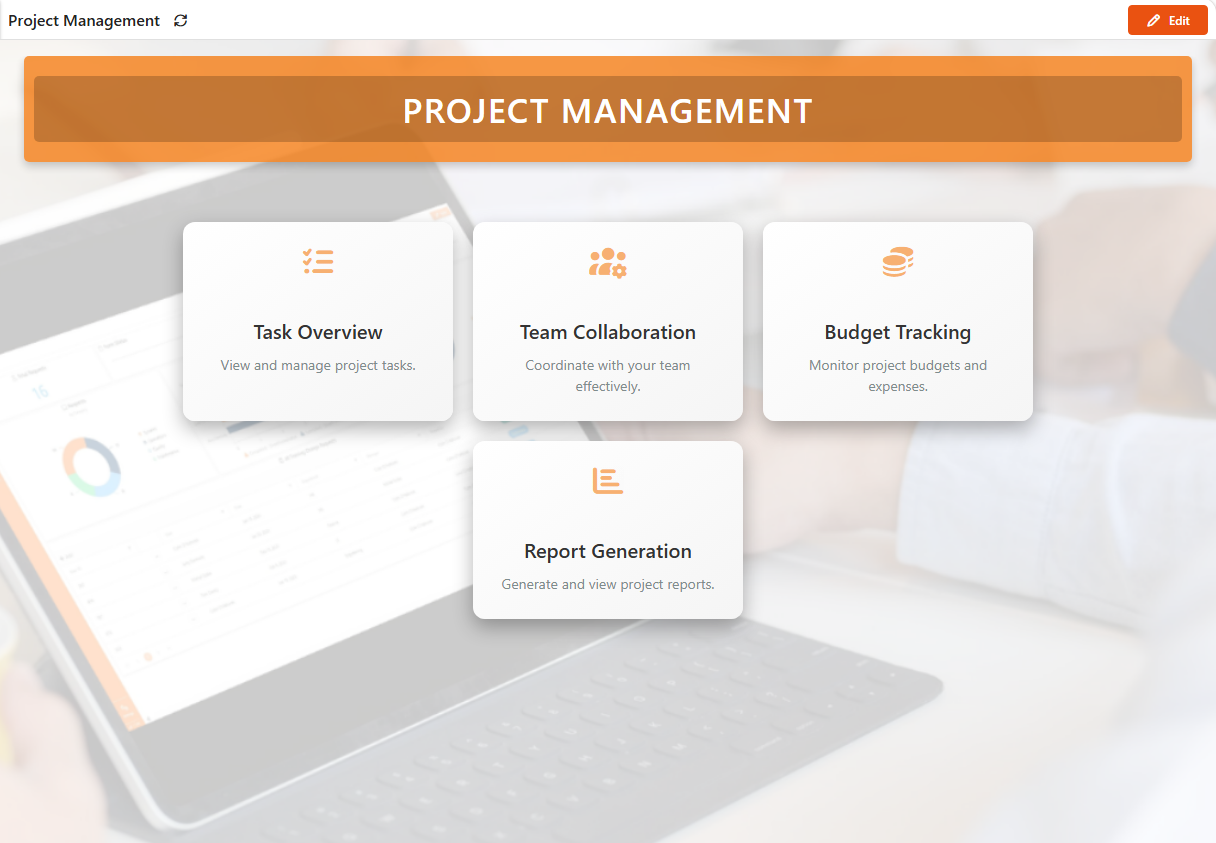
This version uses an orange theme, slightly smaller tiles and icons that fade in on hover.
Show the CSS
css
/* General body styling with background image */
.dashboardBody {
    font-family: 'Montserrat', sans-serif;
    background: url('https://s3.eu-west-1.amazonaws.com/sintel.workspace/Amy/Images%20for%20BI%20dashboards/Dashboard%20background.png') no-repeat center center fixed;
    background-size: cover;
    background-position: center;
    color: #333;
}

/* Minimalist header */
header {
    background: rgba(245, 127, 23, 0.8); /* Semi-transparent header in the theme colour */
    color: #fff;
    padding: 20px 10px;
    text-align: center;
    box-shadow: 0 4px 8px rgba(0, 0, 0, 0.2);
    border-radius: 5px;
    margin-bottom: 40px;
}

header h1 {
    font-size: 34px;
    font-weight: 600;
    text-transform: uppercase;
    letter-spacing: 1.5px;
    margin: 0;
    background: rgba(0, 0, 0, 0.2);
    padding: 10px 15px;
    border-radius: 5px;
}

/* Tile container with a responsive layout */
.tile-container {
    display: flex;
    flex-wrap: wrap;
    gap: 20px;
    justify-content: center;
    padding: 20px;
    position: relative;
    z-index: 1;
}

/* Tiles */
.tile {
    text-align: center;
    width: 220px;
    cursor: pointer;
    padding: 25px;
    border-radius: 12px;
    background: linear-gradient(145deg, #ffffff, #f5f5f5);
    box-shadow: 0 8px 20px rgba(0, 0, 0, 0.3);
    transition: transform 0.5s ease, box-shadow 0.5s ease, background 0.5s ease;
    color: #333;
    font-size: 16px;
    position: relative;
    overflow: hidden;
}

/* Tile hover animation with a gradient effect */
.tile::before {
    content: '';
    position: absolute;
    top: 0;
    left: 0;
    width: 100%;
    height: 100%;
    background: radial-gradient(circle, rgba(255, 255, 255, 0.3), transparent);
    opacity: 0;
    transition: opacity 0.5s ease;
    z-index: 0;
}

.tile:hover::before {
    opacity: 1;
}

.tile:hover {
    transform: translateY(-12px) scale(1.04);
    background: linear-gradient(145deg, #f5f5f5, #ffffff);
    box-shadow: 0 16px 30px rgba(0, 0, 0, 0.35);
}

/* Icons, faded until hover */
.icon-wrapper {
    width: 50px;
    height: 50px;
    margin-bottom: 20px;
    display: inline-block;
    opacity: 0.6;
    transition: opacity 0.4s ease, transform 0.4s ease;
}

.tile:hover .icon-wrapper {
    opacity: 1;
    transform: translateY(-10px);
}

.tile .icon {
    font-size: 30px;
    color: #f57f17;
}

/* Tile title and description */
.tile .title {
    font-weight: 600;
    font-size: 20px;
    margin-bottom: 10px;
    color: #333;
    z-index: 1;
}

.tile .description {
    font-size: 14px;
    color: #7f8c8d;
    line-height: 1.5;
    z-index: 1;
}

/* Links inside tiles */
.tileLink {
    text-decoration: none;
    color: inherit;
    position: relative;
    display: flex;
    flex-direction: column;
    align-items: center;
}

/* Smaller screens */
@media screen and (max-width: 768px) {
    .tile-container {
        flex-direction: column;
        align-items: center;
    }

    .tile {
        width: 90%;
        max-width: 340px;
        margin: 15px 0;
    }

    header h1 {
        font-size: 28px;
    }
}

/* Transparent widgets, so the background image shows through */
[componentid] {
    background-color: transparent !important;
    box-shadow: none !important;
}

.dashboardComponent {
    background-color: transparent !important;
}
Show the HTML
html
<header>
    <h1>Project Management</h1>
</header>
<div class="tile-container">
    <div class="tile">
        <a class="tileLink" href="https://example.com/" aria-label="Task Overview">
            <div class="icon-wrapper">
                <i class="icon fas fa-tasks"></i>
            </div>
            <div class="title">Task Overview</div>
            <div class="description">View and manage project tasks.</div>
        </a>
    </div>
    <div class="tile">
        <a class="tileLink" href="https://example.com/" aria-label="Team Collaboration">
            <div class="icon-wrapper">
                <i class="icon fas fa-users-cog"></i>
            </div>
            <div class="title">Team Collaboration</div>
            <div class="description">Coordinate with your team effectively.</div>
        </a>
    </div>
    <div class="tile">
        <a class="tileLink" href="https://example.com/" aria-label="Budget Tracking">
            <div class="icon-wrapper">
                <i class="icon fas fa-coins"></i>
            </div>
            <div class="title">Budget Tracking</div>
            <div class="description">Monitor project budgets and expenses.</div>
        </a>
    </div>
    <div class="tile">
        <a class="tileLink" href="https://example.com/" aria-label="Report Generation">
            <div class="icon-wrapper">
                <i class="icon fas fa-chart-bar"></i>
            </div>
            <div class="title">Report Generation</div>
            <div class="description">Generate and view project reports.</div>
        </a>
    </div>
</div>
Tips
- Background image: replace the URL in the
.dashboardBodyrule with the address of your own image. - Colours: change the
background,colorandbox-shadowvalues. For example, changergba(0, 162, 237, 0.8)in theheaderrule to your brand colour. - Icons: swap the icon classes in the HTML for any other icon. Font Awesome icons and inline SVGs both work well.
- Tile effects: experiment with the
transform,box-shadowandbackgroundvalues in the.tile:hoverrule.