Appearance
RAG area chart
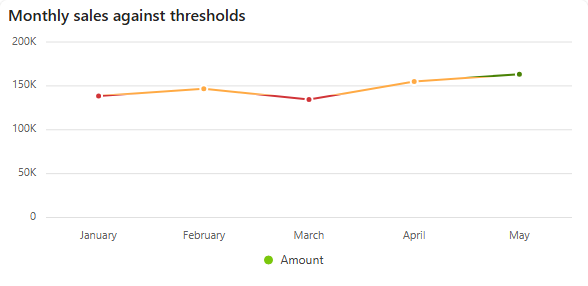
A RAG chart shows how well something is doing with traffic-light colours: red for problems, amber for "at risk", green for "going well". A RAG area chart fills the area under the line in the colour of the band its values fall into. Sintel BI also has a RAG line chart, which colours just the line.
You can use a single traffic-light colour to show the overall status of a project, or follow it over time. The RAG system is common in projects, for budget, quality, resources, performance and timelines, and tells senior management at a glance whether help or intervention is needed.
What each colour means
- Red: significant issues. One area such as budget, scope or time has gone beyond the tolerance agreed at the start. The matter needs to be escalated to senior management straight away.
- Amber: a problem is affecting performance, or the project is at risk. The project team and project manager can usually deal with it, although it can be worth making senior management aware.
- Green: everything is working as expected and performance is as planned. No action is needed.
Add a RAG area chart
- In the designer, open the Charts tab of the Widgets pane and drag RAG Area Chart onto the dashboard. Resize it as required.
- On the Assign Data tab, pick the Data source, add the number to track to Values and the time field to Category.
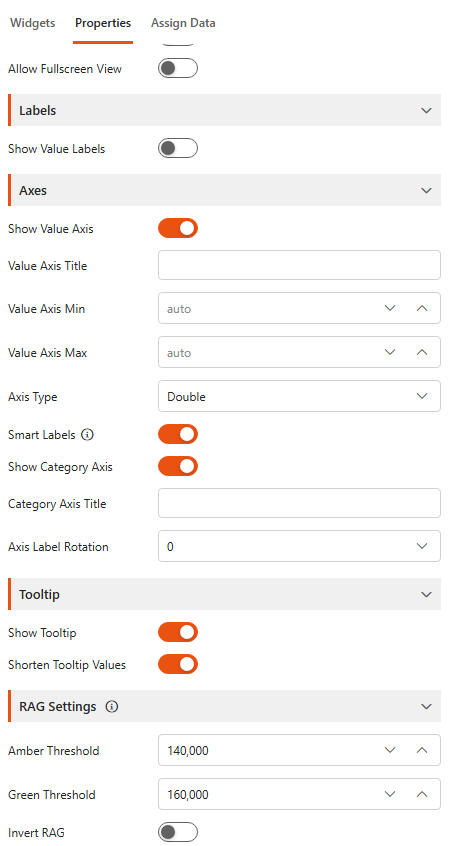
- On the Properties tab, scroll to RAG Settings and enter the thresholds.
- Name the chart and adjust its look, then save the dashboard.
The other settings are described in Common chart settings.
RAG Settings
| Setting | What it does |
|---|---|
| Amber Threshold | Where amber starts. Values up to this number are red. |
| Green Threshold | Where green starts. Values between the two thresholds are amber, values above this number are green. |
| Amber Threshold Field / Green Threshold Field | Take the threshold from an aggregated field of the data source instead of a fixed number. Shown only when the data source has aggregated fields. |
| Invert RAG | For measures where lower is better. Low values become green and high values red, and Green Threshold is renamed Red Threshold. |
The area is coloured only when both thresholds are set. See the RAG line chart for a worked example.