

Appearance
Line chart
A line chart (or line graph) shows how a value changes over time. For example, a finance department can plot revenue month by month, or Human Resources can track employee satisfaction.
A line chart has a horizontal category axis, for example days, weeks, quarters or years, and a vertical value axis, for example revenue in euros. The data points are plotted and joined by a line, dot to dot.
Line charts suit marketing, finance and any other area where you follow one number against another. With two or more lines on the same chart, you can compare them, for example the populations of several animals over the year.
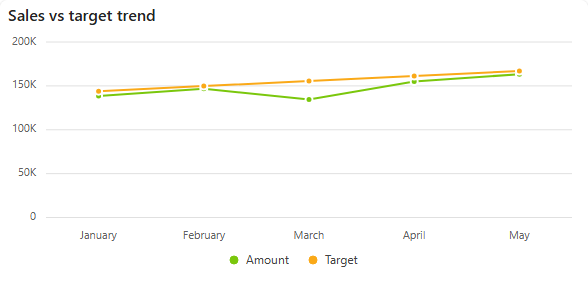
Add a line chart
- In the designer, open the Charts tab of the Widgets pane and drag Line Chart onto the dashboard. Resize it as required.
- On the Assign Data tab, pick the Data source.
- Add the number to plot to Values and the time field to Category (for a date field, pick the grouping, for example Month).
- To draw one line per group, add a field to Series, or add several values to Values.
- Name the chart and adjust its look on the Properties tab, then save the dashboard.
Every setting is described in Common chart settings.
Related line types
To show changes that happen at specific points, use a step line chart. For a smoothed curve, use a spline chart. To colour the line by performance, use a RAG line chart.