

Appearance
Components guide
A dashboard is built from components (also called widgets): charts, grids, filters, cards, text and more. You place them on the dashboard with drag and drop, then set each one up in the settings pane.
Add a component to a dashboard
- Open the dashboard and click Edit in its top bar, see Change an existing dashboard. The dashboard opens in the designer.
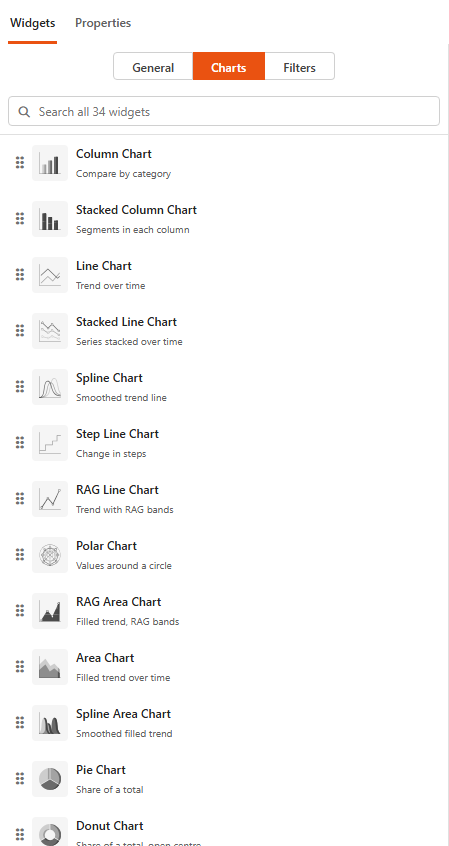
- In the Widgets pane on the left, pick a category tab: General, Charts or Filters. The number on each tab is how many widgets it holds. To find a widget by name, type it in the search box above the list instead.
- Drag the widget by its row onto the dashboard canvas and drop it where you want it.
- Resize it by dragging its edges or corners.
- Click the component to select it. Its settings open in the settings pane on the right.
Data comes first
Most components show data from a data source. Create the data source before you add the component, see Data sources. You can also create one from the component's Assign Data tab.
The settings pane
The settings pane has two tabs for the selected component.
| Tab | What it does |
|---|---|
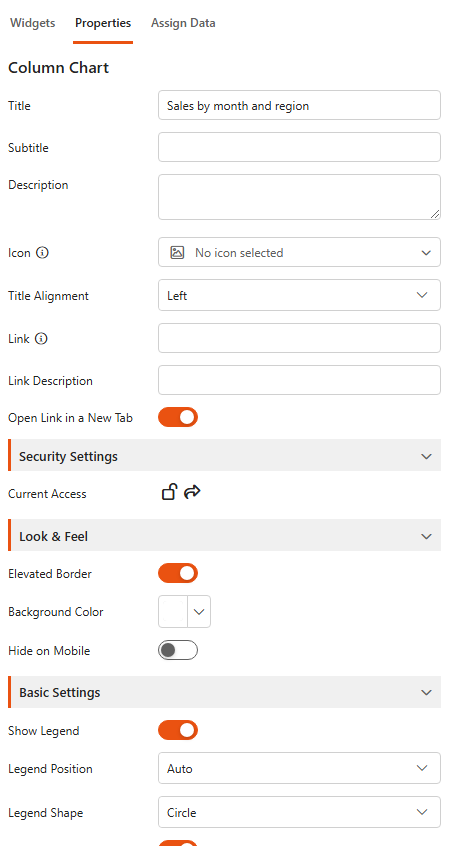
| Properties | How the component looks: title, subtitle, description, icon, link, access, look and feel, then the settings specific to that component type (legend, labels, axes, colours and so on). The name of the selected component is shown at the top. |
| Assign Data | Which data the component shows. Pick a Data source, then fill the component's field slots (for a chart: Values, Category and Series). More settings at the bottom opens sidebars for sorting, Top N, series colours, connections and similar options. |
When no component is selected, the Properties tab shows the settings of the dashboard itself.
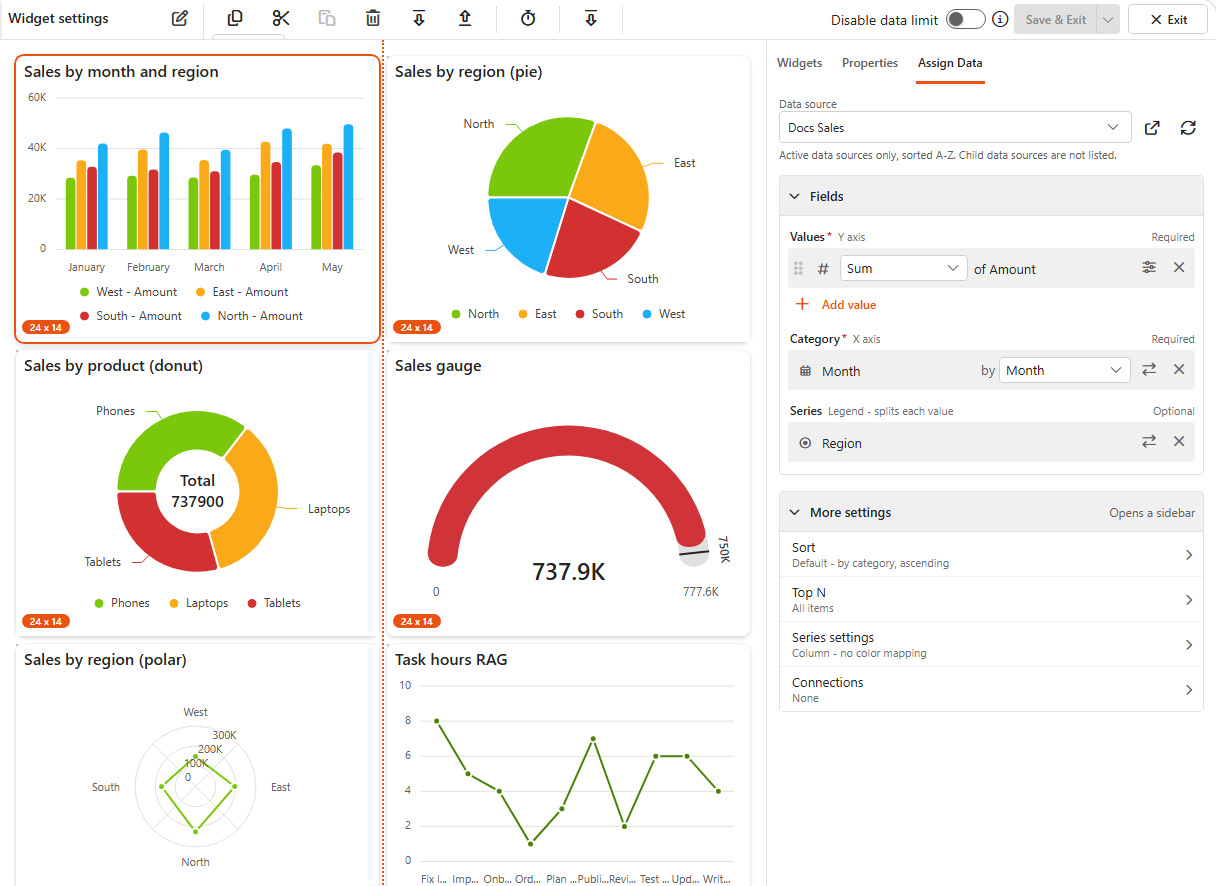
On a narrow screen, the Widgets pane moves into the settings pane as a third tab, Widgets.
Common settings
The settings at the top of the Properties tab are the same for most components. Each component's own page describes only the settings that follow them. The settings shared by all charts are in Common chart settings.
Title, description and link
| Setting | What it does |
|---|---|
| Title | The name shown at the top of the component. |
| Subtitle | A second line under the title. |
| Description | Extra information shown as a tooltip, without taking space on the dashboard. |
| Icon | An icon shown next to the title. Sintel BI includes Font Awesome; the info icon links to the list of available icons. |
| Title Alignment | Left, Center or Right. |
| Link | If set, a clickable link icon appears next to the title. |
| Link Description | The tooltip of the link icon. |
| Open Link in a New Tab | Opens the link in a new browser tab. |
Security Settings
Current Access shows who can see the component: private (administrators only), available to everyone, or shared with specific people and groups. Manage access opens the sharing settings.
Look & Feel
| Setting | What it does |
|---|---|
| Elevated Border | Shows a raised border around the component. Available only when Elevated Border is turned on in the dashboard's settings. |
| Background Color | The component's background colour. Pick one, or paste a HEX code to match your brand. |
| Hide on Mobile | Hides the component on mobile devices. |
Save your work
Changes are not saved until you save the dashboard. Use the Save & Exit button in the designer's top bar: its main part saves and leaves the designer, and its drop-down offers Save to save and keep editing. Exit leaves the designer.
The top bar also lets you copy, cut, paste and delete the selected component, and move components up or down the dashboard.
All components
The list follows the Widgets pane: the General, Charts and Filters tabs, in the same order.
General
| Component | What it does |
|---|---|
| Grid | Organise data in a table format with rows and columns. |
| Pivot grid | Display summarised data in a pivot format, allowing multi-dimensional analysis. |
| Text | Add text content to the dashboard. |
| Summary card | Display a key metric or figure in a simple card format. |
| Smart card | Display dynamic metrics with text. |
| Image | Insert an image into the dashboard for visual representation or branding. |
| Map | Visualise data geographically on an interactive map. |
| Scheduler | Allow scheduling and viewing of events or tasks. |
| Gantt | Visualise tasks across time with start and finish dates. Page coming soon. |
| Kanban board | Display tasks or items in a visual workflow using boards and cards. |
| Card | Customisable elements that display key data points in a concise, visually appealing format. |
| Custom HTML | Embed custom HTML code for advanced content or design. |
| Button | Add one or more buttons. |
Charts
| Component | What it does |
|---|---|
| Column chart | Display data using vertical bars for comparison. |
| Stacked column chart | Show data as stacked vertical bars, allowing for segmented analysis. |
| Line chart | Visualise trends over time with data points connected by a line. |
| Stacked line chart | Display multiple data series stacked on top of each other in a line chart. |
| Spline chart | A smoothed line chart that emphasises the curve of data trends. |
| Step line chart | Display data changes at distinct steps over time, rather than a continuous line. |
| RAG line chart | A line chart using Red-Amber-Green (RAG) colouring for performance analysis. |
| Polar chart | Display data in circular format with values spread out radially. |
| RAG area chart | An area chart that uses Red-Amber-Green (RAG) colouring to represent performance. |
| Area chart | Fill the area beneath the line to show the magnitude of values over time. |
| Spline area chart | A smooth version of the area chart, showing trends over time with curves. |
| Pie chart | Visualise data as segments of a circle, representing parts of a whole. |
| Donut chart | A variation of the pie chart with a hole in the centre. |
| Pyramid chart | Represent data in a pyramid shape, often used for hierarchical structures. |
| Gauge | Display a single metric within a gauge, showing progress toward a target. |
Filters
| Component | What it does |
|---|---|
| Dropdown filter | Allow users to filter data by selecting from a dropdown menu. |
| Date range filter | Enables filtering data based on a specific range of dates. Page coming soon. |
| Date filter | Enables filtering data based on a specific date. |
| User filter | Filters data according to user-specific selections or roles. |
| Multi-source dropdown filter | Filters data across multiple sources with a single dropdown selector. |
For how the filters work together, see the Filtering guide.