

Appearance
Multi-source dropdown filter
The Multi-Source Dropdown Filter is a dropdown whose values come from columns of several data sources. One selection filters components on all of them, so viewers can refine several views of the data at once.
For example, a Region filter can take its values from the Region column of a Sales data source and of a Projects data source, and filter the grids and charts of both.
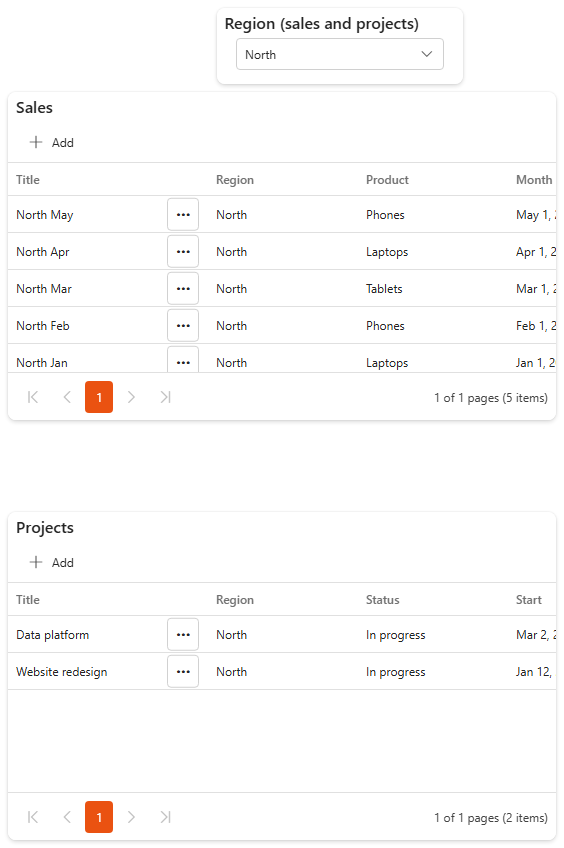
Add a multi-source dropdown filter
- Make sure the data sources exist and are used by components on the dashboard.
- Open the dashboard in edit mode.
- In the Widgets pane, open the Filters tab and drag Multi-Source Dropdown Filter onto the dashboard. Resize it.
- Select the filter and set its properties, see Settings.
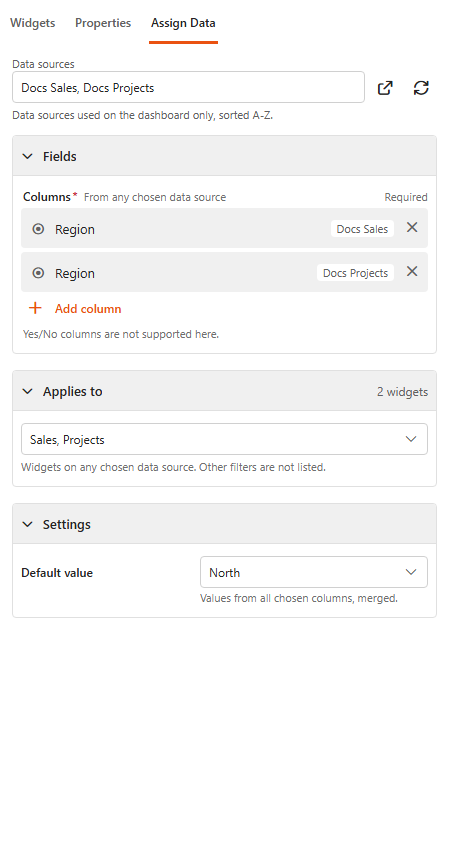
- Open the Assign Data tab. Under Data sources, select every data source that has a column you want to filter by.
- Under Fields > Columns, click Add columns and pick a column from each data source, for example Region from Sales and Region from Support tickets. Text, number, choice, lookup and person fields can be used, but not Yes/No fields.
- Under Applies to, choose the components the filter affects. Components on any of the chosen data sources are listed.
- Optionally, set a Default value. The list shows the values of all chosen columns, merged. MS SQL data sources don't contribute default values.
- Click Save & Exit.
TIP
The chosen columns should hold the same kind of values, spelt the same way. North in one data source and Northern in the other show up as two separate options.
Settings
The Properties tab has the common settings:
| Setting | What it does |
|---|---|
| Title | A descriptive title, for example Select region. |
| Subtitle | Optional extra context, for example Filter by geographical area. |
| Description | Longer text shown as a tooltip, for example Choose a region to view sales and support data. |
| Icon | An icon that shows the filter's purpose. |
| Title Alignment | Left, centre or right. |
Basic Settings
| Setting | What it does |
|---|---|
| Label | Text shown above the dropdown, for example Region. |
| Read Only | Viewers see the selection but can't change it. |
| Hidden | Hides the filter on the dashboard. Its default value still filters the components. |
Benefits
- A better experience for viewers: they find the insight they're looking for without being overwhelmed by too much information at once.
- Efficient analysis: columns from several data sources work as one filter.
- Dynamic visualisation: every linked chart, table or other component updates as soon as the selection changes.
- Central control: one filter for related data, instead of one filter per data source.
- Customisation: labels, icons and default values adapt the filter to the dashboard's purpose.
Related
- Filtering guide: which filter to use when.
- Dropdown filter: a dropdown on a single data source, with extra options such as item counts and security trimming.