

Appearance
Data source filter
A data source filter is applied to the data source itself, so only the rows you need are loaded into the dashboard. This is different from the filter components on a dashboard, which filter data that has already been loaded.
Use a data source filter for:
- large data sets: less data is queried, so dashboards load faster,
- sensitive data: users only get the rows meant for them, before the data reaches the dashboard.
Data source filters are available for SharePoint (This Site, This Tenant) and MS SQL data sources.
Open the filter
- Click Data Sources in the left menu.
- Click … on the data source and select Edit.
- Click the filter icon in the top bar. The Filter dialog opens.
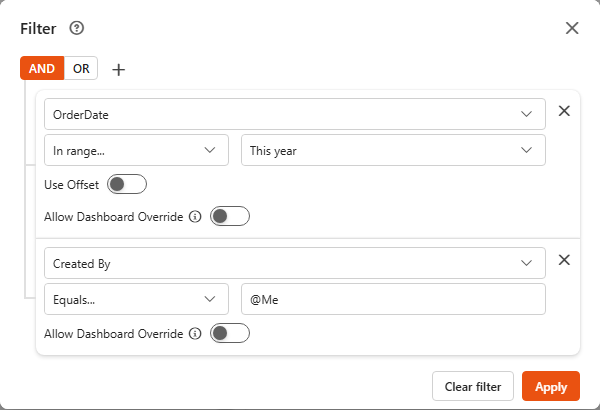
Build the filter
A filter is a group of rules. Each rule compares one field with a value.
| Part | What it does |
|---|---|
| AND / OR | Whether a row must match all rules of the group (AND) or at least one (OR). |
| + | Add rule adds a rule to the group, Add group adds a nested group with its own AND / OR. |
| Field | The field the rule checks. |
| Condition and value | The comparison and the value. The options depend on the field type, see below. |
| Allow Dashboard Override | Lets a dashboard change the rule's value, see Dashboard override. |
| x | Deletes the rule (Delete rule) or the group (Delete group). |
Click Apply to apply the filter, then save the data source. Clear filter removes the whole filter.
A field used in a filter is marked with a filter icon in the designer.
Conditions by field type
| Field type | Conditions |
|---|---|
| Text | Equals, Does not equal, Begins with, Ends with, Contains, Does not contain, Is empty, Is not empty, In |
| Number | Equals, Does not equal, Greater than, Less than, Greater than or Equal to, Less than or Equal to, Between, Not between, Is empty, Is not empty |
| Date | Equals, Before, After, In range, Is empty, Is not empty |
| User | Equals, Belongs to (a SharePoint group) |
| Yes/No, Choice, Lookup | Pick one or more values. For Yes/No, Empty matches rows with no value |
Not every condition is available for every data source type (for example, Belongs to is SharePoint only).
Date values
For Equals, Before and After you choose Specific date (then pick it in the date picker), Today, Tomorrow or Yesterday. For In range you choose Specific dates (from / to) or a period such as Last week, This month, Next quarter or This year.
Switch on Use Offset to move the date by a number of day(s), week(s), month(s), quarter(s) or year(s), for example "Today minus 30 days".
User values
For Equals, type a name in the people picker. Type @Me to mean "the person viewing the dashboard", or @Empty for rows with no user.
Example: filter by date
A data set lists the price of a Big Mac around the world, with the date the price last changed. You only want countries where the price was updated after January 2021.
- Open the data source (… > Edit).
- Click the filter icon.
- Choose Date as the field.
- Choose After....
- Choose Specific date and pick 31 January 2021.
- Click Apply, then Save & Exit.
Example: show users only their own items
A data set holds travel expense requests. You want each user to see only the requests they submitted.
- Open the data source (… > Edit).
- Click the filter icon.
- Choose Requester as the field.
- Choose Equals... and type @Me in the people picker.
- Click Apply, then Save & Exit.
Now each user only sees their own requests on every dashboard that uses this data source.
Save the data source
The filter only takes effect after you save the data source.