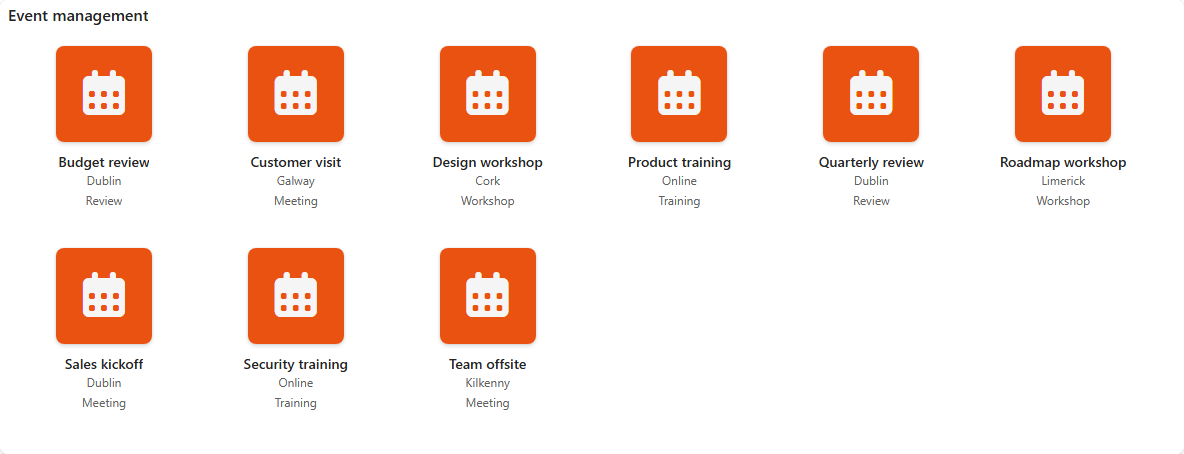
Appearance
Card
The Card component shows each row of a data source as a tile, with a title, an image or icon and up to three lines of text. Use it for directories, catalogues, link hubs and event lists. Viewers can search, filter and favourite the tiles.
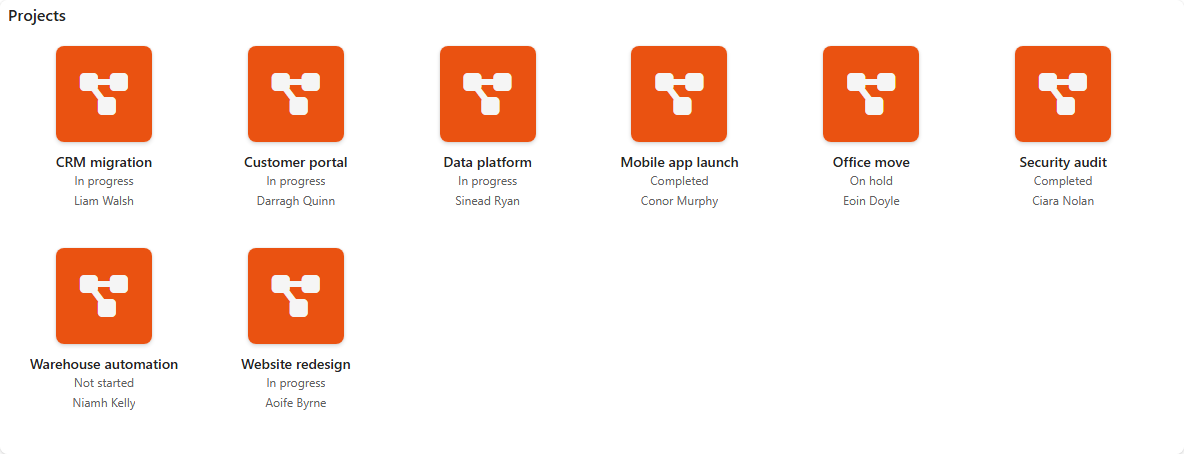
Add a card component
- Create a data source with the items you want to show, for example a SharePoint list.
- Open the dashboard in edit mode.
- In the Widgets pane, open the General tab and drag Card onto the dashboard. Resize it.
- Select the component. On the Properties tab, give it a Title and, if you like, a Subtitle, Description and Icon (see the Common settings).
- Set the card options, such as searching, favourites and the tile size, see Settings.
- Open the Assign Data tab, click Choose data source and pick the data source.
- Assign the fields, see below.
- Click Save & Exit.
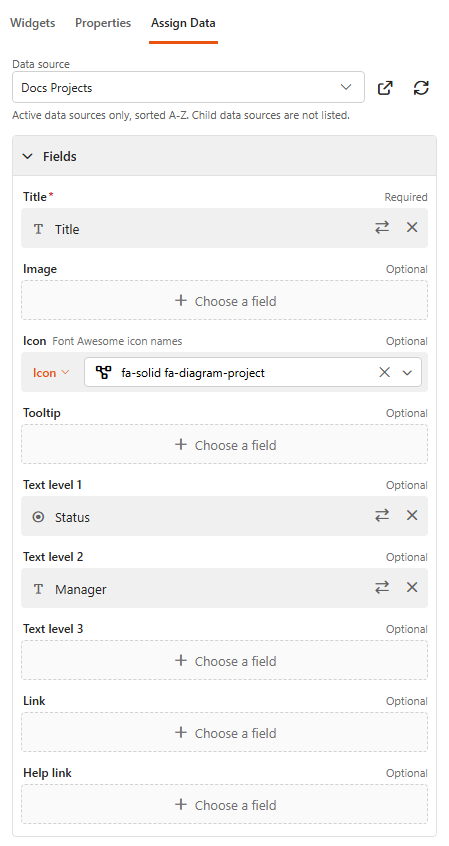
Assign the fields
| Field | What it does |
|---|---|
| Title (required) | The tile's title, for example Product name or Event name. Text, multiple lines of text or choice fields. |
| Image | A hyperlink, picture or text field with the image's URL. |
| Icon | The tile's icon. Switch between Field (a column with Font Awesome icon names, so each tile can have its own icon) and Icon (one icon for every tile). If a tile has an image and an icon, the image is shown. |
| Tooltip | Text shown when the viewer hovers over the tile. For example, add a single line of text column called Tooltip to your list and fill it in for each item. |
| Text level 1, Text level 2, Text level 3 | Up to three lines of text under the title. |
| Link | The page the tile opens when clicked. |
| Help link | A link shown as a help icon on the tile. |
Under More settings > Sort, choose the field the tiles are sorted by and the direction. By default, cards are sorted by the Title column.
Settings
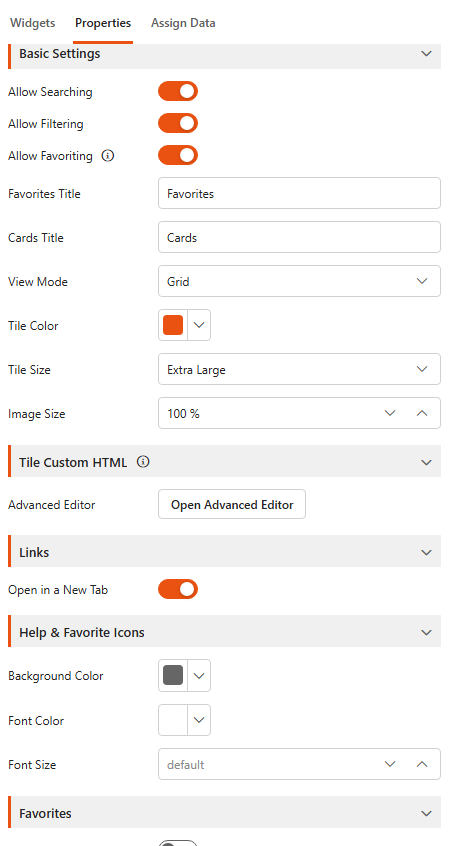
Basic Settings
| Setting | What it does |
|---|---|
| Allow Searching | Adds a search box above the tiles. |
| Allow Filtering | Adds an A to Z bar above the tiles, so viewers can filter them by the first letter of the title. |
| Allow Favoriting | Viewers can mark tiles as favourites, which are shown in their own section. Set the Favorites Title and the Cards Title for the two sections. |
| View Mode | Grid (tiles) or List (rows). |
| Tile Color | The tiles' background colour. |
| Tile Size | Small, Medium, Large, Extra Large or Custom (set the Tile Height, Tile Width and Icon Size). |
| Image Size | The size of the image on the tile, as a percentage (0 to 100%). |
Tile Custom HTML
Available once a data source is selected. Click Open Advanced Editor to design the tile yourself with HTML and CSS. Insert fields as {[FieldName]} tokens, and {webUrl} for the address of the current site. The editor's Templates offer starting points, and the preview shows your tile with real values. See Custom HTML for the editor.
Links
| Setting | What it does |
|---|---|
| Open in a New Tab | Tile links open in a new browser tab. |
Help & Favorite Icons
Background Color, Font Color and Font Size of the help and favourite icons on the tiles.
Favorites
| Setting | What it does |
|---|---|
| Custom Layout | Gives favourite tiles their own layout. Choose the Visible Fields (Title, Image/Icon, Text Level 1 to 3; default all) and the favourites' Tile Size. |
Item Form
Available once a SharePoint list or library is the data source.
| Setting | What it does |
|---|---|
| Open Item In | What happens when a tile is clicked: Don't Open (the tile follows its link instead), New Tab, Current Tab, Dialog, Panel or Custom Form Dialog. |
Landing View
| Setting | What it does |
|---|---|
| Enable Landing View | Hides the tiles behind a search-first welcome screen. It disappears as soon as the viewer searches. |
| Title, Subtitle, Search Placeholder | The texts of the welcome screen. |
| Text Color, Background Color | Its colours. |
| Background Image | A background picture: Image URL and Image Fit (Fill, Fit or Original size). |
| Entrance Animation | None, Fade In, Fade & Rise or Zoom In. |
Example 1: employee directory
Goal: an employee directory with each person's name, role, contact details and profile picture.
Data source: a SharePoint list called Employee Information.
| Column | Type | Description |
|---|---|---|
| Name | Single line of text | Full name of the employee |
| Role | Single line of text | Job title or role |
| Department | Choice | Department the employee belongs to |
| Single line of text | Email address | |
| Phone | Single line of text | Phone number |
| Profile Picture | Hyperlink or Picture | URL of the employee's profile picture |
| Bio | Multiple lines of text | Short biography |
Example data:
| Name | Role | Department | Phone | Profile Picture | Bio | |
|---|---|---|---|---|---|---|
| John Doe | Software Engineer | IT | john.doe@example.com | 555-1234 | https://example.com/images/john_doe.jpg | Experienced software engineer specialising in... |
| Jane Smith | Marketing Manager | Marketing | jane.smith@example.com | 555-5678 | https://example.com/images/jane_smith.jpg | Marketing expert with over 10 years of... |
Properties:
- Title: Employee Directory
- Allow Searching, Allow Filtering, Allow Favoriting: on
- Tile Size: Extra Large
- Image Size: 100%
- Tile Custom HTML: optional, for your own tile layout
Assign Data:
- Data source: Employee Information
- Title: Name
- Image: Profile Picture
- Text level 1: Role
- Text level 2: Email
- Text level 3: Phone
- Link: a link to the employee's full profile, if you have one
Example 2: event management
Goal: upcoming events with their name, date, location and a registration link.
Data source: a SharePoint list called Event Management.
| Column | Type | Description |
|---|---|---|
| Event Name | Single line of text | Name of the event |
| Event Date | Single line of text | Date of the event |
| Location | Single line of text | Where the event takes place |
| Description | Multiple lines of text | Short description of the event |
| Image URL | Hyperlink or Picture | URL of the event image |
| Organiser | Single line of text | Name of the organiser |
| Registration Link | Hyperlink | URL of the registration page |
Example data:
| Event Name | Event Date | Location | Description | Image URL | Organiser | Registration Link |
|---|---|---|---|---|---|---|
| Tech Conference 2024 | 25 June 2024 | San Francisco, CA | Join industry leaders and tech enthusiasts... | https://example.com/images/tech_conference.jpg | John Doe | https://example.com/register/tech2024 |
| Marketing Summit | 15 July 2024 | New York, NY | Discover the latest trends in marketing... | https://example.com/images/marketing_summit.jpg | Jane Smith | https://example.com/register/market24 |
Properties:
- Title: Event Management
- Allow Searching, Allow Filtering, Allow Favoriting: on
- Tile Size: Extra Large
- Image Size: 100%
Assign Data:
- Data source: Event Management
- Title: Event Name
- Image: Image URL
- Text level 1: Event Date
- Text level 2: Location
- Text level 3: Organiser
- Link: Registration Link