

Appearance
Excel
You can use a sheet of an Excel workbook stored in SharePoint as a data source. This page shows how to upload the workbook, get its link and connect it in Sintel BI.
Supported file types are .xlsx, .xls and .csv.
Each user's browser reads the whole file, and Excel data sources can't be filtered, so keep the sheet to the rows your dashboard needs. See Requirements and limits.
Step 1: Upload the workbook to SharePoint
- Open your SharePoint site.
- Select Site contents in the left navigation.
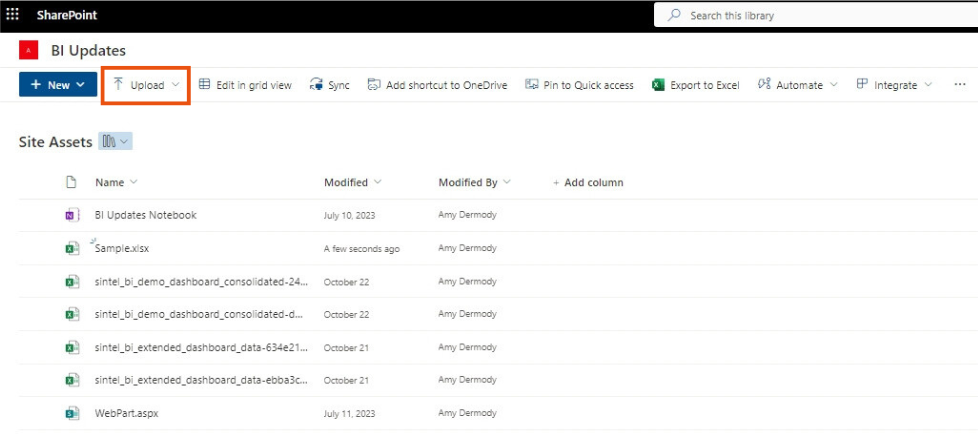
- Open the Site Assets library (or any other document library).
- Click Upload and choose the Excel file.
Step 2: Get the direct link to the file
Sintel BI needs the direct file path, not a share link.
- In the library, click the three dots next to the file (or right-click it) and select Details.
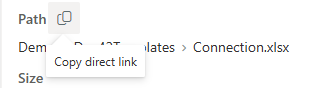
- In the details pane, scroll down to Path.
- Click the copy icon next to Path (Copy direct link).
Share links don't work
Links from Share or Copy link include permission tokens and are not supported. If you paste one, Sintel BI shows a warning and asks for the direct file path instead.
You can skip this step and use Browse in Step 3 to pick the file instead.
Step 3: Create the Excel data source
- Click Data Sources in the left menu.
- Click the Excel tile.
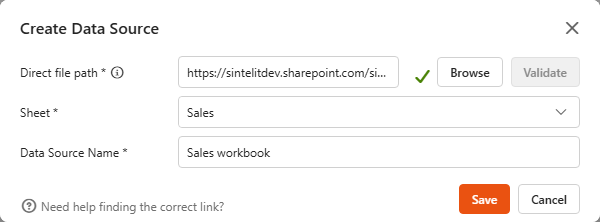
- Paste the link into Direct file path, or click Browse and pick the file.
- Click Validate. A green tick shows that Sintel BI can open the file.
- Choose the Sheet you want to use.
- Enter a Data Source Name.
- Click Save.
Changes you make to the workbook in SharePoint show up in Sintel BI automatically, there's no need to refresh the data source.
Need help?
The Need help finding the correct link? link at the bottom of the dialog opens this guide.
Change the file or sheet later
Open the data source in the designer and click the spreadsheet icon (Update connection string) in the tile header. Enter a new direct file path or pick another sheet, then save the data source.
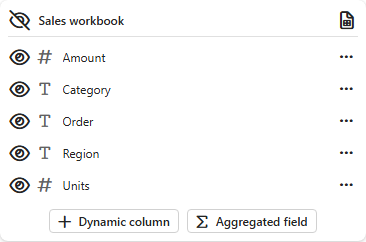
For everything else (renaming fields, hiding fields, the data preview), see Data sources.