

Appearance
App Hub
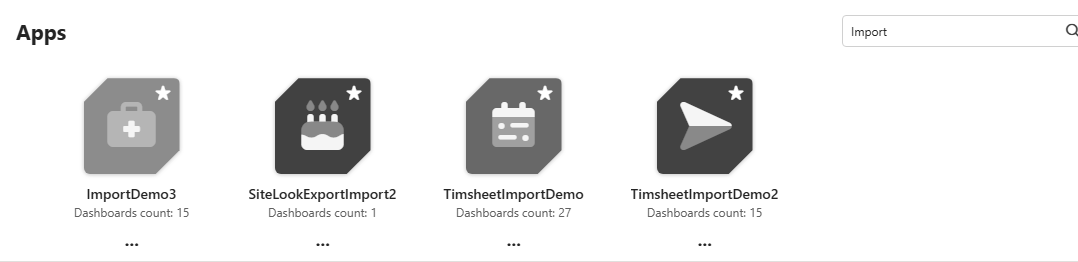
The App Hub is one place to find all the Sintel BI apps in your organisation. It detects every site that uses Sintel BI, and you choose which of them to publish to your users. Each app gets a tile with its own name, colour and icon. Users can search the published apps and add them to their favourites.
Open the App Hub
There are two ways to give people the App Hub:
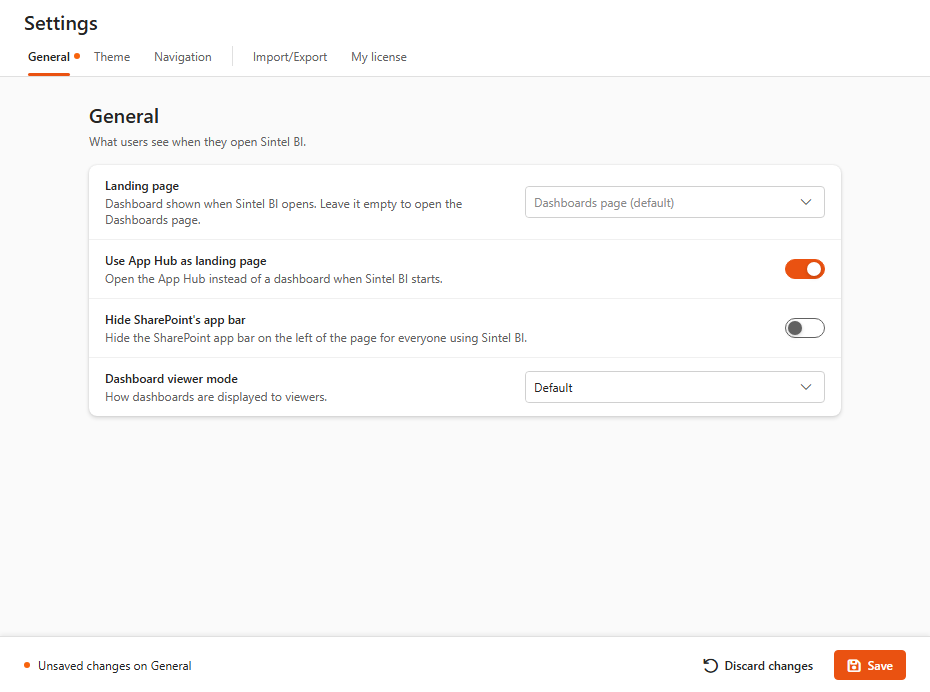
- As the landing page. Open Settings > General and switch on Use App Hub as landing page, then click Save. Sintel BI now opens on the App Hub instead of a dashboard.
- From the navigation. In Settings > Navigation, click Add > System Link and pick App Hub. See Navigation.
Publish apps
- Open the App Hub. With the App Hub as the landing page, click the site name or logo at the top left. You see every site in your organisation that uses Sintel BI. Unpublished apps are greyed out.
- Open the menu (...) on an app's tile and click Publish. Click Unpublish to hide it again.
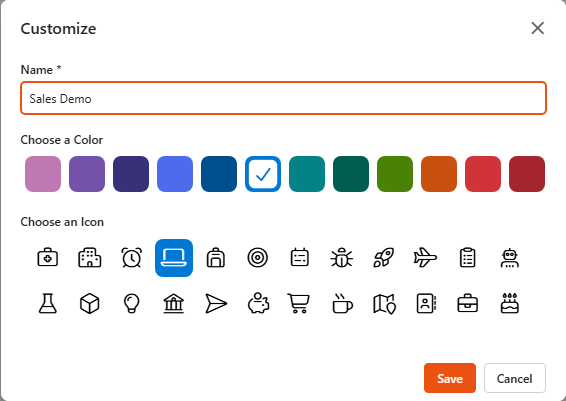
- To change how the tile looks, click Customize in the same menu and set the Name, Choose a Color and the icon. Click Save.
Only site owners can publish and customise apps.
What users see
- Users only see published apps, and only the ones on sites they have access to. Make sure people have permission to the sites and apps you want them to use.
- Search filters the apps by name.
- The star on a tile adds the site to the user's Favorites at the top of the App Hub. These are the same as the sites they follow in SharePoint.
- Each tile shows how many dashboards the app has.